Contact Management
Contact management is a fundamental aspect of using Zoho Books effectively. It involves organizing and maintaining information about your customers (clients) and vendors (suppliers). Proper contact management ensures accurate invoicing, efficient communication, and streamlined financial operations. This section will guide you through the key aspects of contact management within Zoho Books.
Understanding Contacts: Customers and Vendors
Zoho Books categorizes your contacts into two main types:
- Customers: Individuals or businesses to whom you sell goods or services. You’ll create customer records to generate invoices, track payments, and manage customer relationships.
- Vendors: Individuals or businesses from whom you purchase goods or services. You’ll create vendor records to record bills, track payments, and manage your payables.
While both customers and vendors are contacts, distinguishing between them is essential for proper accounting. Transactions involving customers generally relate to revenue, while transactions involving vendors relate to expenses.
There are two ways of adding customers/vendors in Zoho Books:
- Create from Customer and Vendor creation page
- Import Customers/Vendors
Create from Customer and Vendor creation page
To create a new customer:
Go to Sales on the left sidebar and select Customers.Click + New in the top right corner of the page.Select the Customer Type as Business for B2B customers, or Individual for B2C customers.Enter the details of your customer.You can add other details such as their Billing Address and Shipping Address by navigating through the different tabs at the bottom of the page.After entering all the details, click Save.FieldsDescriptionCustomer TypeChoose Business for B2B customers or Individual for B2C customers.GST TreatmentSelect the type of GST treatment you want to associate with the customer.Place of SupplySelect the place of supply of the customer.Tax PreferenceChoose whether the customer is a Taxable or a Tax Exempted customer.CurrencySelect the currency which the customer deals in. This currency will be used in all the customers’ transactions.Opening BalanceEnter the opening balance of the customer (if any).Credit LimitA credit limit can be set for the customer.Payment TermsSelect the due date by which the customer has to make the payment.AddressAdd a shipping and billing address.Contact PersonsAdd contact persons to be associated with the customer.Custom FieldsAssign a default value for the custom fields of the customer.Reporting TagsAssign a default value for the reporting tags of the customer.Note: You can prefill the customer details from the GST portal by entering Customer GSTIN.
To add a new vendor:
Go to Purchases on the left sidebar and select Vendors.Click + New in the top right corner of the page.Enter the details of your vendor.Select the Currency they deal in.You can add other details such as their Billing Address and Shipping Address by navigating through the different tabs at the bottom of the page.After entering all the details, click Save.
Import Customers/Vendors
- Go to Sales on the left sidebar and select Customers (for customers) or go to Purchases on the left sidebar and select Vendors (for vendors)
- Click the More icon in the top right corner of the page then
- Select Import Customers or Import Vendors

- In the pop-up that appears, click Continue.
- Click Choose File and select the file to be imported. You can download a sample file for your reference.
- Click Next.

- Check the mapping of the fields and click Next
- Click Import.

Best Practices for Adding Contacts:
- Complete Information: Provide as much information as possible to create a comprehensive contact record.
- Accurate Email Addresses: Ensure email addresses are correct to avoid bounced emails and communication issues.
- Consistent Naming Conventions: Use a consistent naming convention for contacts to make it easier to search and identify them.
- Use Contact Groups: Utilize contact groups to segment your contacts based on criteria such as location, industry, or relationship type.
Opening Balance for Customers and Vendors
You could be carrying over your customer or vendor balances when you migrate from another accounting application to Zoho Books. If you want to view or update the opening balance you had entered:
- Navigate to Sales in the left sidebar and select Customers, or go to Purchases and select Vendors.
- Select the customer/vendor for whom you want to view or update the opening balance.
- Click View Opening Balance below the Receivables section.
- Enter the new opening balance and click Save.

Write Off Customer’s Opening Balance
You can also write off a customer’s opening balance from the customer’s Details page. Here’s how:Go to Sales on the left sidebar and select Customers.Select the customer for whom you want to write off the opening balance.In the Details page, click View Opening Balance below the Receivables table.In the Opening Balance pop-up, click Write Off next to the Outstanding Opening Balance amount.
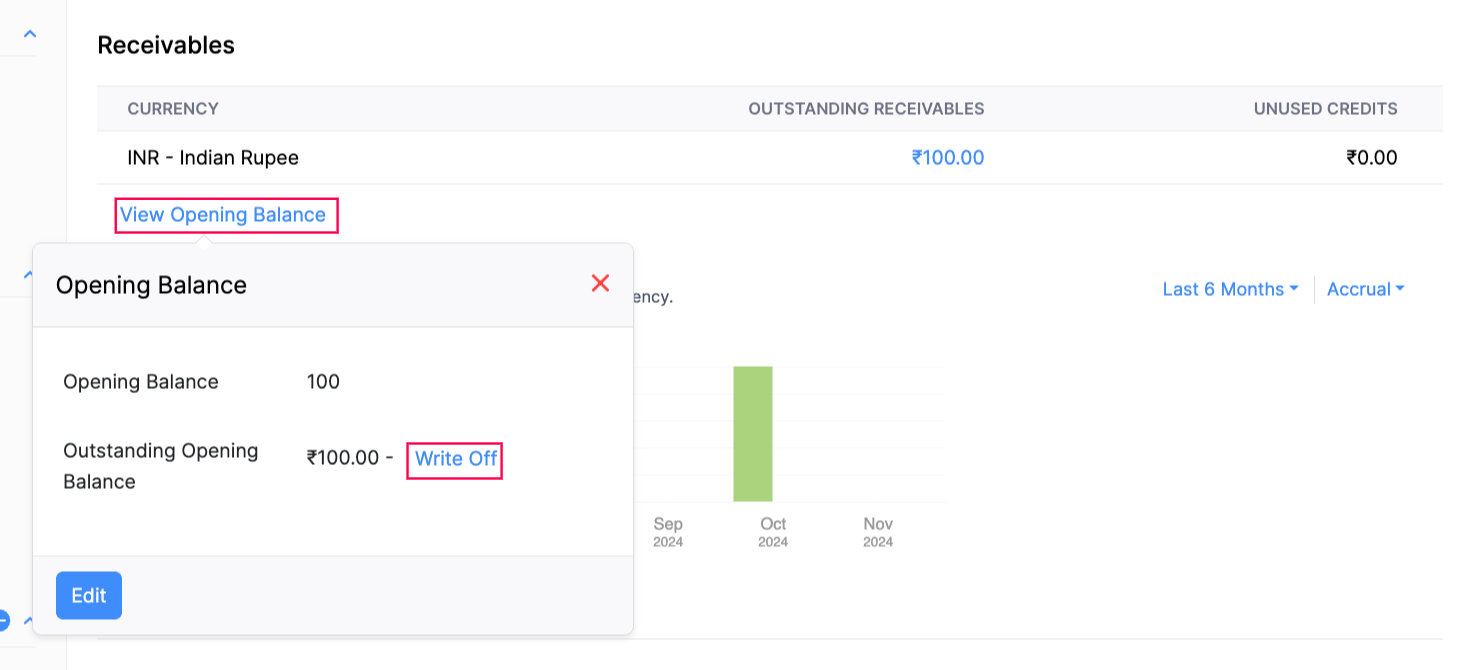
- In the Write Off Opening Balance pop-up, enter the Write Off Date and Reason for Write Off.
- Click Write Off.
The opening balance of the customer’s opening balance will be written off. To cancel the write off:In the Details page, click View Opening Balance below the Receivables table.In the Opening Balance pop-up, click Cancel Write Off next to the Outstanding Opening Balance amount.
Customer Credit Limit
As a business owner, you might sell your goods/services on credit to your customers. This in turn, increases the risk of having huge amounts of overdue balance by customers. Zoho Books now lets you set a credit limit for each customer, thereby letting you have control over the outstanding receivable balances. So, apart from just sending payment reminders for overdue invoices, enabling this will help you to avoid many outstanding invoices.You will also be able to view the customer’s credit limit in the Customer Balances Report.
Enabling Customer Credit Limit
To set credit limits, you will first have to enable the feature from your preferences. To do this:Go to Settings on the top right corner of the page.Select Customers and Vendors under General.In the General tab, check the Enable Credit Limit option.Choose what you would like to do when a credit limit increases. You can choose to:Restrict creating or updating invoices.Show a warning and allow users to proceed.
Sales Order Credit Limit
You can choose to enable credit limit for a customer’s sales order. To do so, mark the box Include sales orders’ amount in limiting the credit given to customers. When the customer’s credit limit is crossed, you will be restricted or warned accordingly.This restriction or warning message will be shown for sales orders based on the Credit Limit Preferences you have set.When will the credit limit be considered?With regards to sales orders, the restriction or warning message will be shown in Zoho Books in the following cases:CreationUpdationOther actions (Convert to open, Convert to invoice, Mail, Mark as sent)Bulk actions (Convert to open, Convert to invoice, Mark as sent, Mail)In other places:If you have integrated with an organisation in Zoho Inventory, an error will be shown in that organisation as well.Zoho applications like Zoho CRM.When will it not be considered?The amounts for different sales orders will not be taken into consideration in the following cases:Importing sales ordersApproving sales ordersCreating Packages and Shipment Orders (in organisations integrated with Zoho Inventory)After making the required changes, click Save.
Setting Credit Limits for Customers
Once you have enabled the option, you will have to set a credit limit for each customer. Setting a limit can be useful when other users in your organisation create invoices for a customer whose future ability to pay back, is unknown to them. To set limits:For an existing customers/vendors,Go to Sales > Customers and select a particular customer/vendor for whom you wish to set a limit.Go to the overview tab and you will be able to find Credit Limit.Click the pencil icon and enter/edit the credit limit value.Save your preferences by clicking the checkmark icon.For a new customer/vendor,Go to Sales > Customers and select the + New button on top of the page.Enter all the necessary details and in the Other Details tab you will be able to find the option Credit Limit.Enter the value and click Save.
Customer Credit Limit Workflow
Once you enable the option and set the credit limit, you will be able to keep track of the limits set and further invoices being created. Based on your preferences, you will be notified while creating transactions.
Restrict Creating or Updating Invoices
If you have chosen to restrict creating and updating invoices, you will be warned when the invoice total and your balance due exceeds the credit limit.Click View Details in the pop up to view the outstanding balances and credit limits.You can choose to select Ok and cancel the creation of the transaction.Click Update Credit Limit to increase the credit limit for your customer.Click Update and Save to increase limit and then proceed with the transaction.
Show a Warning and Allow Users to Proceed
When your invoice total and balance due exceeds the credit limit, you will be warned before proceeding with the transaction.Click View Details in the pop up to view the outstanding balances and credit limits.You can choose to select Proceed and save the transaction.Click Update Credit Limit to increase the credit limit for your customer.Click Update and Save to increase limit and then proceed with the transaction.Note: Recurring invoices created for your customers will still be sent to your customers. However, you will receive an email notification when the recurring invoice value and outstanding balances exceeds the credit limits.
Managing Existing Contacts
Once you’ve added contacts to Zoho Books, you can manage them in several ways:
- Editing Contact Information: You can edit a contact’s information at any time by clicking on the contact’s name in the contact list and then clicking the “Edit” button.

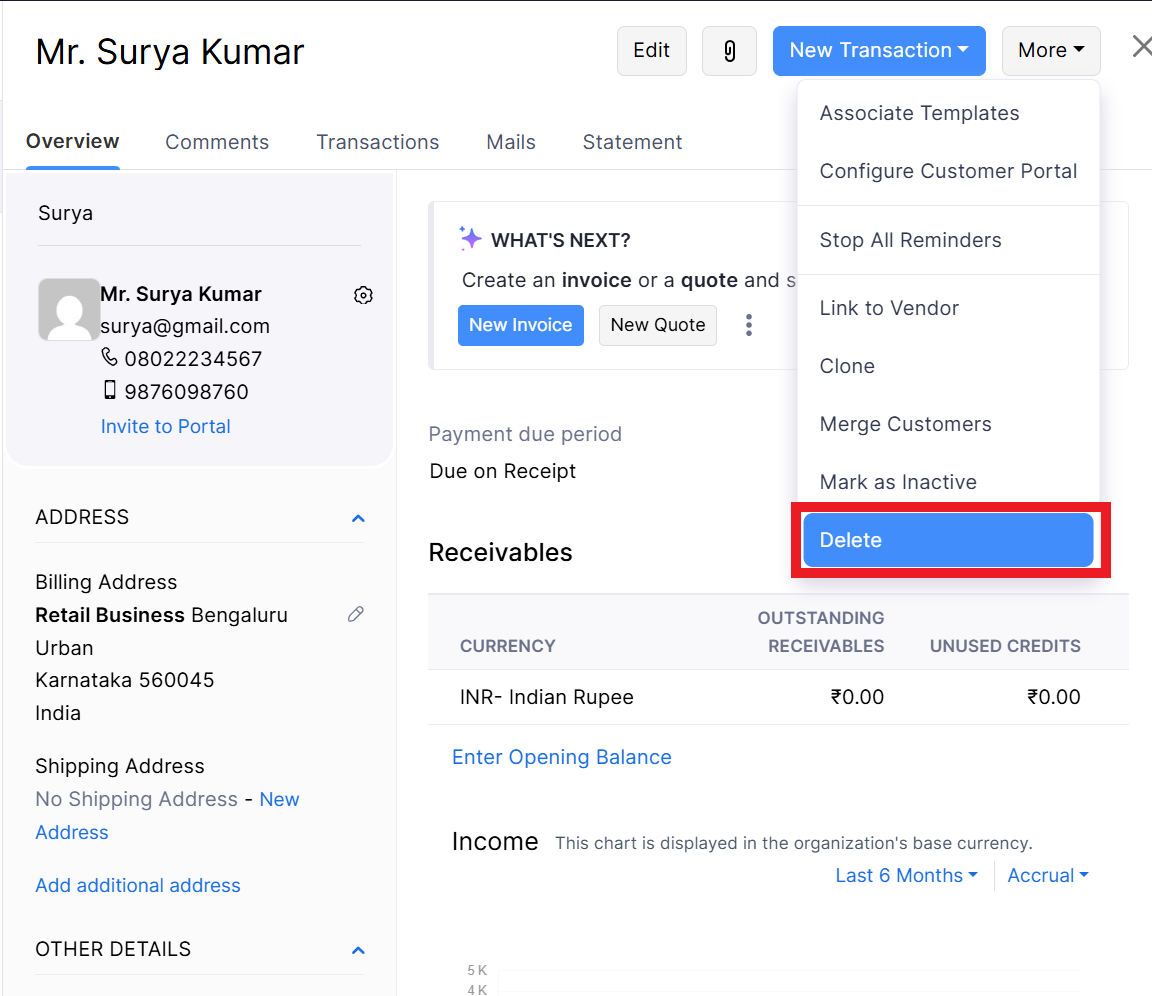
- Deleting Contacts: You can delete contacts that are no longer needed. However, be aware that deleting a contact may affect historical transactions. It’s often better to inactivate or archive a contact instead of deleting it.
- Filtering and Searching: Zoho Books provides powerful filtering and searching capabilities to help you find specific contacts quickly. You can filter by contact type (customer/vendor), name, email address, phone number, contact group, and other criteria. To filter your customers/vendors Go to Sales > Customers (for customers) and Purchases > Vendors (for vendors) and Click the All Customers/All Vendors drop down on top of the page then Select the filter.

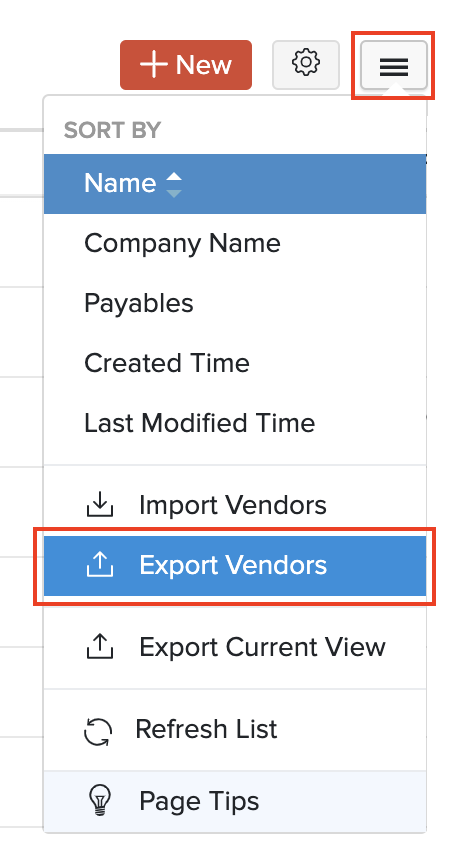
- Exporting Customers/ Vendors: You can export all the customers/vendors and contact persons that you’ve added in Zoho Books to your system in the CSV or the XLS format. To export the data Go to Sales > Customers (for customers) and Purchases > Vendors (for vendors), Click the More icon on the right side of the page, select Export Customers or Export Vendors
- Merging Duplicate Contacts: If you have duplicate contact records, you can merge them into a single record.
Multiple Addresses for Customers/Vendors:
Customer/Vendor can have multiple addresses, we can add more than one address on zoho books here’s how:
- Go to Sales > Customers (for customers) and Purchases > Vendors (for vendors).
- Select the customer/vendor for whom you want to add an additional address.
- Click Add Additional Address in the right side of the page.
- We can choose display the additional addresses of your customers/vendors in the transactions that you create for them

Integrating Contacts with Other Zoho Books Features
Your contact data is integrated seamlessly with other Zoho Books features:
- Invoicing: When creating an invoice, you can easily select a customer from your contact list. The customer’s billing address, payment terms, and other information will be automatically populated.
- Bills: When recording a bill, you can select a vendor from your contact list.
- Payments: When recording a payment from a customer or to a vendor, you can associate it with the corresponding contact.
- Reports: You can generate reports that filter data by contact, contact group, or tag. This allows you to analyze your revenue and expenses by customer or vendor segment.
- CRM Integration: If you use Zoho CRM, you can integrate it with Zoho Books to synchronize contact data between the two systems.
This integration ensures that your financial data is always linked to the correct contact, providing a complete and accurate view of your business relationships.
Common Issues with Contact Management
Some common issues you might encounter with contact management in Zoho Books include:
- Duplicate Contacts: This can lead to inaccurate reporting and communication errors. Regularly check for and merge duplicate contacts.
- Incomplete Contact Information: Missing email addresses or phone numbers can hinder communication. Make sure to collect complete contact information.
- Incorrect Contact Type: Incorrectly classifying a customer as a vendor (or vice versa) can lead to accounting errors. Double-check the contact type when creating new contacts.
- Outdated Contact Information: Contacts may change jobs, addresses, or phone numbers. Regularly update your contact information to keep it current.
Regularly reviewing and maintaining your contact data will help you avoid these issues and ensure the accuracy of your financial records.
Summary Table
| Feature | Description | Benefits |
|---|---|---|
| Adding Contacts | Creating new records for customers and vendors. | Centralized contact information, accurate invoicing and billing. |
| Contact Groups | Categorizing contacts based on shared characteristics. | Improved filtering, targeted communication. |
| Tags | Assigning labels to contacts for flexible categorization. | Granular segmentation, customized reporting. |
| Editing Contacts | Updating contact information as needed. | Accurate records, reliable communication. |
| Integration with Other Features | Contact data integrated with invoicing, billing, payments, and reports. | Streamlined workflows, accurate financial data. |