Invoices
An invoice is a financial document that details the sale of goods or services, including the amount due, payment terms, and taxes, serving as a record for sales, payments, and tax purposes.
How Invoices Work
In Zoho Books, start by creating an invoice for the customer. You can save it as a draft to send later or send it right away via email. If the invoice goes past its due date, its status will change to Overdue. When the customer makes a payment, the status will update to Paid, or you can manually record the payment if it’s made through other payment methods. The recorded invoices will reflect in various sales reports. You can also edit invoices, send them via email, share them as a link, print them, download them, set them as recurring, create credit notes, clone them, view their journal entries, or delete them.
Types of Invoices in Zoho Books
- Regular Invoice: A regular invoice is a one-time invoice used to record the sale of goods or services to a customer, specifying the payment details and amount due.
- Recurring Invoice: This invoice is created for a recurring time period. You can set the frequency for the recurrence, such as Weekly, Monthly, or for a specific time period. Learn how recurring invoices work.
- Retainer Invoice: This invoice is used to collect advance payments from your customer. It is usually issued before the actual work or delivery begins. Learn how retainer invoices work.
Scenario:Zylker Inc, a phone company, sells a phone to Danny. Zylker Inc provides an invoice confirming the sale, which includes the phone details, total amount paid, payment terms, taxes, and other relevant information. This invoice can then be used as a record for returns or warranty claims.
Create an Invoice
To create an invoice:
- Log in to your Zoho Books organization.
- Go to Sales on the left sidebar, and select Invoices.
- Click + New in the top right corner.
- In the New Invoice page, fill in the following fields:Customer Name: Select the customer for the invoice.Invoice#: The default transaction series will be used. Choose a different one from the dropdown, if needed. Click the Settings icon in the right of the field to enable or disable the option to auto-generate invoice numbers.Order Number: Enter the order number if necessary.Invoice Date: Choose the date for creating the invoice.Terms: Choose the payment terms for which the invoice is due.Due Date: Pick the payment due date.Salesperson: Select the salesperson responsible for this invoice, if applicable.Select Price List: Choose the price list for the items in the invoice.Item Table: Select and add items to the table. Then, fill in the following columns:Quantity: Enter the quantity for each item.Rate: The rate will be auto-filled based on the item’s rate you set. Modify it if needed. Click Apply Price List under this field to select a price list for the item.Tax: Auto-filled based on the item or customer’s tax status.Discount: Enter a Percentage (%) or Amount for discounts.Bulk Actions: Click this option to perform bulk actions in the Item Table. Select Bulk Update Line Items from the dropdown to update the Project or Account of each item in the table or select Show Additional Information to show the project and account for each line item in the table.
- Click + Add New Row to add additional rows for items.
- Click Add Items in Bulk to add multiple items at once.
- Shipping Charges: Add shipping costs for your items. Click Apply Tax on Shipping Charge to select a tax on shipping.
- Adjustment: Enter adjustments if needed. Use a Negative (-) sign to reduce the amount.
- Customer Notes: Add notes to display them in the invoice.
- Terms and Conditions: Add your business terms and conditions for the invoice.
- Attach File(s) to Invoice: Click Upload File to attach a file to the invoice.
- I have received the payment: Check this if you’ve received the payment when you’re creating this invoice. Then, select the Payment Method and Deposit Account from the table below. If the customer used multiple payment methods, click + Add Split Payment to split the payment. The invoice will be saved as Paid.
- Click Save as Draft to save the invoice as a draft, or Save and Send to send it to the customer.
- You can also schedule an invoice during the creation process. Here’s how:Click the dropdown next to the Save and Send and select Save and Send Later.In the Schedule Mail page, select the schedule date under When would you like to send the email?.Verify other details and click Schedule.
Now, if you haven’t recorded the payment directly, you can record it later for the created invoice once the customer pays the amount.
Pro Tip:To create an invoice directly from the Home page, click the Quick Create button in the top right corner and select Invoices from the dropdown.
Import Invoices
If you have existing invoices stored locally or you’re migrating to Zoho Books from another accounting system, you can easily import them.
Scenario:Zylker Inc is migrating from another accounting system and wants to import all the existing invoices in bulk. Using the Import Invoices option, Zylker can import all the invoices into Zoho Books effortlessly, instead of having to add them manually.
To import invoices into Zoho Books:
- Go to Sales on the left sidebar, and select Invoices.
- Click the More icon in the top right corner and select Import Invoices from the dropdown.
- In the Import – Select File page, click Choose File and select the file you want to import.
Pro Tip:You can download and use the sample file as a reference for the format, and if needed, fill in the data you want to import.
- After you select the file, under the Configure tab, fill in the following fields:Character Encoding: The default is UTF-8 (Unicode). Ensure you select the correct encoding based on your file.File Delimiter: The default is Comma (,). Modify the delimiter based on your file.Auto-generate Invoice Numbers: Check this to automatically generate invoice numbers based on your Zoho Books settings. Invoice numbers in the import file will be ignored.Link Invoices to its corresponding Sales Orders: Check this option to link invoices to corresponding sales orders. If selected, map the sales order field with the appropriate column containing the Sales Order Number on the next page.Map the customers’ addresses in the import file to their customer record in Zoho Books: Check this to map customers in the import file to existing customer records in Zoho Books. If a customer exists, their address will be updated; otherwise, a new customer will be created in Zoho Books.
- Click Next >.
- In the Map Fields tab:Default Data Format: The default Date format will be Select format at field level, and the Decimal format will be 1234567.89. Click Edit to customize the format if needed.Map the necessary fields based on your preferences.
- Click Save these selections for use during future imports to reuse the mapped fields for future imports.
- Click Next >.
- Then, in the Preview tab, review the fields you mapped and click Import.
Now, the file containing the invoices will be imported into Zoho Books.
Recurring Invoices
A Recurring Invoice is an invoice that is sent to your customer in regular intervals of time.
How does a recurring invoice work?

The workflow of an invoice in Zoho Books is as follows:
- Configure your settings for recurring invoice in Zoho Books.
- Create or import recurring invoices.
- After you create a recurring invoice, the next recurring invoice will be automatically generated after the period of time.
- Record the payment for the recurring invoice manually, or charge your customer’s credit card automatically for the recurring invoice.
- Stop a recurring invoice if you no longer wish to generate it.
- Perform other actions on the recurring invoice such as Edit, Print and Clone.
Create & Send Recurring Invoices
To get started off with Recurring Invoices, you’ll have to make sure they are enabled in Zoho Books. After doing so, you can create a recurring invoice or import them directly from your system.
Enable Recurring Invoices
Before you start creating recurring invoices, you’ll have to ensure that the Recurring Invoices module is enabled in Zoho Books. Here’s how you can do it:
- Log in to your Zoho Books account.
- Go to Settings on the top right corner of the page.
- Select General under Preferences.
- Check the Recurring Invoice option.
- Click Save at the bottom of the page.

Create Recurring Invoice
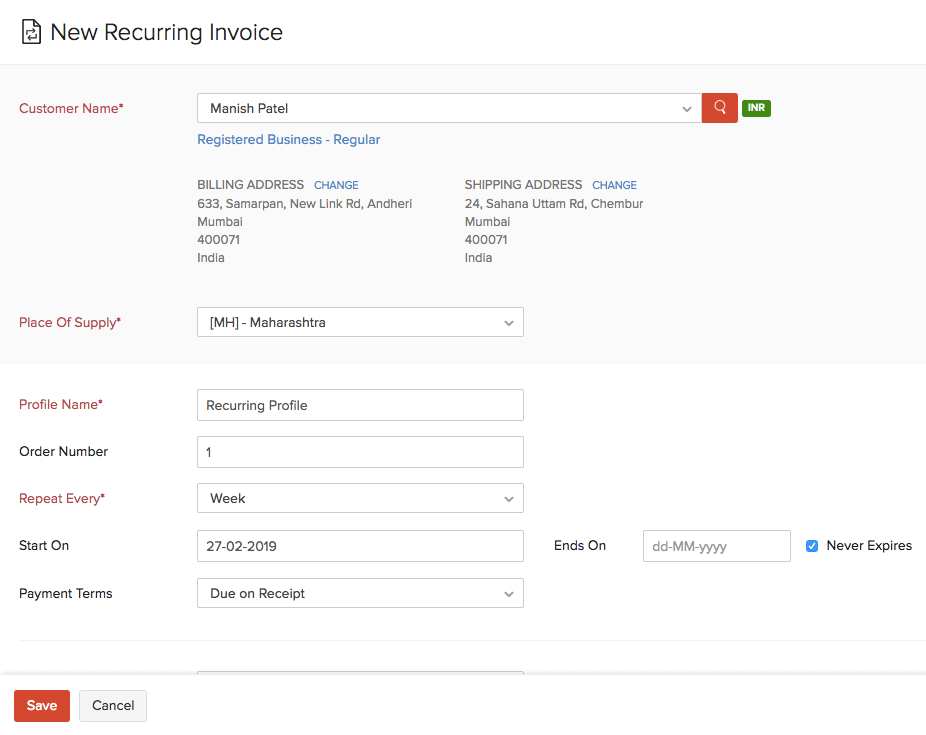
When you create a recurring invoice for a customer, you basically set up a recurring profile for them. This recurring profile will contain all the invoices which are generated and yet to be generated. You can configure how to save a recurring invoice from the Setting> Sales> Recurring Invoices.
Scenario:Patricia creates an invoice of RS. 59,000 for her customer Manish. She requires an invoice of the same details and amount to be sent every week to the customer. In such a case, Patricia can create a recurring invoice on a weekly basis. Every week Manish would receive an invoice of the same amount with the updated date.
To create a new recurring invoice:
- Go to Sales > Recurring Invoices.
- Click the + New button in the top right corner of the page (or press n).
- Fill in the following details:
Customer NameSelect the customer for whom you want to create a recurring invoice.
Profile NameEnter a name for the profile which will generate all the recurring invoices.
Repeat EveryChoose the time interval for which the recurring invoice is to be generated. You can choose from the standard time periods such as week, month, year, or enter your own by clicking Custom.
SalespersonAssociate a sales person to the recurring invoice.
Associate Project HoursAssociate any project associated with the recurring invoice.
Item DetailsSelect the items for which you want to create a recurring invoice.
- You can also enter the Customer Notes and Terms & Conditions to be displayed in the recurring invoice.
- Click Save.
After a recurring invoice has been created, the child invoices generated will be saved as Draft or sent to your customers right away.
If a recurring invoice or profile has been created for an earlier date, then the child invoices will be generated only after the current date.
Let’s understand this better with the help of an example. Today is February 28th, 2019. You create a recurring invoice today for the date January 31st, 2019 on a weekly basis. So the child invoices would be on February 7th, February 14th, February 21st, February 28th, March 7th, and so on. The latest invoice for the recurring profile should be generated today (February 28th). However, child invoices will be generated only after the current date(today). So the first invoice for the recurring profile will be generated on March 7th, 2018.
Import Recurring Invoices
You can import a list of recurring invoices you have in the CSV, TSV or XLS format. Here’s how:
- Go to Sales > Recurring Invoices.
- Click the More icon in the top right corner of the page.
- Select Import Recurring Invoices.
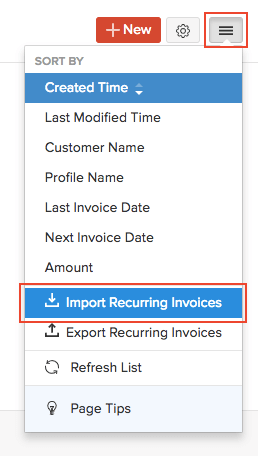
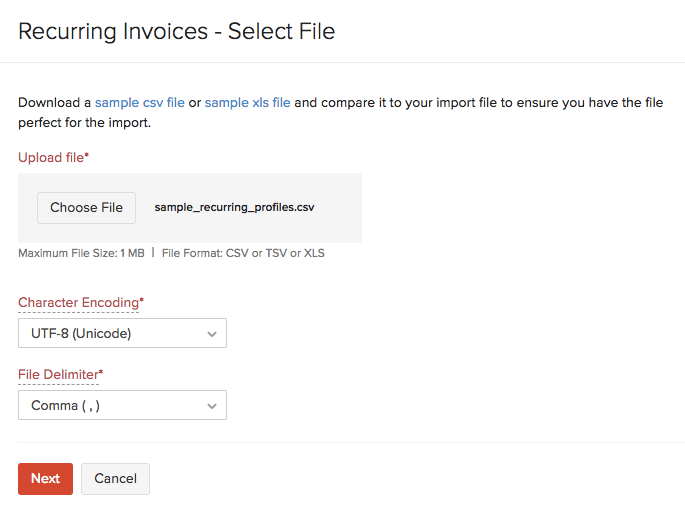
- Click the Choose File button under Upload File. You can download the sample CSV or XLS file for your reference by clicking sample csv file or sample xls file.
Insight:The file size cannot be more 1 MB.
- Choose the Character Encoding and File Delimiter for your file. The Field Delimiter is used to separate two values in a row. While importing recurring invoices, the default file delimiter is comma (,).
Insight:Character Encoding is used to pair numbers with characters. By default, the Unicode Transformation Format (UTF-8) encoding is used which supports a wide range of characters that go beyond 8 bits.
- Click Next.
- Ensure that all the fields are mapped correctly in the Map Fields page.
- Mark the box Save these selections for use during future imports if you want to use the similar import format for the next time.
- Click Next.
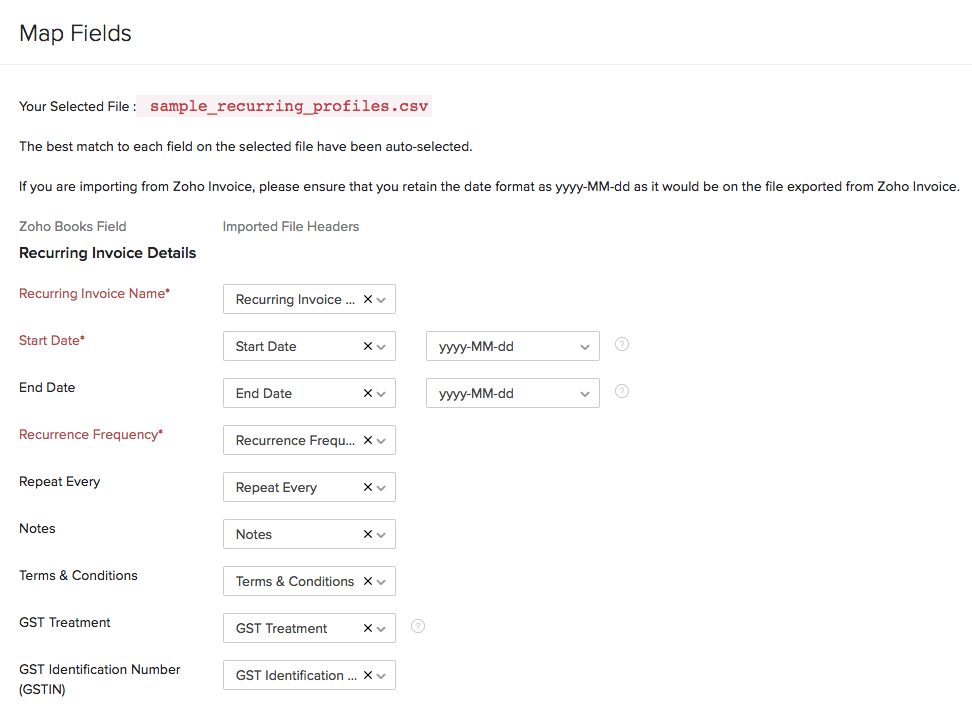
- Click Import.
Record Payment for Invoice
There are multiple ways in which you can collect and record payments in Zoho Books based on your business needs:
- Online Payments
- Charge Customer’s Card
- Record Offline Payment
Online Payment
Collecting payments online from your customers is one of the safest and fastest ways to get paid for your invoices. You can enable your customers to pay online by integrating Zoho Books with popular payment gateways. Depending on the payment gateway, your customers will be able to pay via their credit cards, debit cards, net banking, and other payment options offered by the payment gateway.
How Online Payments Work in Invoices
Once you set up a payment gateway integration, by default, the payment gateway will be marked as the mode of payment in the invoice under the online payments section. When you send this invoice to your customer, they will be able to pay online using one of the available payment options.
If you have configured multiple payment gateways, you can select the payment gateway through which you want to receive payments from your customers. Here’s how:
- Go to Sales on the left sidebar and select Invoices.
- Select the invoice for which you want to select your preferred payment gateway and click Edit on the top bar.
- Scroll down to the section below Terms and Conditions where you will see the list of payment gateways that you had integrated with Zoho Books.
- Select your preferred payment gateway through which you want to receive payments from your customer.
- Click Save and send it to your customer.
Now, your customer will be able to pay you from the Customer Portal, from the invoice email you had sent them, or from the invoice link you had shared with them.
Charge Customer’s Card
Another method of collecting payments from your customers is by charging your customers directly for an invoice using online payment gateways.
Prerequisite:Ensure that you have integrated Zoho Books with a payment gateway that supports charging a customer’s card.
To charge your customers:
- Go to Sales on the left sidebar and select Invoices.
- Select the invoice for which you want to charge your customer’s card.
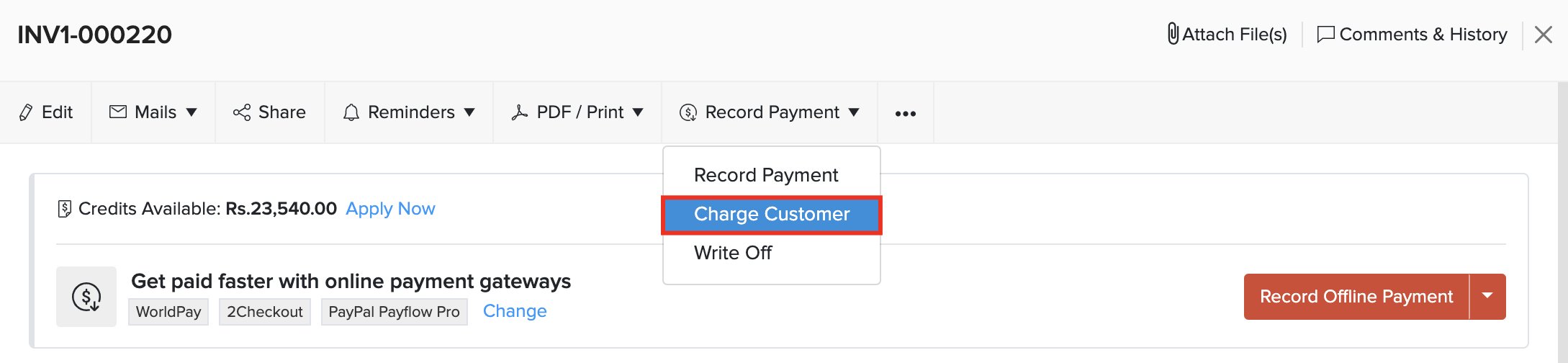
- Click the Record Payment dropdown in the top right corner of the page and select Charge Customer.
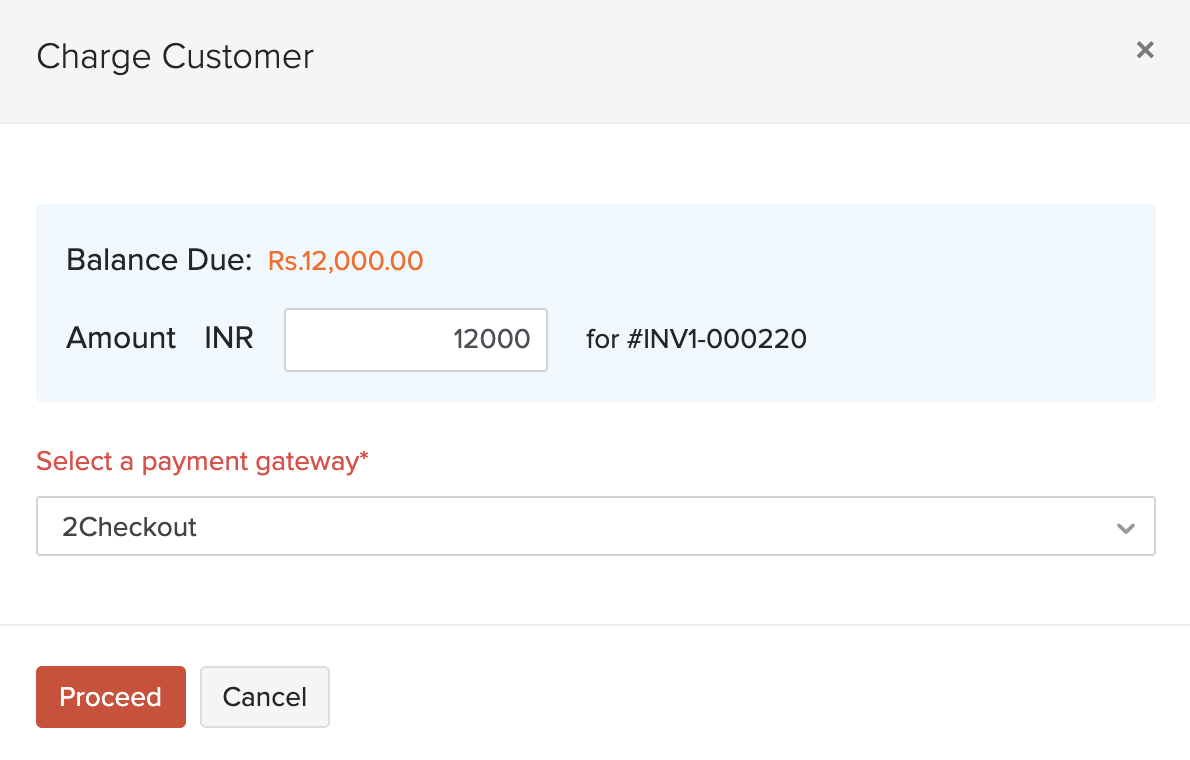
- Enter the Amount to be charged and select a Payment Gateway from the dropdown.
- Enter all the details necessary for the payment gateway to process the payment and click Proceed.
- If the transaction is successful, you will get an alert saying that the transaction has been processed and the invoice’s status will change to Paid. Else, you will get an error message asking you to try again.
Record Offline Payment
If you are receiving a cash payment for an invoice or through some other mode of payment, you can record the payment manually. To record payment:
- Go to Sales on the left sidebar and select Invoices.
- Select the invoice for which you want to record the payment.
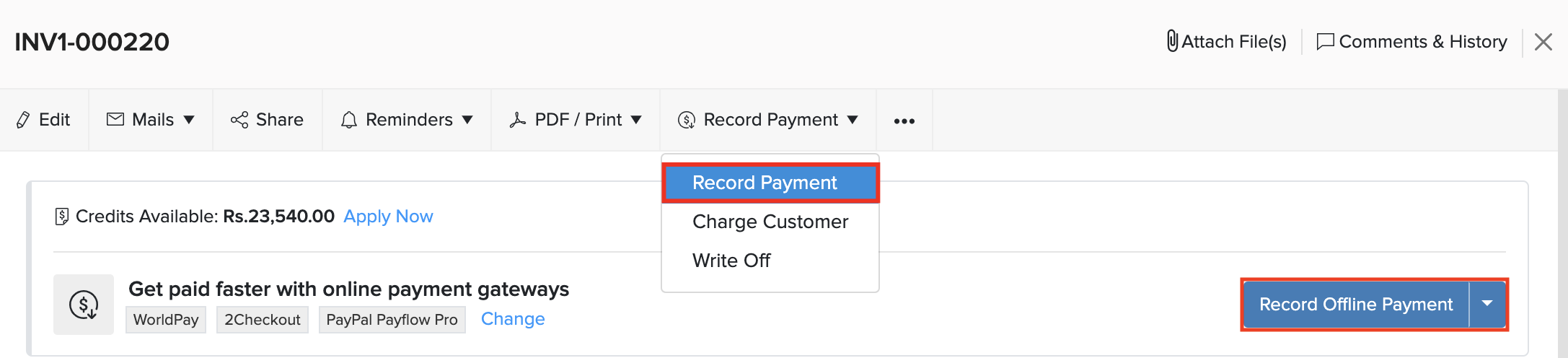
- Click the Record Payment dropdown on the top right corner of the page and select Record Payment. OR
- Click Record Offline Payment to record the payment.
- Enter the payment details such as the Amount Received, Payment Date, and Deposit To account.

- If the customer does not pay you the full amount, enter the amount you’ve received in the Amount Received field.
- Click Record Payment and it will be recorded as a partial payment.
View Payments Received
You can view the payments received for your invoices in two ways:
- Go to Sales > Invoices and select an invoice for which you have recorded payment.
- Click the Payments Received tab in the right side of the page.
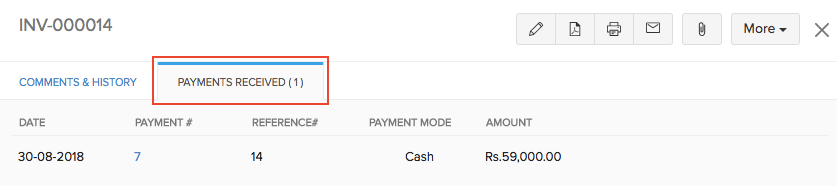
Alternatively, you can:
- Go to the Sales > Payments Received.
- Select the payment received for the invoice.
Edit Payments Received
You can change the amount or other details of the payment that you have recorded for an invoice. Here’s how:
- Go to Sales > Invoices and select an invoice for which you have recorded payment.
- Click the Payments Received tab in the right side of the page.
- Hover over the payment received and click the Pencil icon next to it.
- Make the changes and click Save.

You can also edit the payments received directly by going to Sales > Payments Received.
Delete Payments Received
To delete the payment received for any invoice:
- Go to Sales > Invoices and select an invoice which is in the Paid status.
- Click the Payments Received tab in the invoice details page.
- Hover over the payment received and click the Delete icon next to it.

You can also delete the Payments Received directly by going to Sales > Payments Received.
Record Customer Advances
If you receive an advance amount from your customer on which GST is applicable, then you can record this advance in Zoho Books.
To record advance payments from your customers:
- Go to Sales > Payments Received.
- Click the + New button in the top right corner of the page.
- Select the Customer Advance tab on top of the page.
- Fill in the required details.
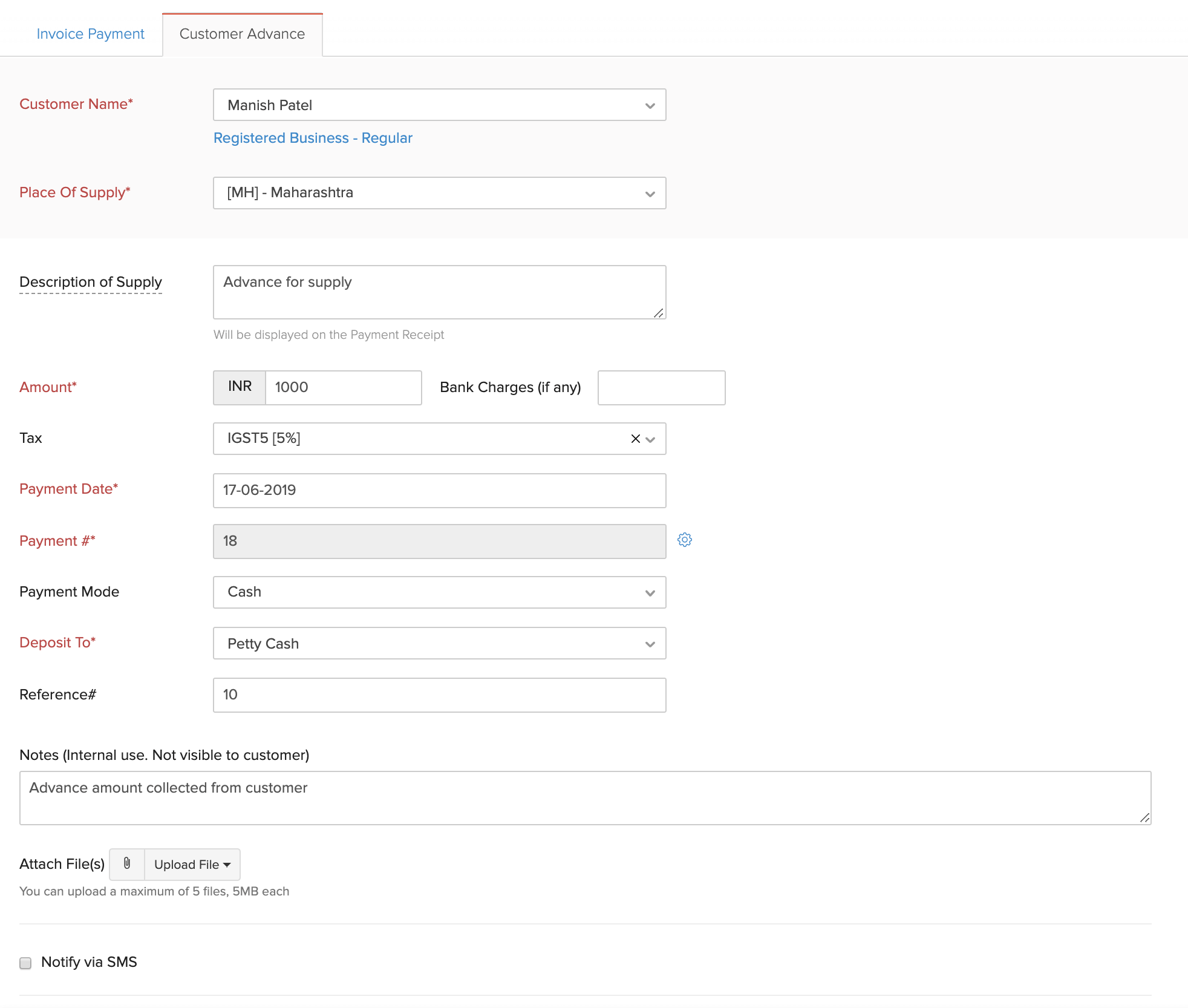
| Fields | Description |
|---|---|
| Customer Name | Select the customer for whom you’re recording an advance. |
| Place of Supply | Select the location where the supply takes place. |
| Description of Supply | Enter a description of the goods or services that you are going to supply. |
| Amount | Enter the total amount received from the customer. |
| Tax | Select the tax applicable on the supply. |
| Payment Date | Select the date on which you received the payment from your customer. |
| Payment # | The payment number is auto-generated. If you want to configure this, click the Gear icon to the right of this field. |
| Payment Mode | Select the mode in which the customer pays you. |
| Deposit To | Choose the account which tracks the customer advance. |
| Reference# | Enter a reference number for the payment. |
| Notes | Enter any notes about the customer advance for your reference. This won’t be displayed to the customer. |
| Attach Files | You can attach up to 5 files, each of 5 MB, to the customer advance. |
| Notify via SMS | If you have enabled SMS notifications, you can notify your customer about the advance you received from them. |
- After entering all the details, click Save.
Apply Customer Advance to Invoice
After you have recorded your customer’s advance, you can apply it to their outstanding invoices. Here’s how:
- Go to Sales > Payments Received.
- Select the desired customer advance.
- Click the Apply to Invoice button on top of the page.
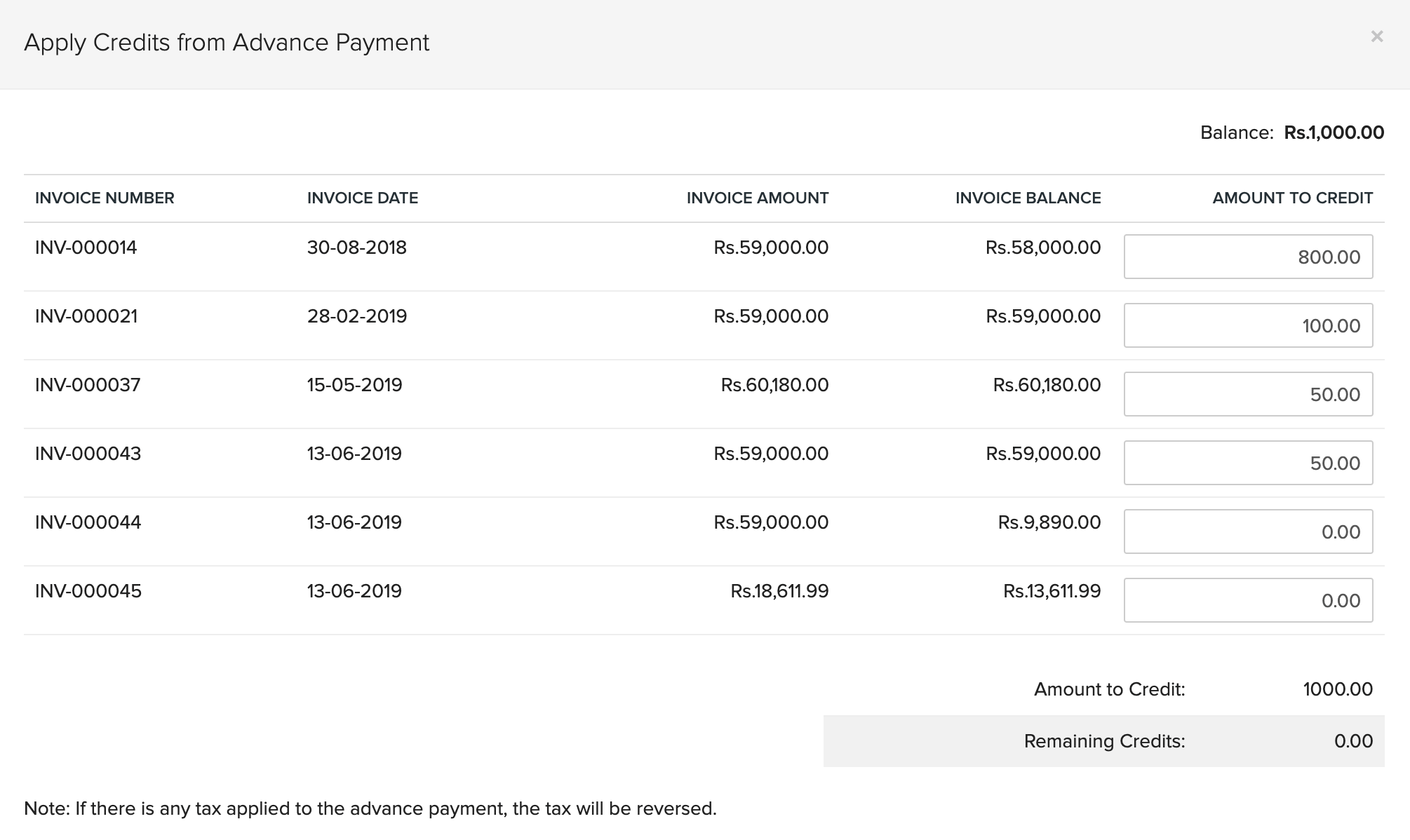
- Enter the Amount to Credit for each invoice.
- Click Save.
Refund Payment
You can refund the advance that you’ve received from your customers. Here’s how:
- Go to Sales > Payments Received.
- Select the customer advance to be refunded.
- Click More > Refund.

- Enter the amount to refund.
Insight:You can enter the amount to refund in full or in part. If you choose to do it in part, the remaining amount can be applied to invoices or refunded later on too.
- Click Save.
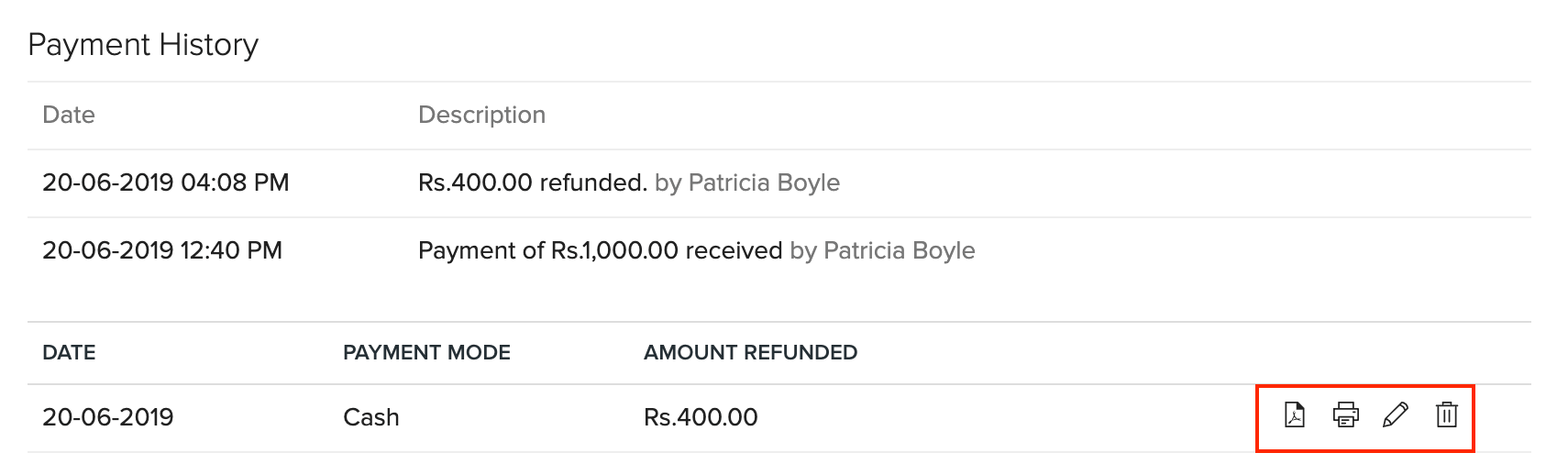
You can find the amount refunded at the bottom of the page. You can perform various actions such as download it as a PDF, Print, Edit or Delete it.
Delete Invoice
Prerequisite:Before you can delete an invoice, you have to delete the payments that have been recorded for it, if any.
Warning:Once you delete an invoice, you will not be able to retrieve it again.
To delete an invoice:
- Go to Sales > Invoices and select the invoice you want to delete.
- Click ••• and select Delete.

- Click Delete it to confirm.
Pro Tip:If you want to keep a copy of an invoice but don’t want it to reflect on any reports or accounts, you can void it.
Preferences (Settings)
Let’s have a look at the various settings you can configure for the Invoices module in Zoho Books.
1. Basic Settings
To configure your invoice preferences:
- Go to Settings on the top right corner of the page.
- Select Invoices under Sales.
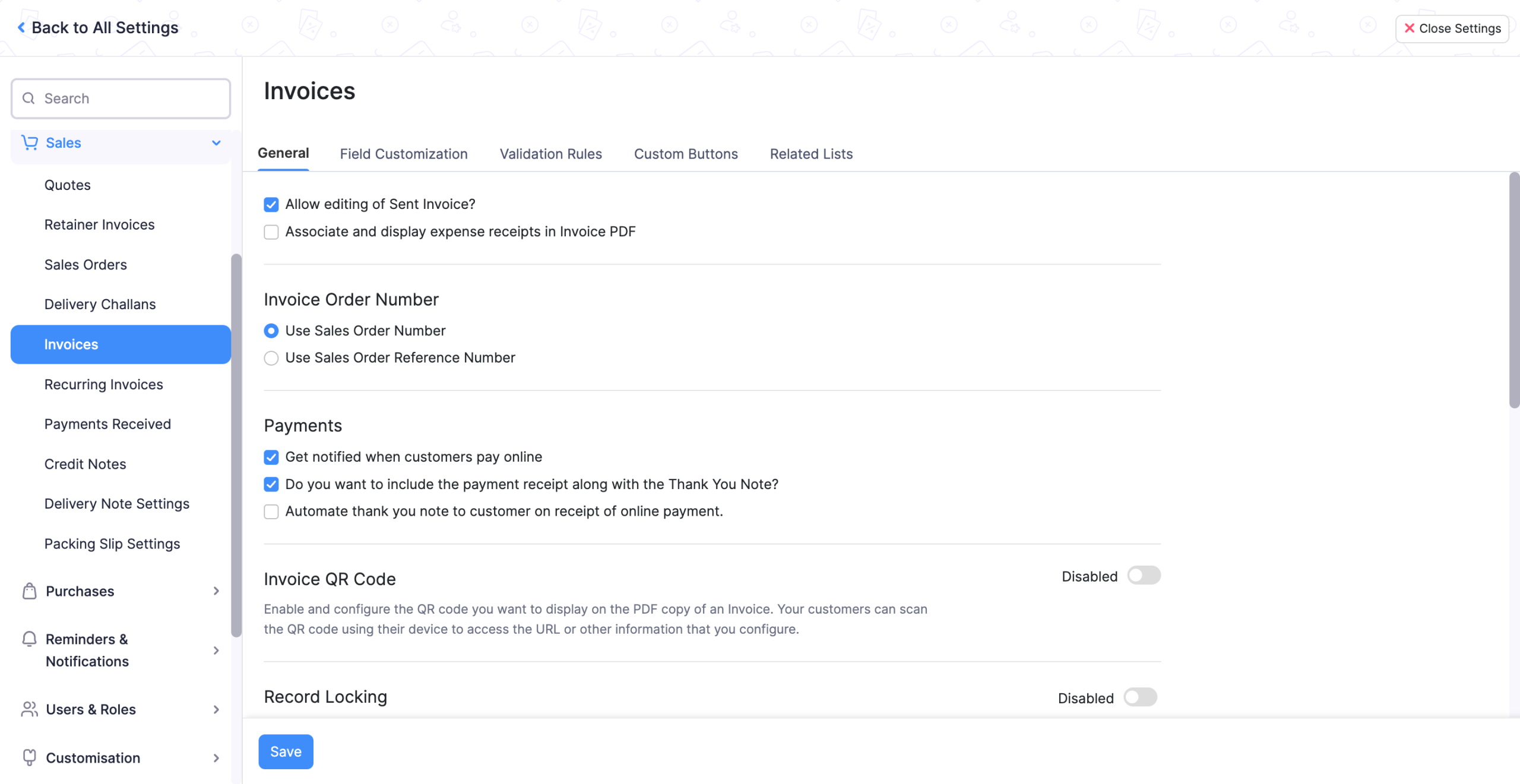
Allow editing of Sent invoice
You can change details of an invoice which is already sent to your customer.
Associate and display expense receipts in invoice PDF
You can choose to display any expenses associated with the invoice in the Invoice PDF.
2. Invoice Order Number
When you are assigning Sales Orders to Invoices, the corresponding number to be used can be one of the following:
- Use Sales Order Number
- Use Sales Order Reference Number
3. Payments
Get notified when customers pay online
You will receive a notification when your customers pay you.
Do you want to include the payment receipt along with the Thank You Note?
The payment receipt containing the payment details is also sent along with the Thank You note when a customer pays for an invoice.
Automate thank you note to customer on receipt of online payment
Whenever your customer makes an online payment for your invoices, a Thank You note will be sent to them.
4. Approve a Transaction
When transactions are submitted for approval, users of your organization with permission to approve records of the module can approve them based on the approval type configured.
a. Simple Approval
If the approval type for a module is set to Simple Approval, any one admin or approver can approve the transactions created in that module.
To approve the transactions the approver or admin should:
- Open a transaction that has to be approved.
- Click Approve.

The transaction will now be approved, and users can perform subsequent actions.
Pro Tip:
- Check the Send email and in-app notifications when transactions are submitted for approval option on the Approvals page of the module so that approvers get notified when they have to approve transactions.
- Admins or approvers can quickly view the transactions they have to approve by selecting the Pending Approval view at the top of the page.
b. Multi-Level Approval
If the approval type for a module is set to Multi-Level Approval, when transactions are submitted for approval, they will be sent to the first-level approver. After the first-level approver approves them, they will be sent to the second-level approver, and so on, until the last approver approves the transaction.To approve the transactions the approver or admin should:Open a transaction that has to be approved.Click Approve.The transactions will be approved, and it will be submitted to the next approver for approval.
5. Field Customization
You can add multiple custom fields for the Invoices module and assign different data types for each of them.
6. Recurring Invoice
Let’s have a look at the various settings you can configure for the Recurring Invoices module in Zoho Books.
To access your recurring invoice preferences:
- Go to Settings on the top right corner of the page.
- Select Recurring Invoices under Sales.
(OR)
- Go to the Recurring Invoices module.
- Click the More button in the top right corner and select Preferences.
General Settings
You can choose how recurring invoices are saved in Zoho Books.
Insight:The preferences you set here will be the organization-level preference for all recurring profiles. However, if you choose another preference while creating/editing a recurring invoice, then only that profile-level preference will be applicable to that profile.
Create Invoices as Drafts
Invoices that are generated for a recurring profile are saved as drafts in Zoho Books. You will have to manually send them to your customers for payment.
Notification Preferences
Whenever recurring invoices are generated as drafts, you can choose to send email notifications to your customers.
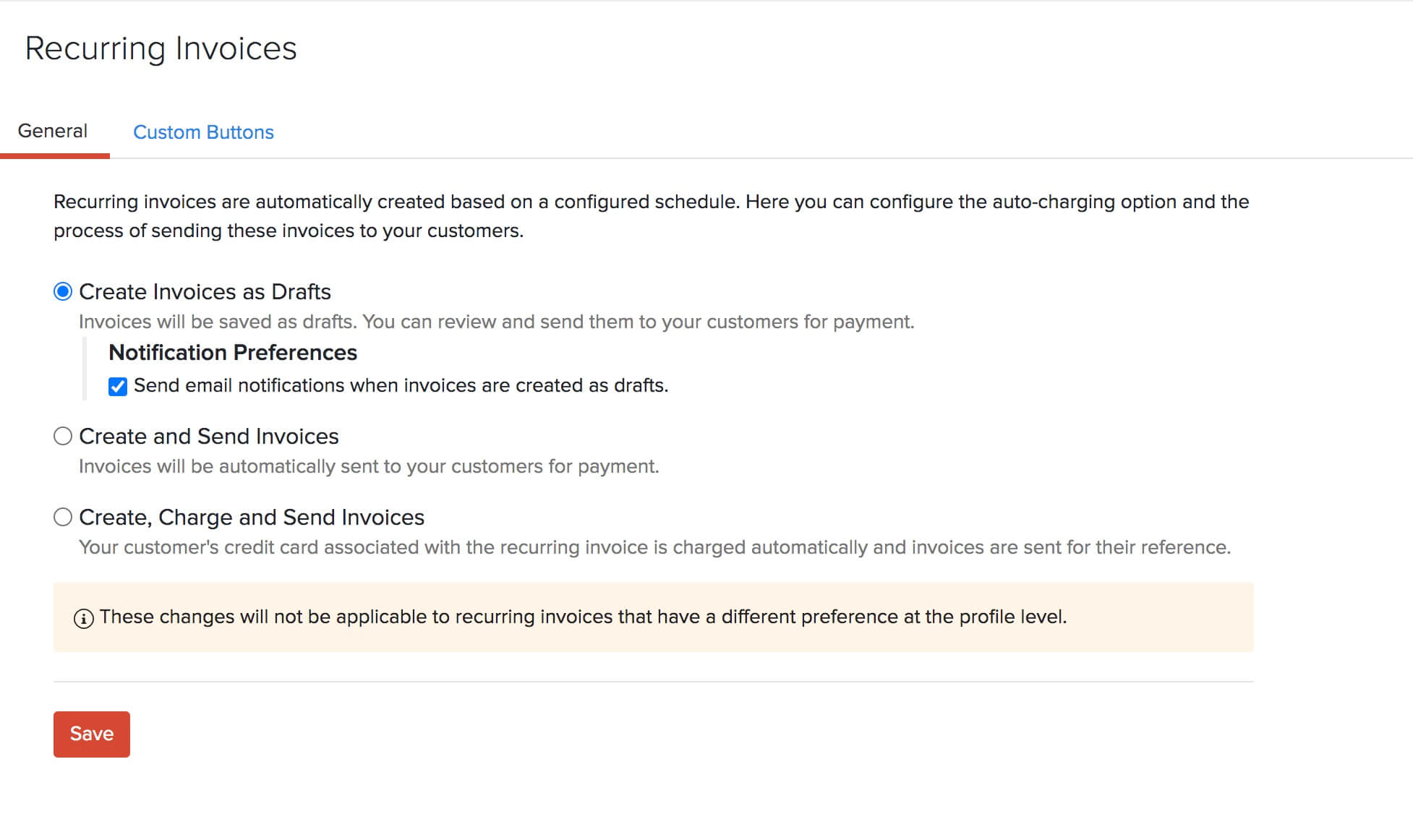
Create and Send Invoices
Recurring invoices are automatically generated in the specified time period and sent directly to your customers for payment. If you have enabled transaction approval in Zoho Books, select Create, Auto-approve and Send Invoices. In such a case, the invoices are automatically approved and sent to the customers.

7.Troubleshooting
You can troubleshoot the issues that you could face for invoices in Zoho Books.
- Online Payments
Online Payments
When your customers try to make online payments to you from the Customer Portal, they may encounter errors in certain cases. Let us take a look at some of the error codes that could show up, what they mean and what you can do to resolve them.
| Error Code | What went wrong? | What can you do? |
|---|---|---|
| CP1003 | The link generated may have been associated to a deleted customer. | Verify that the associated customer still exists. |
| CP3001 | The merchant account is not enabled for reference transactions. Hence, payment could not be processed. | Enable reference transactions in your merchant account. |
| CP3002 | The gateway has been configured with invalid credentials or some change has been done on the merchant account which leads to invalid configurations. | Re-enter the correct credentials by going to Settings > Integrations. |
| CP3003 | The payment has been declined due to the fraud detection filters set up in your merchant account. | Verify if the transaction was fraudulent or not. Moderate your fraud filters, if necessary. |
| CP3004 | The transaction has been declined as the payment gateway couldn’t verify the address of the customer. | Enable the address fields for your payment gateway from Settings > Integrations > Card Verification Settings. |
| CP3005 | A new transaction request has been submitted within a few minutes of the previous request with similar information (such as the amount and credit card/bank account), but for different invoices. | Make sure there is some time gap between the two transactions. |
| CP4001 | The transaction amount is less than the minimum amount allowed by the payment gateway. This may be due to the discounts or credits applied. | Make sure that the transaction amount is greater than the minimum transaction amount. |
| CP4003 | The payment gateways that you’ve configured don’t support the transaction currency. | Configure a payment gateway which supports the transaction currency. |
Sales Return or Credit Note
A Credit Note is a document issued by a vendor to a customer when goods are returned to the vendor after a sale. This can happen due to reasons like the goods being damaged or not satisfactory. The credit note is created for the value of the goods returned.
Create Credit Note
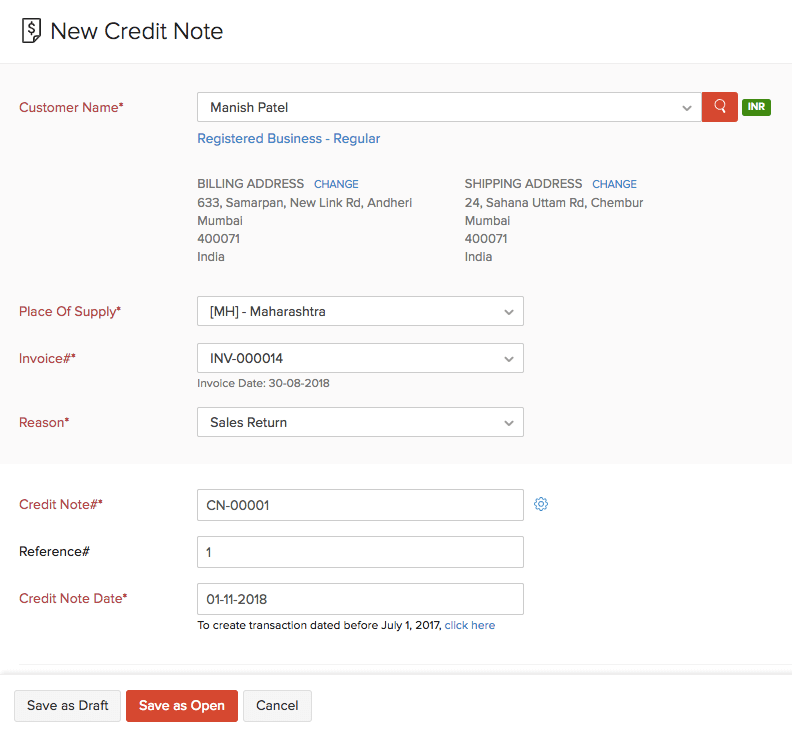
You can directly create a credit note from the Credit Notes module. Here’s how:
- Go to Sales > Credit Notes.
- Click the + New button in the top right corner of the page (or use c + n).
- Enter the customer and item details for which you want to create a credit note.
- Click Save as Draft or Save as Open.
Convert to Open
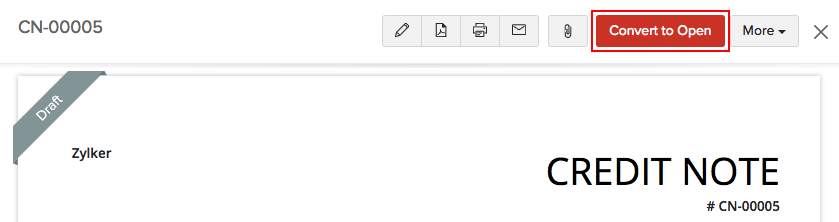
If you have saved your credit note as a Draft, you can convert it to the Open status to ensure that the credit note is active and shows up in your sales reports.
To mark a credit note as open:
- Go to Sales > Credit Notes.
- Select the credit note in the Draft status which you want to convert to open.
- Click the Convert to Open button in the top right side of the page.
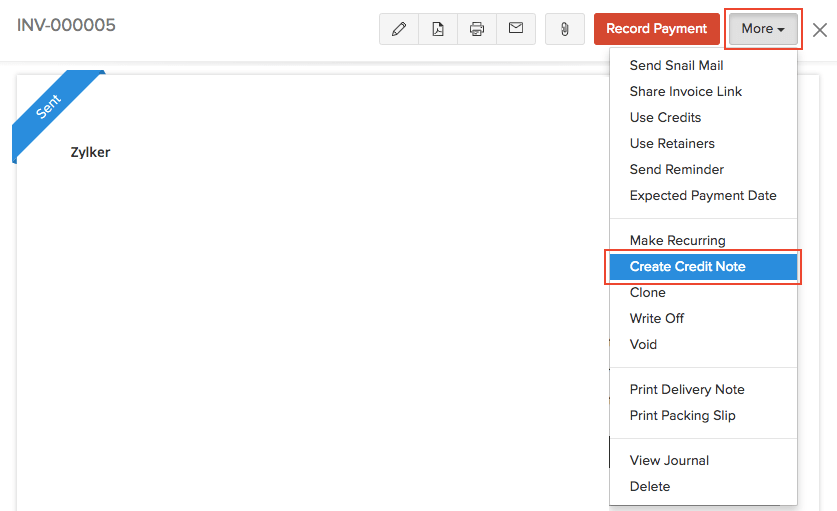
From Invoice
You can directly create a credit note from an invoice. Here’s how:
- Go to Sales > Invoices.
- Select the invoice that you want to convert into a credit note.
- Click More > Create Credit Note.
- The New Invoice page will be auto-populated. You can save the invoice details from here.
Import Credit Notes
Another way of adding credit notes in Zoho Books is to import them. You can import the credit notes you have in your system in CSV, TSV or XLS format.
To import credit notes:
- Go to Sales > Credit Notes.
- Click the More icon in the top right corner of the page.
- Select Import Credit Notes.

- Click the Choose File button under Upload file. You can download a sample CSV or XLS file for your reference by clicking sample csv file or sample xls file.
- If you want your credit note number in the imported file to be auto-generated, mark the box Auto-generate Credit Note Number.
- Click Next.
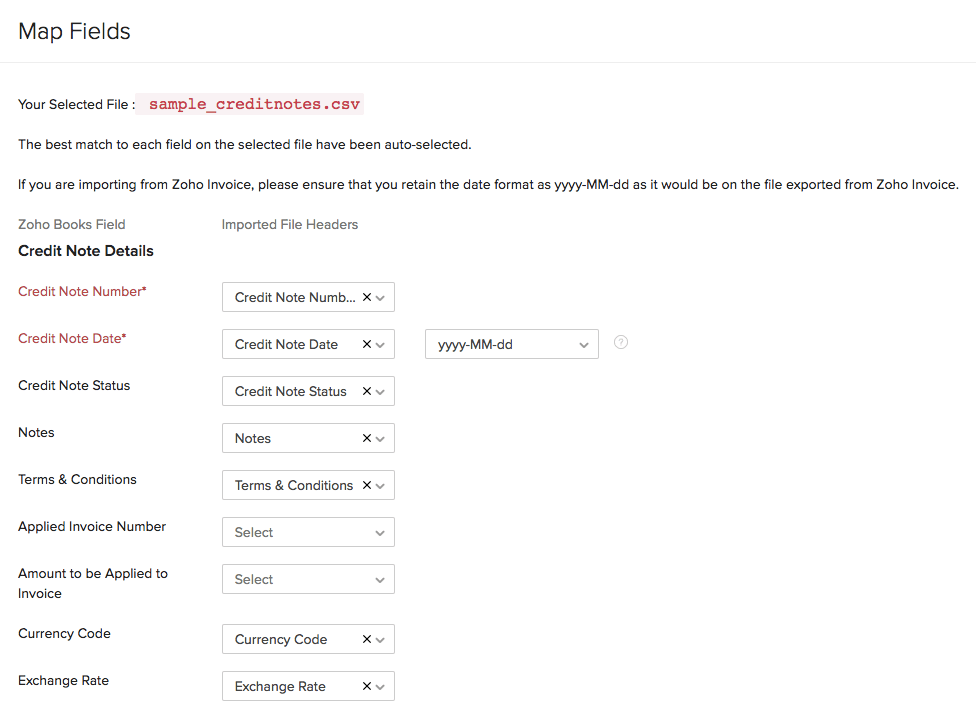
- Ensure that all the fields are mapped correctly in the Map Fields page.
- To import using the same format next time, mark the box Save these selections for use during future imports.
- Click Next.
- Click Import.