Configuring the Purchase Approval
Setting up a transaction approval process is crucial for maintaining financial control and preventing errors or fraud within your business. Zoho Books allows you to configure approval workflows for various transactions, including purchases. This section will guide you through the process of setting up purchase approval workflows in Zoho Books.
Understanding the Importance of Purchase Approvals
Implementing a purchase approval workflow provides several key benefits:
- Cost Control: Ensures that purchases are necessary and within budget.
- Fraud Prevention: Reduces the risk of unauthorized or fraudulent purchases.
- Policy Compliance: Enforces adherence to company purchasing policies.
- Improved Accuracy: Provides a review process to catch errors before payments are made.
- Enhanced Accountability: Establishes clear accountability for purchasing decisions.
A well-defined purchase approval process helps to streamline your purchasing activities and improve your overall financial management.
Types of Purchase Transactions Requiring Approval
Typically, the following purchase transactions benefit from an approval process:
- Purchase Orders: Approving purchase orders before they are sent to vendors.
- Bills: Approving vendor bills before they are paid.
- Expenses: Approving employee expense reports.
You can configure different approval workflows for each type of transaction, depending on your business needs.
Configuring Purchase Approval in Zoho Books
If you enable purchase approval, you can provide your users with the ability to submit and approve the bills, vendor credits, and purchase orders.
Go to Settings on the top right corner of the page.Select Any One Tab (PO/Bills/Payments) under Purchases.Switch to the Approvals tab.Click Enable Approval Type.Choose the approval type for the purchase transactions.Click Save.
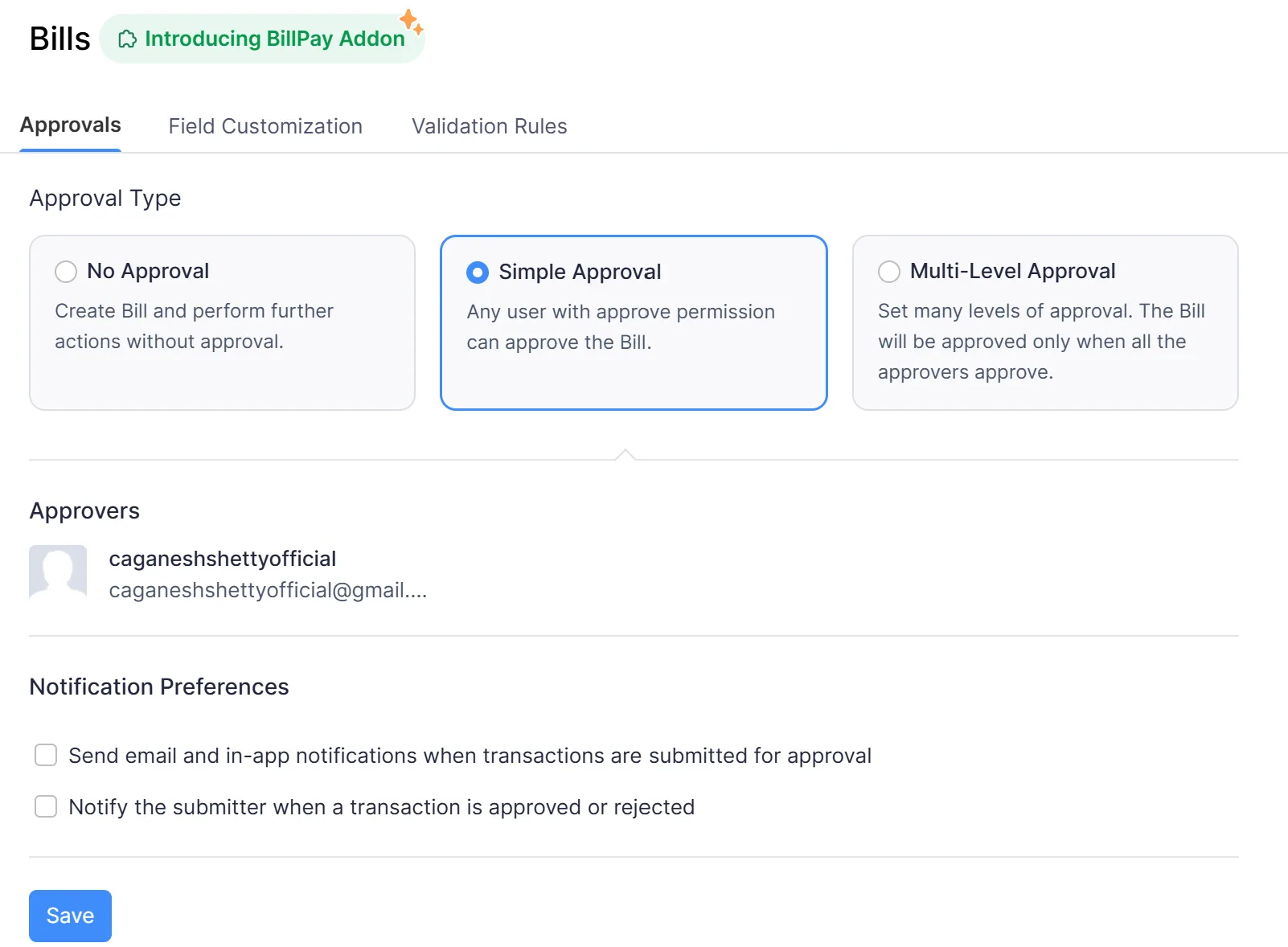
a. Enable Simple Approval for Purchase Approval
To enable Simple Approval:
- Select Simple Approval
- Admin User shall be selected automatically
- Select Notification Preferences
- Click Save
b. Enable Multi-Level Approval for Purchase Approval
You can also set up a multi-level approval process for the transactions that should be approved by two or more people. To set up a multi-level process for your organization:Select Multi-level approval with specific approvers.Select the approvers from the drop-down.Click + Add New Level to add more approvers, if needed.Note:You can add up to 10 approvers. Users with approval permission for the Bills, Vendor Credits, Purchase Orders modules will only be listed will be configured for Multi-level approval.
Disable Purchase Approval
Go to Settings on the top right corner of the page.Select Any One Tab under Purchases.Switch to the Approvals tab.Click No ApprovalClick Save
Approving or Rejecting Transactions
When a transaction requires your approval, you will receive a notification (usually via email). Here’s how to approve or reject a transaction in Zoho Books:
- Access the Transaction: Click on the link in the email notification to access the transaction in Zoho Books. You may also find pending approvals by filtering “Pending Approvals” in the particular section. Eg: Filter for “Pending Approval Bills” in Bills tab to check all pending bills for approval.
- Review the Transaction: Carefully review all the details of the transaction, including the vendor, items, amount, and any supporting documentation.
- Approve or Reject: Click the “Approve” or “Reject” button.
- Add Comments (Optional): You can add comments to provide feedback or justification for your decision.
If you reject a transaction, it will typically be returned to the user who created it for correction or cancellation.
Managing Approval Workflows
You can manage your approval workflows in the Validation Rules under Setting>Purchases>Select Type>Navigate to Validation Rules. This includes:
- Editing Workflows: Modify the criteria, approvers, or notification settings of existing workflows.
- Deactivating Workflows: Temporarily disable a workflow without deleting it.
- Deleting Workflows: Permanently remove a workflow.
It’s important to regularly review your approval workflows to ensure they are still appropriate for your business needs.
Best Practices for Implementing Purchase Approvals
- Clearly Define Your Purchasing Policies: Before setting up approval workflows, clearly define your company’s purchasing policies, including spending limits, approved vendors, and required documentation.
- Choose the Right Approvers: Select approvers who have the appropriate knowledge and authority to make informed purchasing decisions.
- Communicate the Process: Communicate the purchase approval process to all employees to ensure they understand the requirements.
- Monitor Compliance: Regularly monitor compliance with the approval workflows to identify any issues or areas for improvement.
- Regularly Review and Update: Review and update your approval workflows periodically to ensure they remain effective and aligned with your business needs.