Zoho Books Organization Creation
Before you can start using Zoho Books to manage your finances, you need to create an “Organization.” An organization in Zoho Books represents your business or entity. This ensures data segregation and allows you to manage multiple businesses separately within the same Zoho Books account. This section will guide you through the organization creation process.

Understanding the Concept of an “Organization”
Think of an “Organization” as a container that holds all the financial data and settings specific to your business. This includes:
- Customer details
- Vendor details
- Invoices
- Bills
- Inventory
- Bank accounts
- Chart of accounts
- Reports
- User permissions
If you have multiple businesses (e.g., a retail store and a consulting firm), you should create a separate organization for each. This keeps your financial records clean and accurate. Each organization has its own subscription plan (if applicable, based on the chosen plan and feature usage). You can switch between organizations easily from within your Zoho Books account.
Step-by-Step Guide to Creating a New Organization
Here’s how to create a new organizationinZoho Books:
- Go to the Zoho books Home page through https://www.zoho.com/in/books/
- Click SIGN UP NOW in the top right corner.
- On the Let’s get started page, fill in the following fields:Company Name: Enter your business name.Email Address: Enter the email address for your account.Mobile Number: Enter your mobile number.Password: Create a password for your account.Country: Select your business’s country.State: Select the state where your business operates.
- Next, check I agree to the Terms of Service and Privacy Policy to accept the terms and conditions, and click Create my account.
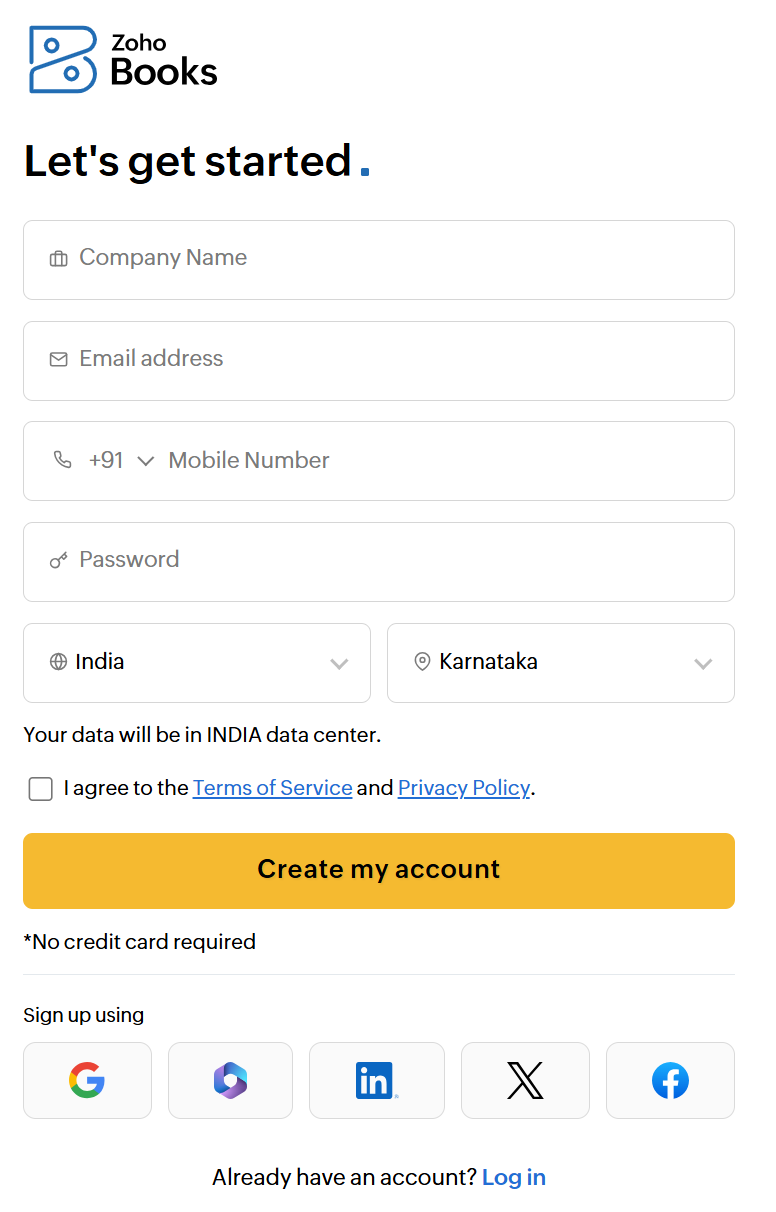
Insight:You can also sign up for Zoho Books using your Google, Office 365, LinkedIn, X (formerly Twitter), or Facebook account.
Common Issues During OrganizationCreation
While the organization creation process is generally straightforward, you might encounter some common issues:
- Invalid Email Address: Make sure you’re using a valid and accessible email address for your Zohoaccount.
- Missing Required Fields: Ensure you’ve filled in all the required fields on the organization creation form (usually marked with an asterisk *).
- Duplicate Organization Name: If you’re trying to create an organization with a name that already exists within your account (or potentially another Zoho Books account in some cases), you’ll receive an error. Choose a unique name.
- Incorrect Currency: Double-check the currency you’ve selected. Changing it later can be complex and may require assistance from Zoho support.
- Connection Problems: If you’re experiencing network connectivity issues, you might not be able to create the organization successfully. Ensure you have a stable internet connection.
If you encounter persistent problems, consult the Zoho Books help documentation or contact Zoho support for assistance.
Sign In to Zoho Books
After signing up to the Zoho Books, you can sign in to your account. To sign in:Go to the Zoho books Home page through https://www.zoho.com/in/books/Click SIGN IN in the top right corner.In the next page, fill in the following fields:Email Address or Mobile Number: Enter your registered email address or mobile number to sign in to your Zoho Books account. You’ll either be asked to enter the OTP sent to your email or mobile or enter your account password.Forgot Password?: If you’ve forgotten your account password, you can click this option to reset it.After entering your email or mobile number and password, click Sign In.
Insight:If you’ve signed up for Zoho Books using your Apple, Google, Yahoo, Facebook, LinkedIn, Twitter, Microsoft, Slack, or GitHub account, you can select the corresponding option from the sign-in page and enter your credentials to log in.
Supported Browsers
Zoho Books is a web-based application that works seamlessly on most modern browsers, providing an optimal experience. Some of the supported browsers are:
Chromium-Based Browsers: Google Chrome, Microsoft Edge, Opera, Vivaldi, Arc, SigmaOS, and Zen.Other Browsers: Mozilla Firefox, Safari, and Amazon Silk.
Supported Platforms
Zoho Books is also available as a native app on the following platforms:
Mobile and Tablet
iOSiPadOSAndroid
Computer and TV
WindowsmacOSApple TV
Multiple Choice Question:
Summary Table
| Step | Description | Important Notes |
|---|---|---|
| 1 | Sign up/Log in to Zoho Books. | Ensure you have a valid Zoho account. |
| 2 | Access the Organizations page. | Look for settings/organization management options. |
| 3 | Initiate organization creation. | Click “Create New Organization” or similar. |
| 4 | Enter organization details. | Provide accurate information about your business (Name, Industry, Country, etc.). |
| 5 | Confirm and create. | Double-check all information before submitting. |
| 6 | Initial setup (optional). | Customize settings, connect bank accounts, import data. |