Budgets
As a business, you are expected to set targets to forecast how your business is going to perform, either for increasing your revenue or for decreasing your expenses. These targets are called budgets.
However, businesses usually do not perform as forecasted. The performance of your business (otherwise known as actuals) is prone to unprecedented events, making it hard for businesses to meet the budget targets they had set initially. If you’ve been using Zoho Books diligently, you would have an idea of how your business is performing by tracking your receivables and payables.
Using Zoho Books, you can now reflect on how your business is performing by comparing your projected budget versus the actual performance of your business using very extensive and insightful reports. This process is also known as Budget Variance.
Create Budget
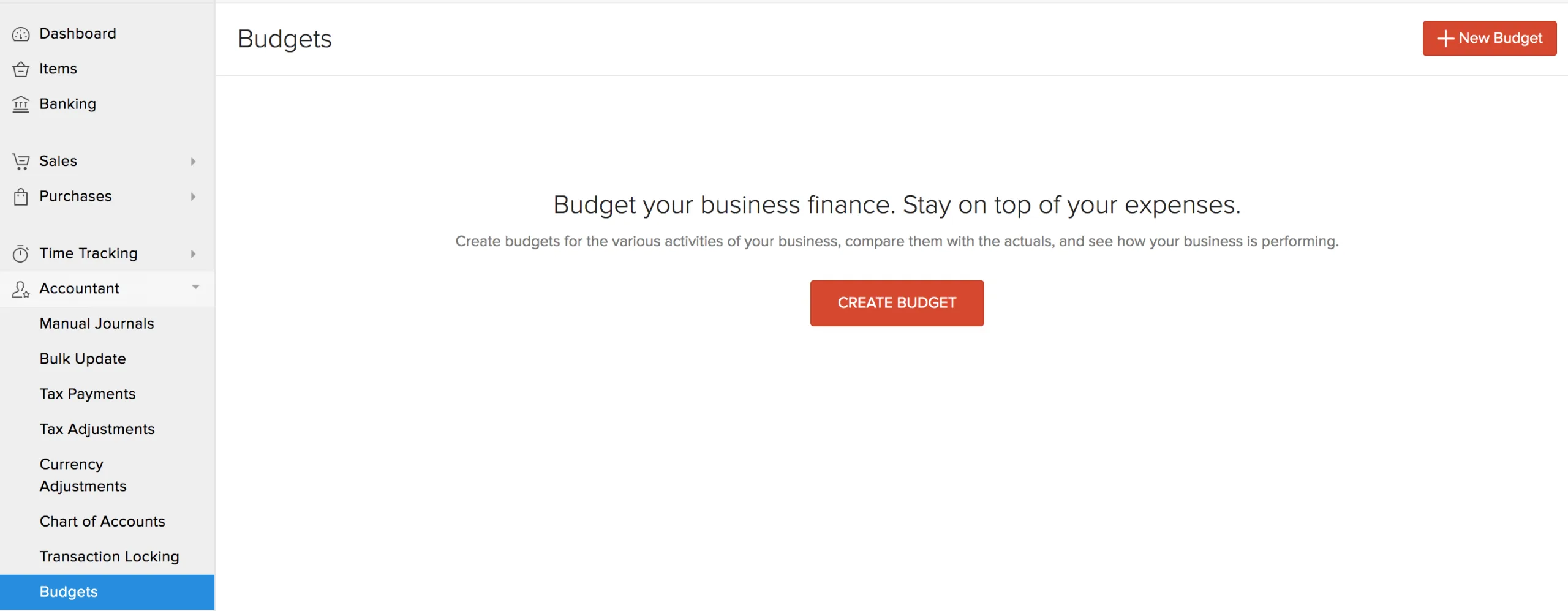
- Go to Accountant > Budgets.
- Click + New Budget in the top right corner.
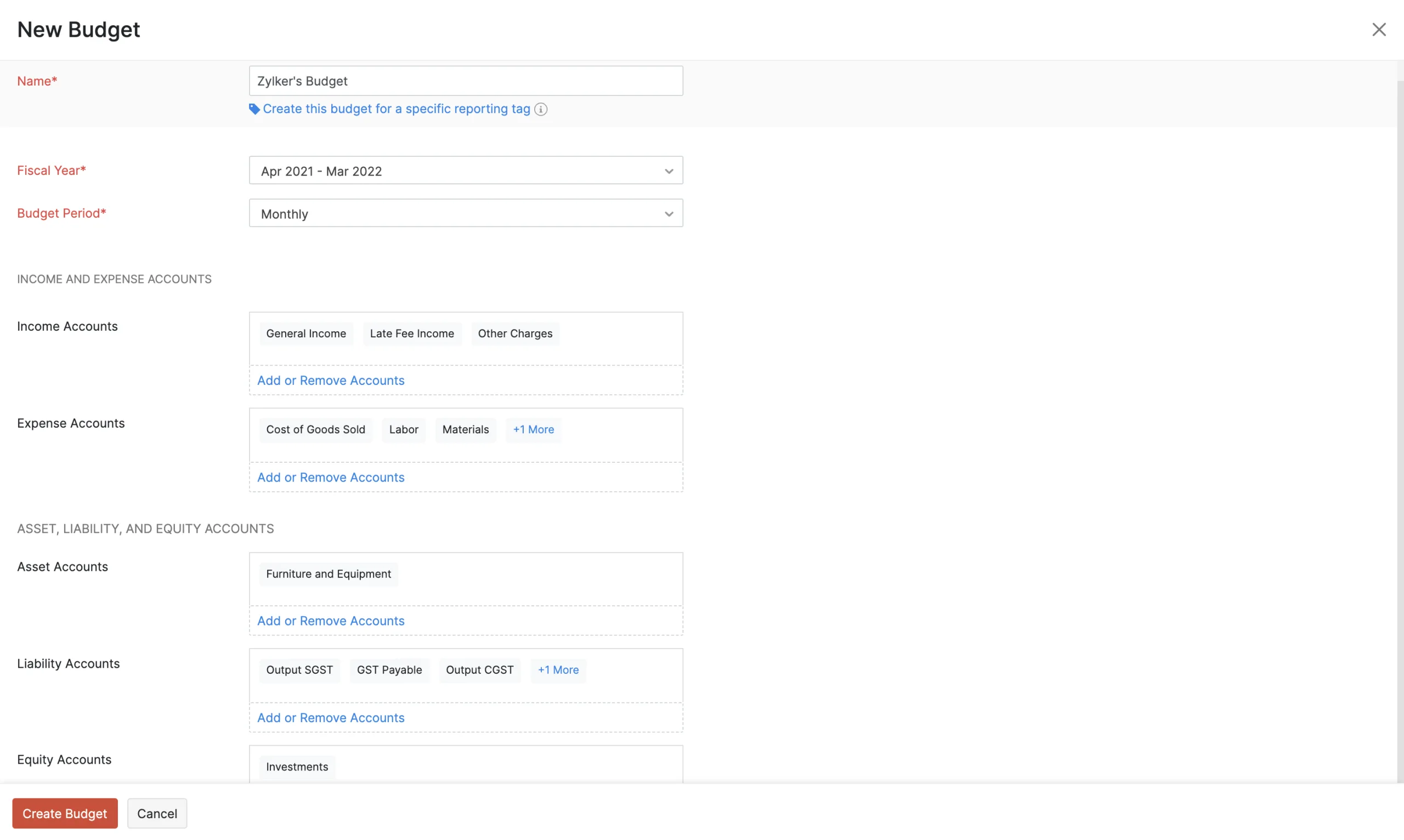
Enter the following details:
| Field | Description |
|---|---|
| Name | Enter a name to identify your budget. |
| Fiscal Year | Select the financial year for which you would like to create a budget. |
| Budget Period | Select a time period for your budget. The budget period can either be monthly, quarterly, half-yearly or yearly. |
| Income Accounts | Select the income accounts you want to include in the budget. |
| Expense Accounts | Select the expense accounts you want to include in the budget. |
- If you want to include Assets, Liabilities, and Equity accounts in your budget, click the Include Assets, Liability, and Equity Accounts in Budget option.
| Fields | Description |
|---|---|
| Asset Accounts | Select the asset accounts which you want to include in the budget. |
| Liability Accounts | Select the liability accounts which you want to include in the budget. |
| Equity Accounts | Select the equity accounts which you want to include in the budget. |
You can associate reporting tags to your budgets as well. To do this:
- Click Create this budget for a specific reporting tag.
- Select the tag name and choose an option.
Recording Budget Values
Next, you can record the budgets for your income and expenses. To record them, you can:
- Enter them manually
- Pre-fill based on previous years’ actuals
- Auto-fill accounts
Enter Them Manually
If you would like to enter the budget manually, you can enter the amounts in the fields provided next to the respective accounts. Once you have recorded the budget for your income and expenses, the Net Profit and Loss will be automatically calculated by Zoho Books.
Pre-fill based on Previous Years’ Actuals
If you would like to create a budget based on one of your previous year’s business performance, you can do just that in Zoho Books.
- Click Pre-fill from Previous Years’ Actuals.
- Select a previous year.
- Click Pre-fill.
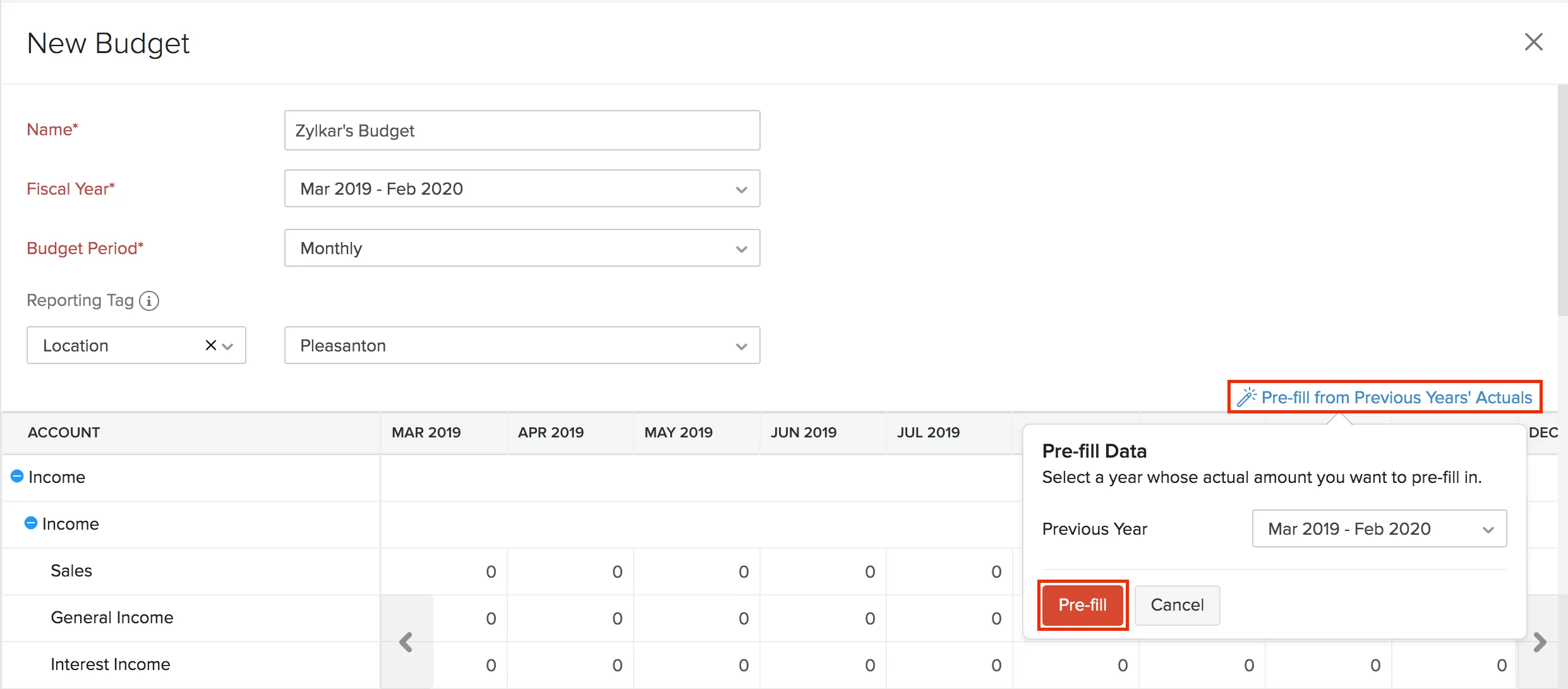
The Net Profit and Loss will be automatically calculated by Zoho Books.
Auto-fill Accounts
Instead of entering the amount for each account and period individually, you can just enter the amount for the first period for an account and choose to auto-fill values for the subsequent periods (monthly, quarterly or half-yearly). The amounts in the subsequent periods will be auto-filled based on the first period amount and the following criteria:
- Apply fixed amount for each period
- Adjust by amount for each period
- Adjust by percentage for each period
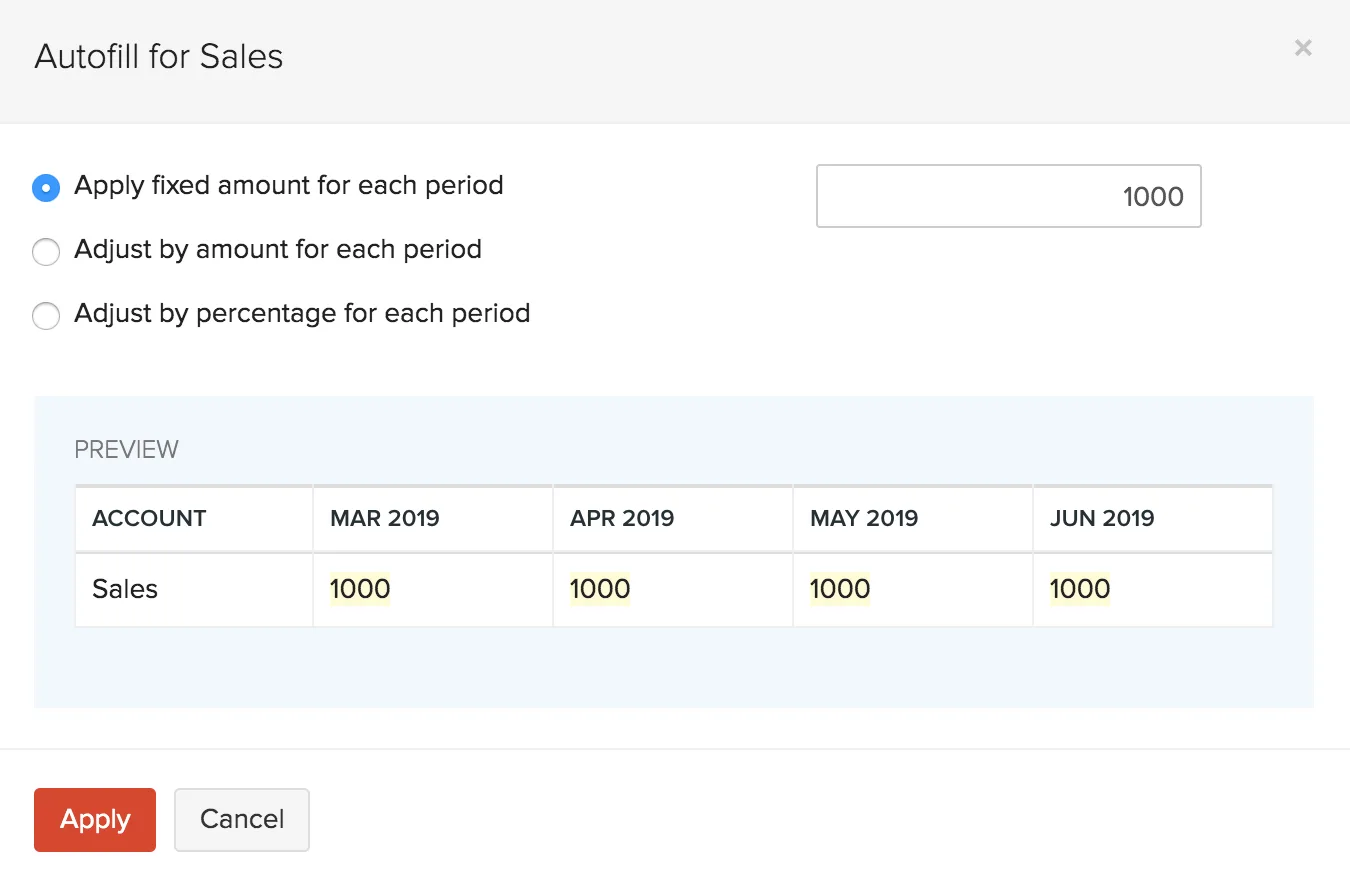
Auto-Fill by Applying Fixed Amount for Each Period
If your business is projected to earn the same income or incur the same expense for each period in your budget, you can select this option. You will have to enter a fixed amount for a period. The subsequent periods will be auto-filled with the initial amount you’ve entered.
Auto-Fill by Adjusting the Amount for Each Period
If your business is projected to earn income or incur expenses based on adjustments to amounts, you can select this option. You’ll be able to add the adjustment amount to the:
- First period’s amount
- Each period’s existing amount
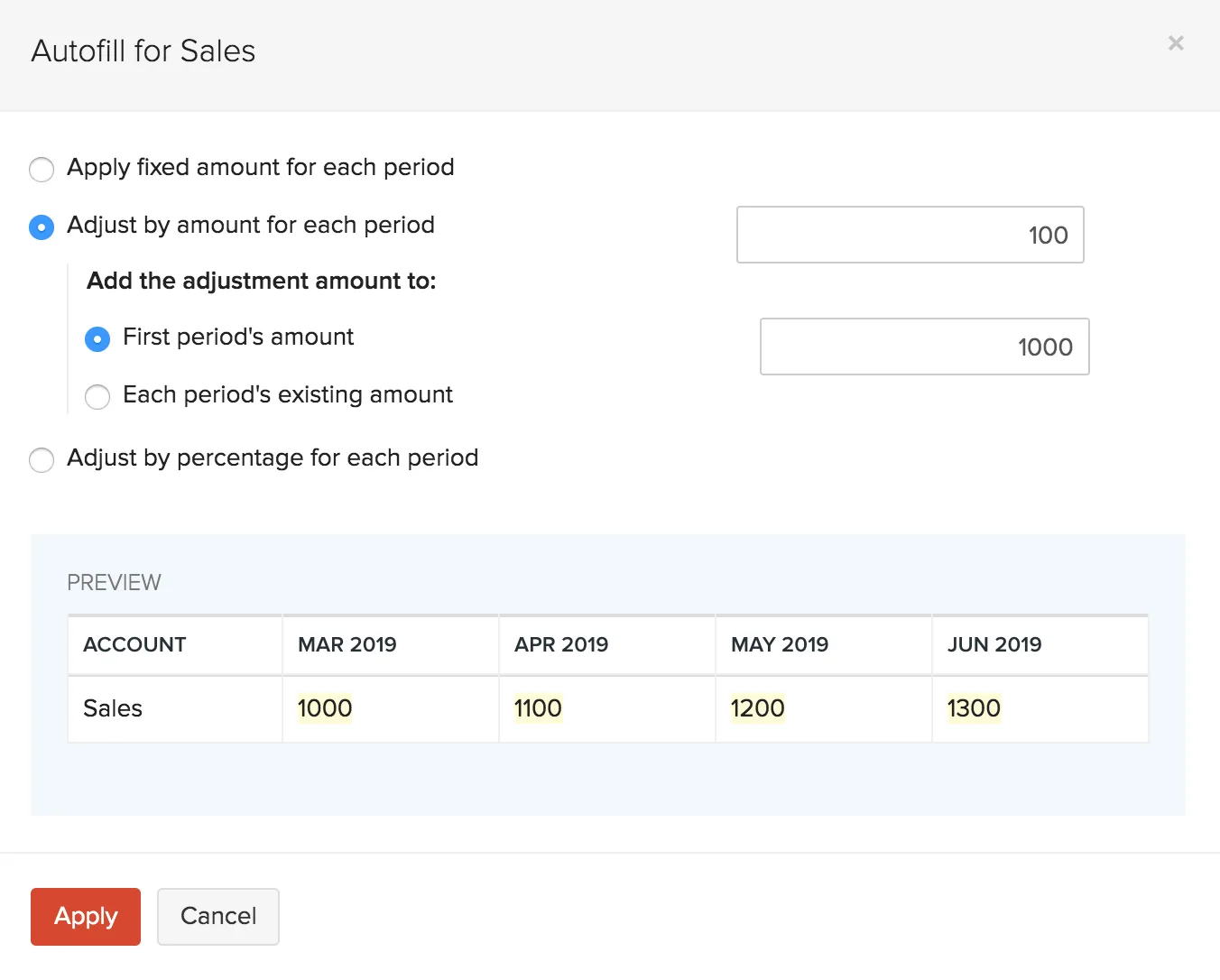
Add the adjustment amount to the first period’s amount
You can enter an amount for the first period and the subsequent periods will be auto-filled based on the adjustment amount.
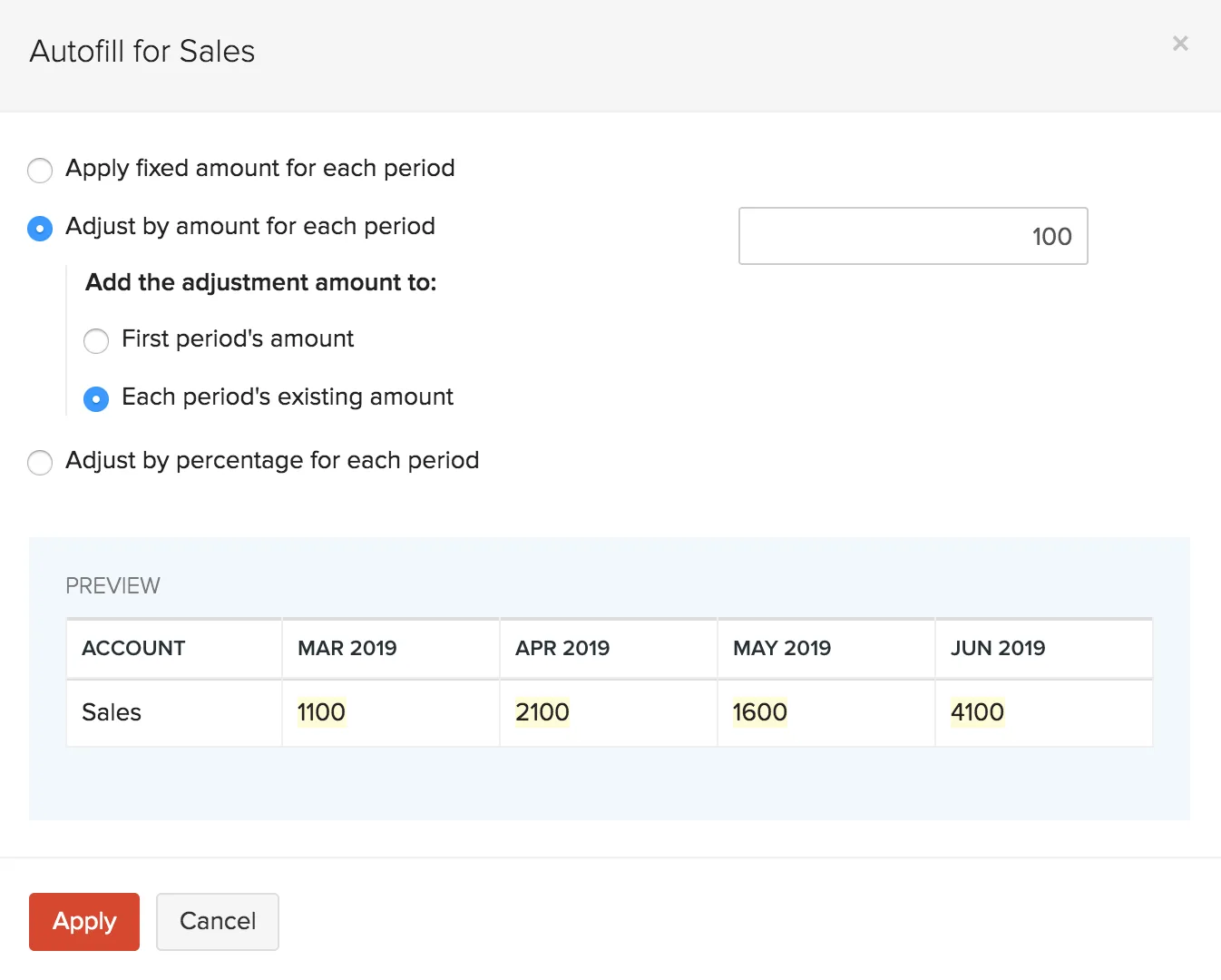
Add the adjustment amount for each period’s existing amount
You can select this option if you’ve already entered your budget and you wish to update them with an adjustment amount.
Auto-Fill by Adjusting the Percentage for Each Period
If your business is projected to earn income or incur expenses based on a percentage, you can select this option. You’ll be able to add the percentage to the:
- First period’s amount
- Each period’s existing amount
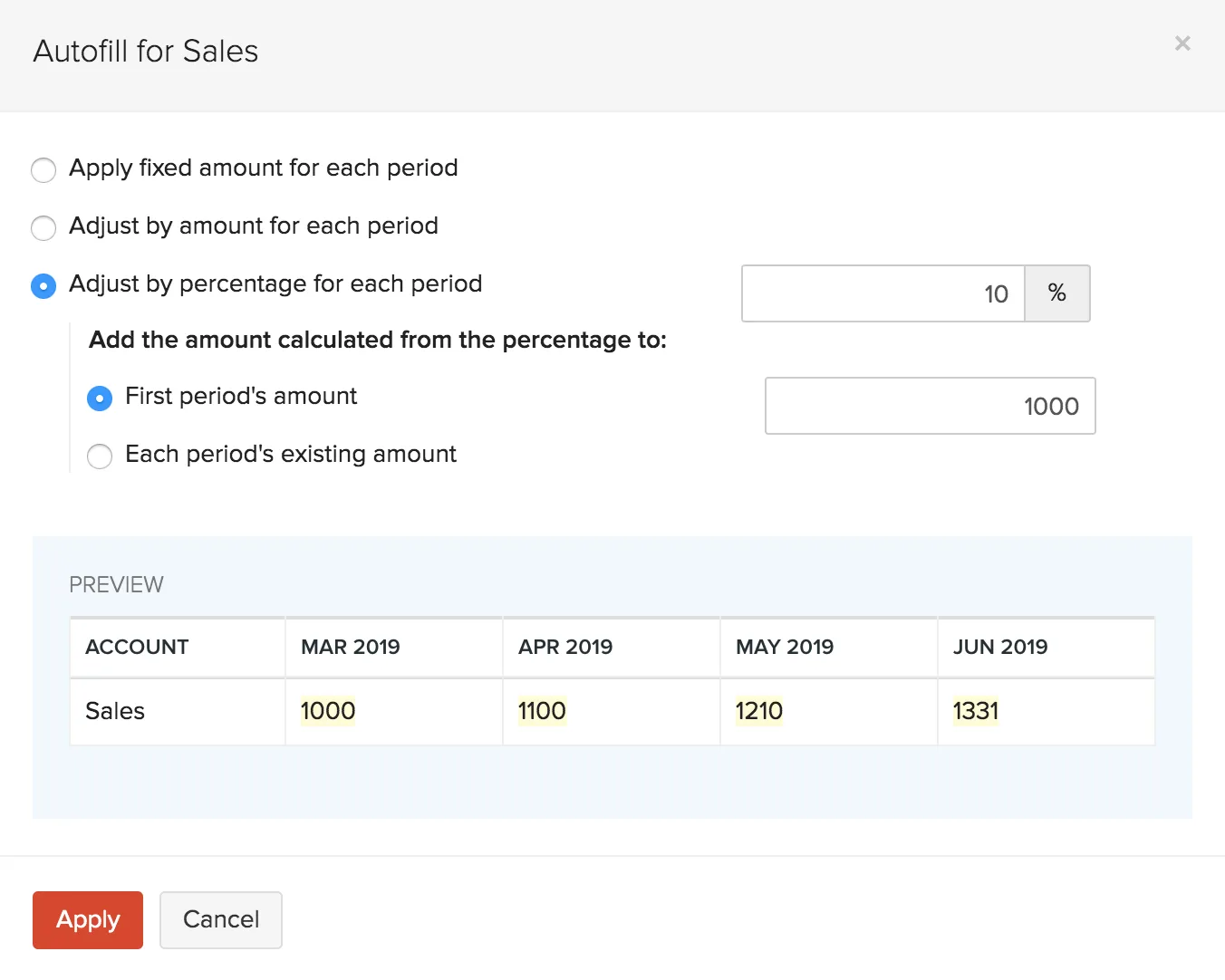
Add the adjustment percentage to the first period’s amount
You can enter an amount for the first period and the subsequent periods will be auto-filled based on the percentage of adjustment.
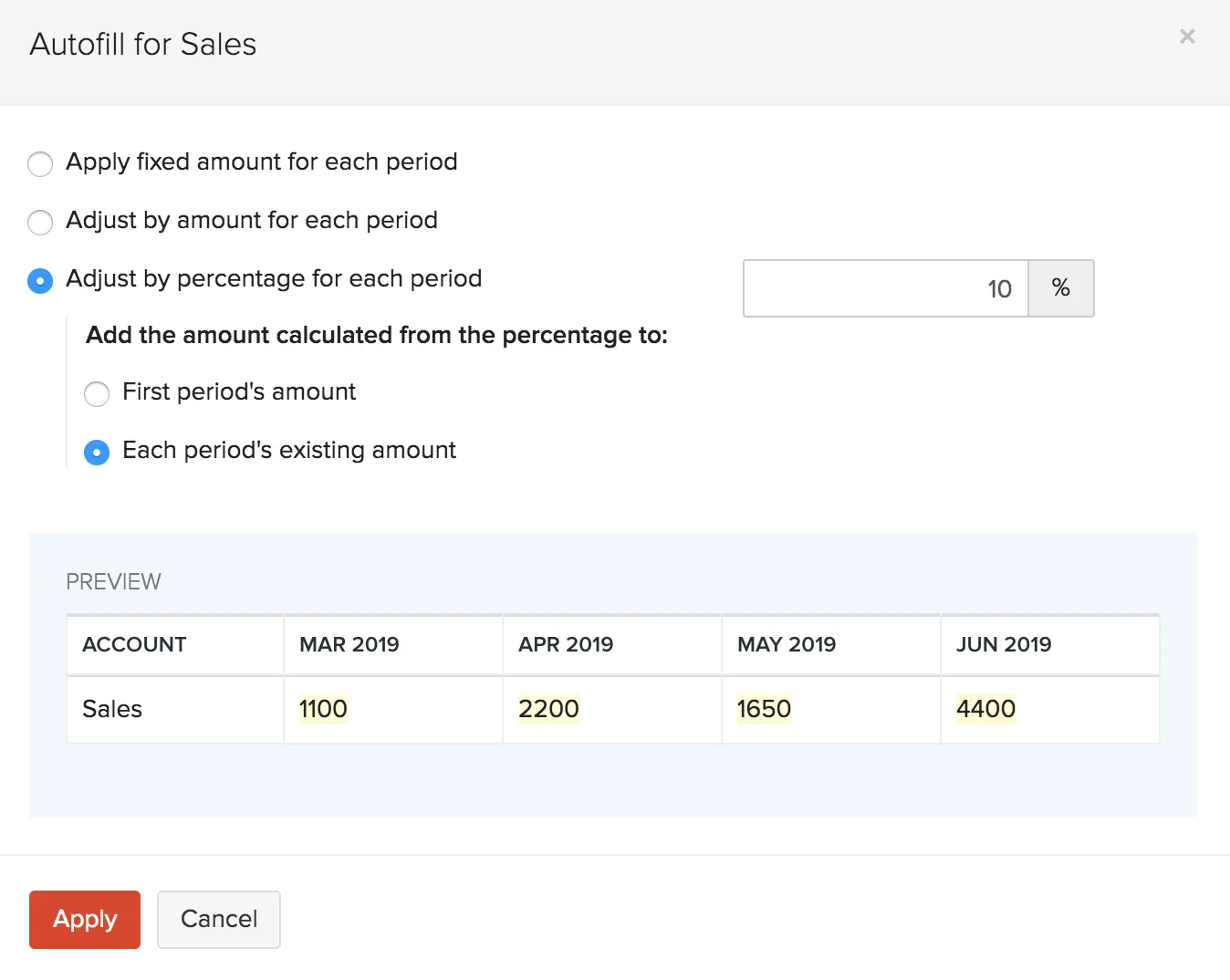
Add the adjustment percentage for each period’s existing amount
You can select this option if you’ve already entered your budget and you wish to update them with a percentage of adjustment.
Budget Summary
Once you’ve created a budget, Zoho Books will use the budget to generate the following reports so that you can forecast your company’s finances:
- Profit and Loss
- Balance sheet
- Cash Flow statement
Profit and Loss
The Profit and Loss report is generated based on the amount that you entered for the selected income and expense accounts when you created a budget. Your net profit and net loss will be calculated for the period that you have chosen based on the net income and net expense. Knowing the profit and loss for a budget that you have created will let you make better financial decisions and make the necessary changes to increase your profits.
Balance Sheet
A balance sheet in the budget is used to predict your assets, liabilities, and equities for the budget period. It will always be calculated for the period chosen (Monthly, Quarterly, Half-yearly, Yearly). This report can be used to know the financial position of a business based on the values entered in the budget.
Zoho Books is a double-entry accounting system, this means that the budget values in the Balance Sheet will be maintained as follows:
Total Asset = Total Liability + Total Equity
In the budget, if the total asset account is not equal to the total liability and equity amount, Zoho Books will add a new equity account called Budget Mismatch Account to ensure that your accounts are equal.
Cash Flow Statement
The Cash Flow Statement report is a comprehensive report that will show you the total cash flow of your business based on the values entered in the budget. Using this report, you will get an idea about the cash coming in and going out of your business based on the values entered in the budget. Similar to the Balance Sheet report, this report will also include the Budget Mismatch Account if your total asset account is not equal to the total amount of liability and equity.
Compare Budgets Vs Actuals (Budget Summary)
Once you have created a budget, you can know how your business is actually performing against your forecasted budget. You will be able to compare your budget vs actuals with Profit and Loss, Balance Sheet and Cash Flow Statement reports. To compare them:
- Go to Accountant > Budgets.
- Click View Budget Vs Actuals next to a budget that you’ve created.

You will also be able to:
- Export Budget Summary
- Customise Budget Report
- Print Budget Summary
Export Budget Report
You can export your organisation’s budget summary as a PDF, XLS, XLSX format.
- Go to Accountant > Budgets.
- Select the budget.
- Click View Budget Vs Actuals.
- Click Export As in the top right corner and choose your preferred format.

Customize Budget Report
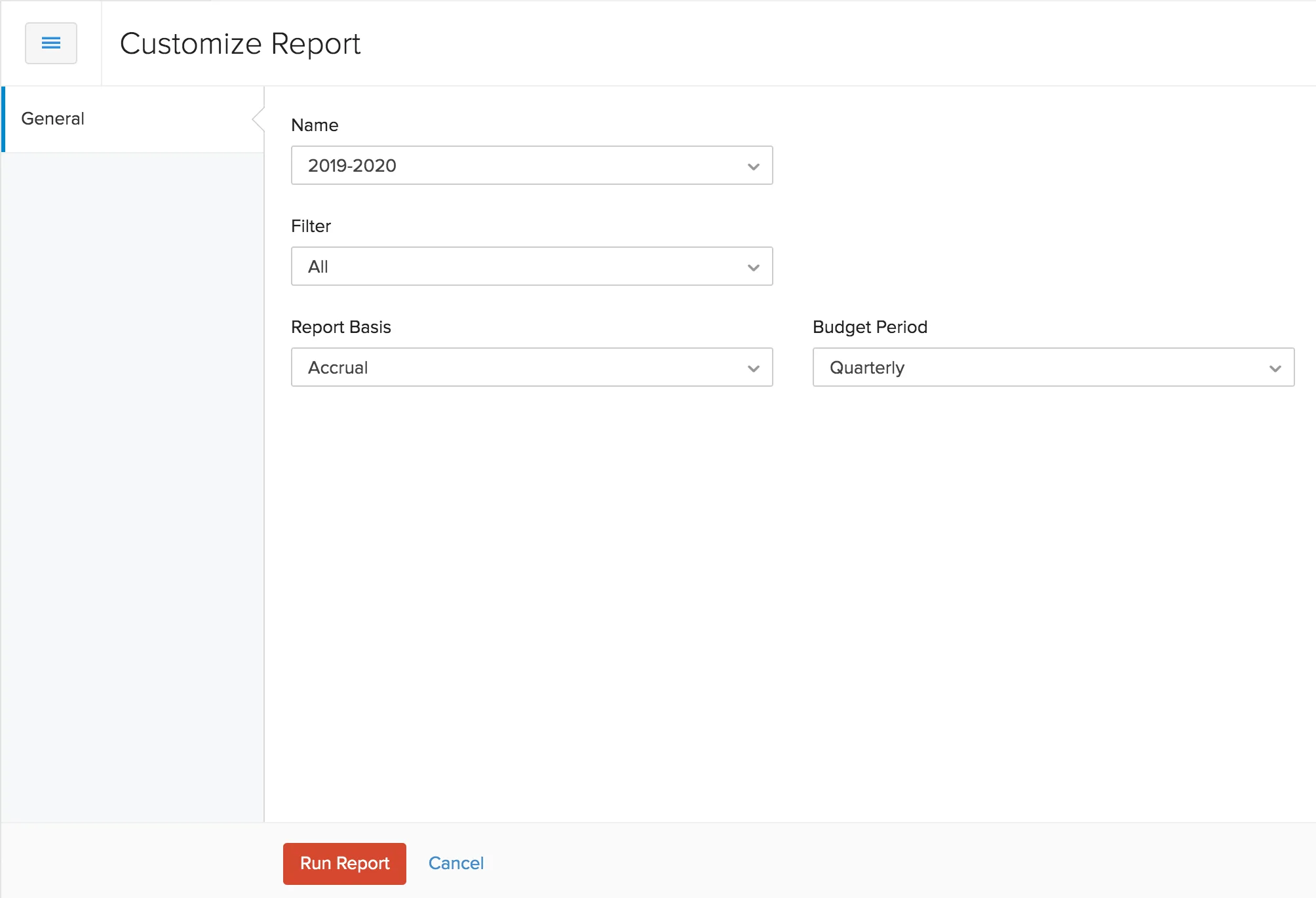
You can run your budget summary report based on the name of the budget and account type (All Accounts, Budget Accounts, Accounts with Transactions, and Budget Accounts or Accounts with Transactions). To customise your budget summary:
- Go to Accountant > Budgets.
- Select the budget.
- Click View Budget Vs Actuals.
- Click Customise Report in the top left corner.
- Select the budget, filter, report basis and the budget period.
| Field | Description |
|---|---|
| Filter | Run your report based on the account type. You can select all accounts, active accounts, budget accounts and budget or active accounts. |
| Report Basis | You can run your report based on the type of income and expenses, It can be Accrual or Cash. |
| Budget Period | Run your report based on monthly, quarterly, half-yearly or yearly budget periods. |
| From | Select the starting date from which you want to generate the report. |
| To | Select the date till which you want to generate the report. |
The accounts that can be filtered have been mentioned below:
| Filter | Description |
|---|---|
| All Accounts | Select this option if you want to run the report for all accounts. |
| Accounts with Transactions | Select this option if you want to filter the accounts that have transactions recorded. |
| Budget Accounts | Select this option if you want to filter the accounts that are included in a budget. |
| Accounts with Transactions or Budget Accounts | Select this option if you want to filter the accounts that have transactions recorded or the accounts that are included in a budget. |
- Click Run Report.
Print Budget Summary
To print a copy of your budget summary:
- Go to Accountant > Budgets.
- Select the budget.
- Click View Budget Vs Actuals.
- Click the Print icon in the top right corner.
- Click Print.
More Actions
You can also perform certain actions for your budgets. You will be able to:
- Edit Budget
- Clone Budget
- Download Budget
- Print Budget
- Delete Budget
Edit Budget
If you have any changes that are to be made to your budgets, you can edit them anytime. To edit a budget:
- Go to Accountant > Budgets.
- Click the dropdown next to a budget you’ve created.
- Click Edit.

Clone Budget
If want to replicate a budget you had made earlier, you can just clone them. To clone a budget:
- Go to Accountant > Budgets.
- Click the dropdown next to a budget you’ve created.
- Click Clone.

Download Budget
You can download your budgets to your system as a PDF. To download your budget:
- Go to Accountant > Budgets.
- Select the budget you would like to download.
- Click the PDF icon in the top right corner to start the download the budget as a PDF.

Print Budget
To print a copy of your budget:
- Go to Accountant > Budgets.
- Select the budget you would like to print.
- Click the print icon in the top right corner.
- Click Print.

Delete Budget
If you no longer wish to use a budget, you can delete them permanently. To delete a budget:
- Go to Accountant > Budgets.
- Click the dropdown next to a budget you’ve created.
- Click Delete.
