Managing Validation Rules and Web Tabs
Web Tabs
Web Tabs are similar to browser tabs, but accessible within Zoho Books. It enables you to access web pages or applications that provide you with an embed URL, to be embedded within other applications. Depending on the website, you can find the embed or publish URL and create web tabs within Zoho Books. Also, you can configure to allow specific users and roles to view the web tabs.
Web tabs can be used in many ways depending on your business needs. Let’s say you have multiple organisations in Zoho Books and have set up custom reports in Zoho Analytics to analyze data across all these organisations. You can copy the publish URL of the custom report and create a web tab to access the dashboard or custom report within Zoho Books.
Consider another scenario, let’s say that you’ve created a Zoho Creator application to manage manufacturing process, POS or some specific aspect of your business. You can copy the embed URL and create a web tab for it. Now, you’ll be able to access this Zoho Creator application within Zoho Books, instead of opening it in a separate browser tab.
Create Web Tab
To create a new web tab:
- Go to Settings.
- Select Web Tabs under Customisation.
- Click + New Tab in the top right corner of the page.
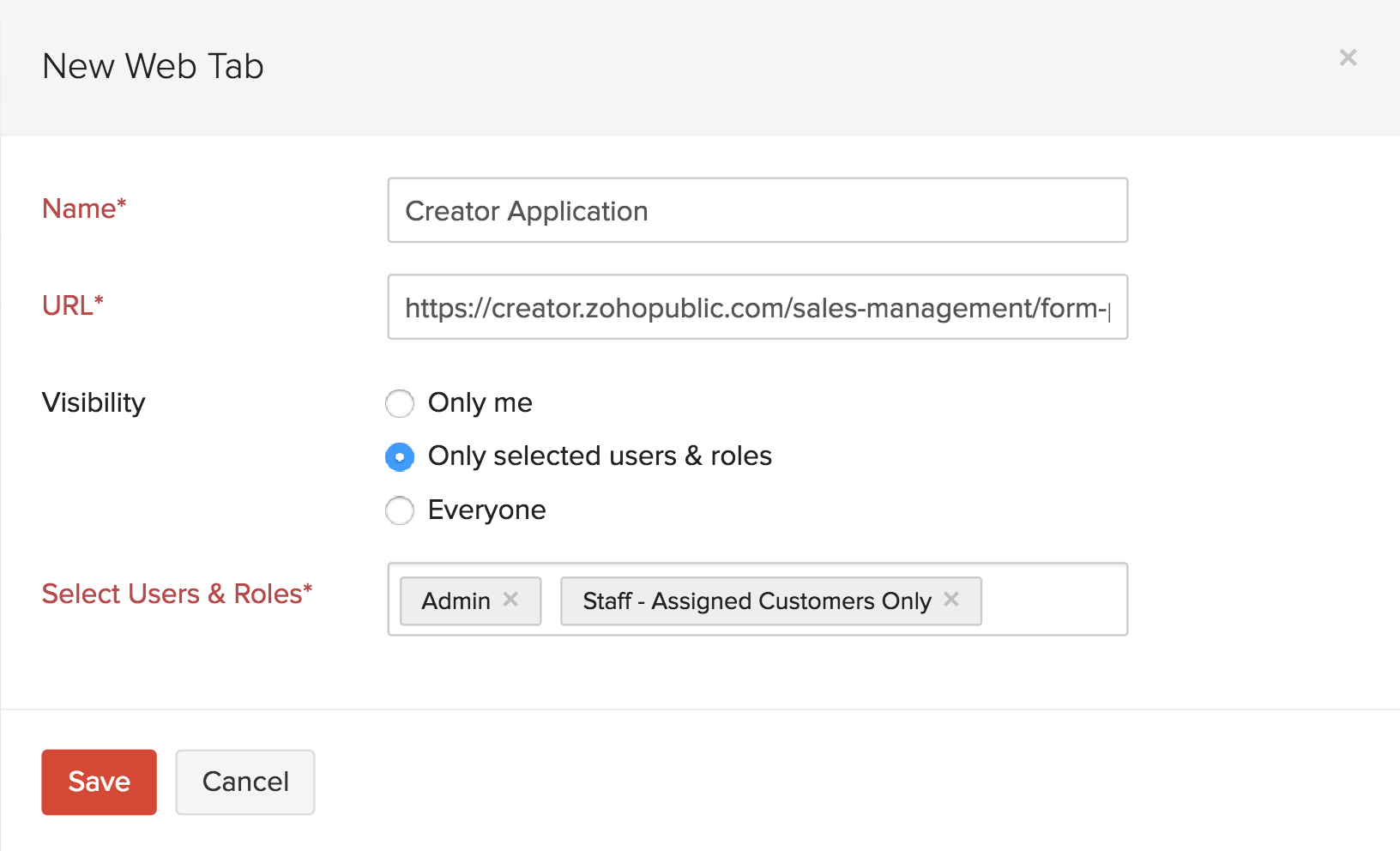
- Enter a name for the web tab.
- Enter the corresponding URL that you’d like to open within Zoho Books.
- Choose if the web tab must be visible only to you or to selected users and roles or to everyone.
- If you’ve chosen Only selected users & roles, select the users and roles from the dropdown.
- Click Save.
Now, you’ll find Web Tabs in the sidebar of Zoho Books and the new web tab listed under it. Click the web tab and it’ll open within Zoho Books. Based on your preferences, users will be able to view or not view the web tab when they use Zoho Books.
Edit Web Tab
You can edit a web tab if you want to change its name or load a different URL. Here’s how:
- Go to Settings.
- Select Web Tabs under Customisation.
- Click the web tab that you want to edit or hover over the web tab that you want to edit and click Edit.
- Make the necessary change.
- Click Save.

Delete Web Tab
If you don’t want to access a web page or web tab anymore, you can delete it. Here’s how:
- Go to Settings.
- Select Web Tabs under Customisation.
- Hover over the web tab that you want to delete.
- Click the Delete icon.
- Click OK in the pop-up to confirm deleting the web tab.

Validation Rules
Validation Rules in Zoho Books help you create new rules that set restrictions for the data being recorded. So, when a user tries to enter data in a field that you have set a restriction for, it passes through the validation rule. If the value you enter in the field violates the condition you’ve set, an alert message is displayed and the transaction is not created. The user will also be able to set multiple criteria for a single validation rule.
Let us understand how validation rules work with the help of few scenarios.
Create Validation Rule
You can create a validation rule by setting certain criteria for the fields in a transaction. Here’s how:
- Go to Settings in the top right corner.
- Select the module for which you would like to create a validation rule.
- Go to the Validation Rules tab.
- Click + New Validation Rule in the top right corner.
- Enter a Validation Rule Name.
- Click + Add Rule and add the condition to be met in the pop-up.
- Enter the Alert Message to be displayed when the transaction violates the validation rule.
- Click Continue.

- If you want to add more rules, click + Add Rule and repeat the steps mentioned above.
- Click Save once you’ve configured the validation rule.
Multiple Criteria and Subrules
A validation rule is applicable for all transactions. However, if you would like to apply it for specific transactions based on multiple criteria, or create a new rule with the same condition, refer the following:
- Add Multiple Criteria
- Add Subrules
Add Multiple Criteria
When you create a validation rule, it will be applicable for all transactions by default. You can also choose the rule to be applied to transactions based on specific criteria.
Here’s how you can add multiple criteria:
- Go to Settings in the top right corner..
- Select the particular module and go to the Validation Rules tab at the top of the page.
- For new rules: While creating a validation rule, enter the details and click Save. On the page that follows, click the Edit icon next to the rule.For existing rules: On the Validation Rules tab, hover over the required rule, click the Dropdown icon, and select Edit. On the Edit Validation Rule page, click the Edit icon next to the rule.
- Click Based on specific criteria in the pop-up.
- Set the required criteria using the options provided.
- Click + Add Criterion for more options and click the Delete icon to remove criteria.
- Click the Edit icon to change the criteria pattern based on your preferences and click Save.
- Click Done.

Add Subrules
If you would like to include an additional rule to your existing condition, you can add Subrules. This is applicable only when you’ve chosen to apply the rule to transactions based on specific criteria.
Here’s how you can create subrules:
- Go to Settings in the top right corner.
- Select the particular module and go to the Validation Rules tab.
- Select the field for which you have created a validation rule.
- Click + Add Subrule and a pop-up appears.
- Enter the Criteria and the Alert Message.
- Click Done.
- Verify the subrule you had created and click Save for the changes to reflect.
Execute Validation Rules
Once a validation rule is created and saved, it will be applicable for all transactions created henceforth. When any new transaction violates a validation rule, the alert message configured in the validation rule will be displayed to the users.
Edit a Validation Rule
You can make changes to a validation rule by updating its details. Here’s how:
- Go to Settings in the top right corner.
- Select the module for which you created the validation rule.
- Go to the Validation Rules tab.
- Hover over the validation rule you want to edit.
- Click the Dropdown icon and select Edit.

- Make the necessary changes and click Save.
Mark a Validation Rule as Inactive
You can temporarily disable a validation rule by marking it as inactive. Here’s how:
- Go to Settings in the top right corner.
- Select the module for which you created the validation rule.
- Go to the Validation Rules tab.
- Hover over the validation rule you want to mark as inactive.
- Click the Dropdown icon and select Mark as Inactive.

Delete a Validation Rule
- Go to Settings in the top right corner.
- Select the module for which you created the validation rule.
- Go to the Validation Rules tab.
- Hover over the validation rule you want to delete.
- Click the Dropdown icon and select Delete.

- Click Yes, Delete in the pop-up to confirm your action.
Multiple Choice Question
Summary Table: Managing Validation Rules and Web Tabs
| Feature | Description | Benefits |
|---|---|---|
| Validation Rules | Enforce data quality by defining criteria that must be met before a transaction can be saved. | Improved data accuracy, reduced errors, enhanced compliance. |
| Web Tabs | Integrate external web applications and resources into the Zoho Books interface. | Streamlined workflow, improved user experience, quick access to relevant information. |