Specific Integrations
Integrate Zoho Books with Zoho CRM
When you integrate Zoho Books with Zoho CRM, you can view and manage customer and accounting information in one place. This integration improves collaboration between sales and finance teams in your business, allowing them to track deals, create quotes, and invoices without switching between applications.
Benefits of the Integration
- Capture all customer information in one place, so you can work on the same information at hand in both the apps.
- View customer’s key accounting metrics like sales information and outstanding receivables directly from Zoho CRM.
- Sync transactions between both apps.
- Automate workflows, like creating an invoice when a deal is won.
Set up the Integration
To set up the CRM integration from Zoho Books:
- Go to Settings on the top right corner of the page.
- Select Zoho Apps under Integrations.
- In the Zoho Apps page, click Connect next to Zoho CRM.

- In the Connect to Zoho CRM page, click Select Organisation in the Zoho CRM Organisation section.
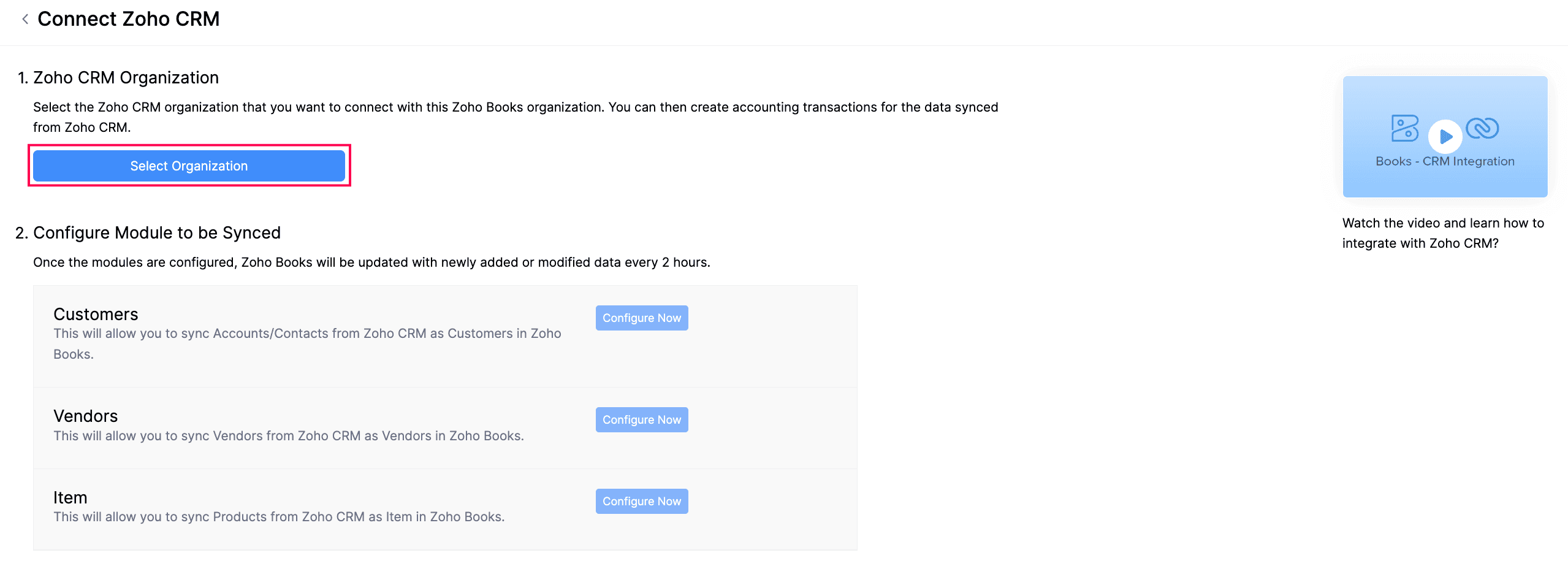
- In the Connect Zoho CRM pop-up, select the required Organisation, and click Save.

A two-way sync will be set up, which means that data will be fetched from Zoho CRM into Zoho Books and vice-versa.
Configure the Modules to be Synced
Once you set up the integration, you can configure the modules to sync between Zoho Books and Zoho CRM. To do this:
- Go to Settings.
- Select Zoho Apps under Integrations & Marketplace.
- In the Zoho Apps page, click Show Details next to Zoho CRM.
- In the Configure Module to be Synced section, click Configure Now next to the required module you want to sync from Zoho CRM into Zoho Books.
You can sync data for the following modules from Zoho CRM into Zoho Books:
- Customers
- Vendors
- Items
Sync Customers
To sync customer data from Zoho CRM into Zoho Books:
- Go to Settings.
- Select Zoho Apps under Integrations & Marketplace.
- In the Zoho Apps page, click Show Details next to Zoho CRM.
- In the Configure Module to be Synced section, click Configure Now next to Customers.

In the next page, configure the following preferences:
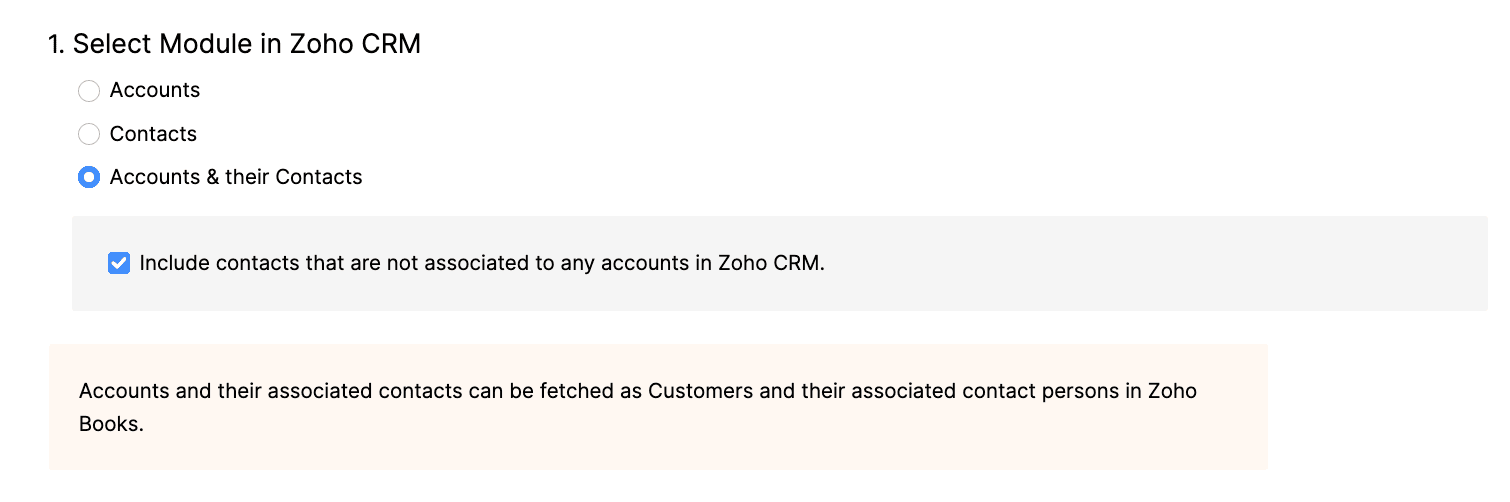
- Select Module in Zoho CRM: Select the module you want to sync between Zoho CRM and Zoho Books.Accounts: The Accounts in Zoho CRM will be fetched as Customers in Zoho Books with the Customer Type set as Business.Contacts: The Contacts in Zoho CRM will be fetched as Customers in Zoho Books with the Customer Type set as Individual.Accounts & their Contacts: The Accounts and associated Contacts in Zoho CRM will be fetched as Customers and Contact Persons in Zoho Books. Check Include contacts that are not associated to any accounts in Zoho CRM to sync contacts that are not associated with an account in Zoho CRM. These contacts will be fetched as Customers in Zoho Books with the Customer Type set as Individual.
Select the extent of sync: Choose how you want to sync records between both the apps.
- Fetch from CRM: The records in Zoho CRM will only be fetched into Zoho Books. No Zoho Books records will be fetched into Zoho CRM. However, any records already pushed to Zoho CRM will remain unaffected.
- Sync both ways: The records will be synced from Zoho CRM to Zoho Books and vice-versa, in which Zoho CRM records will be fetched first.

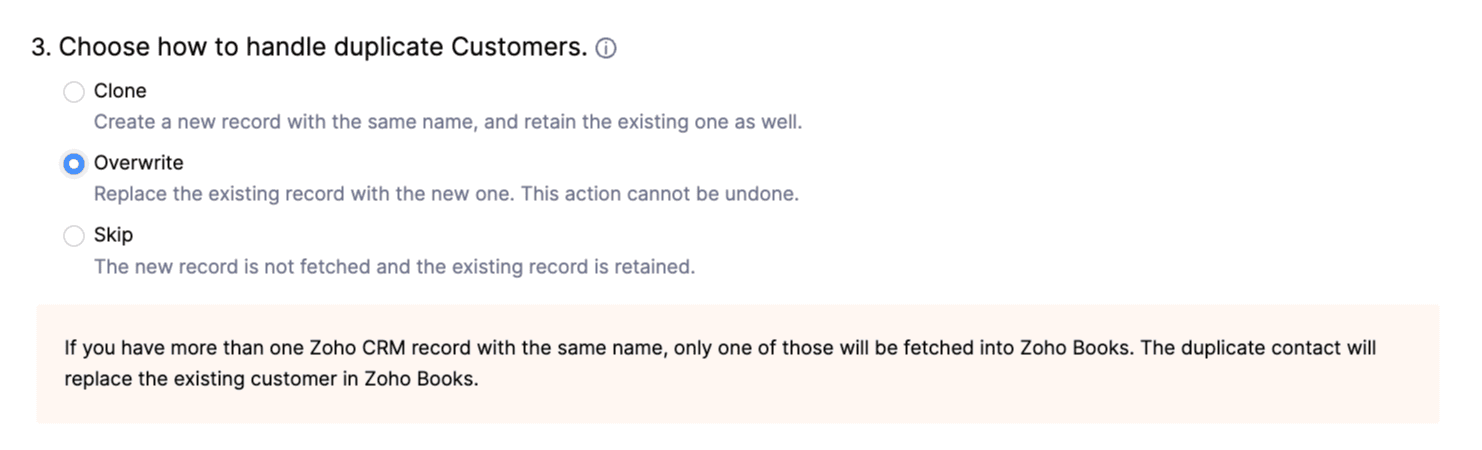
- Choose how to handle duplicate customers: When you sync records between Zoho CRM and Zoho Books, there might be a record in Zoho CRM that is already present in Zoho Books. To resolve this, duplicate records are identified by comparing Account Name in Zoho CRM and Customer Display Name in Zoho Books. Choose how you want to handle duplicate records during the sync:Clone: The duplicate record will be cloned, and will be available along with the existing record.Overwrite: The duplicate record will replace the existing record in Zoho Books.Skip: The duplicate record will not be synced, and the existing record will remain unchanged.
- Select the view to be synced: To sync specific records from Zoho CRM, you can create a view and sync that view into Zoho Books. If you choose to sync Accounts & their Contacts, you can select both the Account view and the Contact view to sync records.

- Map Fields: Match the fields in Zoho Books with the corresponding fields in Zoho CRM. Some fields are mapped automatically, while you must map the remaining fields manually. If certain fields from Zoho CRM can’t be mapped to the default Zoho Books fields, create custom fields🔗 in Zoho Books. These fields will appear during the mapping process.
- Click Save and Sync to start the sync process, or click Save and Sync Later if you want to save the preferences now and sync the records later.
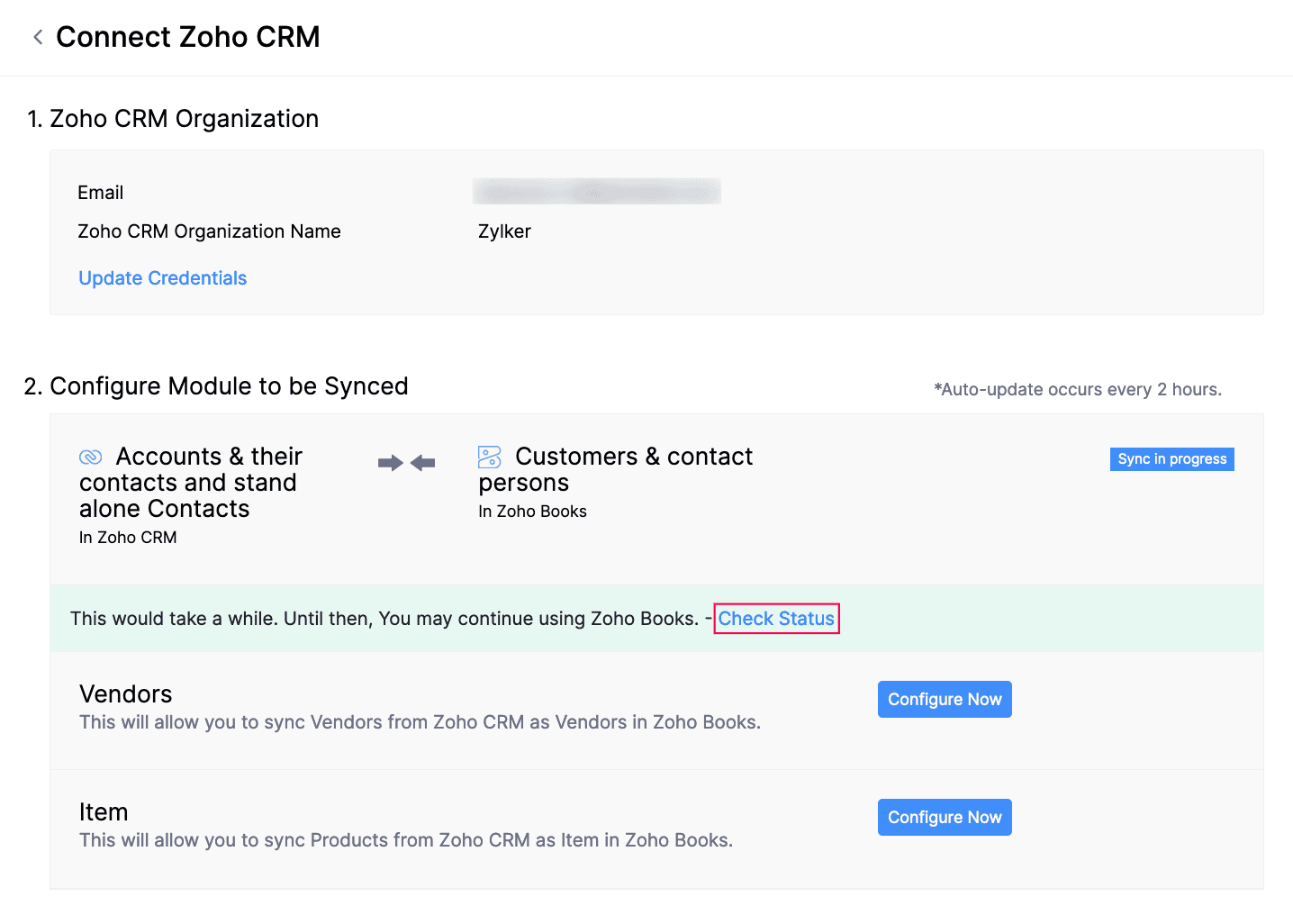
The customers will be synced in a while, based on chosen preferences. To check the status of the sync, click Check Status under the Customers section.
Sync Options
Once you’ve configured the integration, any new account, contact, vendor, or product you add in Zoho CRM will sync into Zoho Books every two hours after the initial sync. If you choose to sync transaction modules, they will sync instantly. To do this:
- Go to Settings.
- Select Zoho Apps under Integrations & Marketplace.
- In the Zoho Apps page, click Show Details next to Zoho CRM.
- In the Configure Module to be Synced section, select the preferred sync option. They include:Instant Sync: If you’ve added new records and want to update them immediately in the other app, click Instant Sync
- Show Sync History: You can view a detailed sync history, including the number of records added, updated, or deleted, along with the date and time of sync in Zoho Books. It also displays if a sync has failed, along with the failure reason.
- Pause/Resume Sync: If you want to temporarily stop syncing records between Zoho Books and Zoho CRM, click Pause Sync. To start syncing records between the apps again, click Resume Sync.
- Edit: You can modify the sync preferences, if required. The updated preferences will apply to the next automatic or manual sync.

Disable Integration
If you do not want to sync records between Zoho Books and Zoho CRM, you can disable it temporarily.
To disable the integration:
- Go to Settings.
- Select Zoho Apps under Integrations & Marketplace.
- In the Zoho Apps page, click Show Details next to Zoho CRM.
- Click Disable Integration in the Zoho CRM Organisation section.

- In the pop-up that appears, click Confirm.
The integration between Zoho CRM and Zoho Books will be temporarily disabled. To re-enable the integration:
- Go to Settings.
- Select Zoho Apps under Integrations & Marketplace.
- In the Zoho Apps page, click Show Details next to Zoho CRM.
- Click Enable Integration in the Zoho CRM Organisation section.
- In the pop-up that appears, click Confirm.
- In the Connect Zoho CRM pop-up, check the Organisation you want to sync, and click Save.
The integration will be enabled again, and data will be synced from Zoho CRM into Zoho Books.
Delete Integration
If you’ve disabled the integration between Zoho Books and Zoho CRM and no longer want to sync records, you can delete the integration. Once deleted, the mapping between the records will be permanently removed. This action cannot be undone. If you’ve integrated your Zoho Books organisation with other Zoho Finance apps, the integration will be removed from those apps as well.
To delete the integration:
- Go to Settings.
- Select Zoho Apps under Integrations and Marketplace.
- Click Show Details next to Zoho CRM.
- Click Delete Integration in the Zoho CRM Organisation section.

In the pop-up, select if you want to convert all synced Zoho CRM records to Zoho Books records, or convert only the records with transactions and delete the remaining records.Click Delete to confirm.
The integration will be deleted. You’ll also receive an in-app notification when the deletion is complete.
Multiple Choice Question
Summary Table: Key Zoho Books Integrations
| Integration | Description | Benefits |
|---|---|---|
| Zoho CRM | Synchronizes customer data and automates invoice creation. | Improved sales efficiency, enhanced customer visibility. |
| Payment Gateways (e.g., PayPal, Stripe) | Allows customers to pay invoices online. | Faster payments, automated reconciliation, improved customer experience. |
| Zoho Inventory | Synchronizes inventory data and automates inventory accounting. | Improved inventory management, accurate cost tracking. |
| E-commerce Platforms (e.g., Shopify) | Automatically imports sales orders and synchronizes inventory levels. | Streamlined sales accounting, automated inventory management. |
Complete Course