Posting Opening Balances in Zoho Books
When transitioning to Zoho Books from another accounting system or starting to use Zoho Books for an existing business, it’s crucial to enter the opening balances for all your accounts. Opening balances represent the financial position of your business at the start date of your Zoho Books usage. Accurate opening balances ensure that your financial reports are correct from the beginning. This section will guide you through the process of posting opening balances in Zoho Books.
Understanding Opening Balances
Opening balances are the balances of your asset, liability, equity, income, and expense accounts at the beginning of your accounting period within Zoho Books. They essentially provide a snapshot of your company’s financial standing at a specific point in time. These balances serve as the foundation for all subsequent transactions recorded in Zoho Books. Entering them correctly is essential to maintain the integrity of your accounting data.
Common accounts requiring opening balances include:
- Cash Accounts: Checking accounts, savings accounts, petty cash.
- Accounts Receivable: Money owed to you by customers for outstanding invoices.
- Inventory: The value of your goods available for sale (if you track inventory).
- Fixed Assets: Equipment, buildings, and other long-term assets.
- Accounts Payable: Money you owe to vendors for outstanding bills.
- Loans Payable: Outstanding balances on loans.
- Equity Accounts: Retained earnings, owner’s equity.
The date for your opening balances will be the day *before* you start entering daily transactions into Zoho Books. So, if you plan to start tracking all transactions beginning January 1, 20XX, your opening balances should reflect the financial position as of December 31, 20XX.
Gathering Information for Opening Balances
Before you begin entering opening balances, you need to gather the necessary information. This typically involves reviewing the following:
- Balance Sheet from your previous accounting system: This will provide the balances for your asset, liability, and equity accounts.
- Detailed accounts receivable aging report: This report lists all outstanding invoices and the amounts owed to you by each customer.
- Detailed accounts payable aging report: This report lists all outstanding bills and the amounts you owe to each vendor.
- Inventory valuation report: This report (if applicable) shows the value of your inventory on hand.
- Loan agreements: These documents will provide the outstanding balances on your loans.
- Bank statements: Use your bank statements to verify your cash account balances.
Accuracy is paramount. Double-check all figures before entering them into Zoho Books. Any errors in the opening balances will propagate through your financial statements.
Methods for Entering Opening Balances in Zoho Books
Zoho Books offers two primary methods for entering opening balances:
- Direct Entry through the Chart of Accounts: This method allows you to enter opening balances directly into each account in your Chart of Accounts. This is suitable for entering simple opening balances.
- Using Journal Entries: This method allows you to create journal entries to record your opening balances. This is more flexible and allows you to enter complex opening balances.
Checklist before you enter your opening balances in Zoho Books:Generate the Trial Balance report in your previous accounting software on the date you’re migrating to Zoho Books.Add all your bank and credit card accounts in the Banking module/Chart of Accounts.Create/Import all your items along with their opening stocks.Create/Import all your contacts (Customer/Vendors) along with their opening balances.
Method 1: Update Opening Balance from Settings
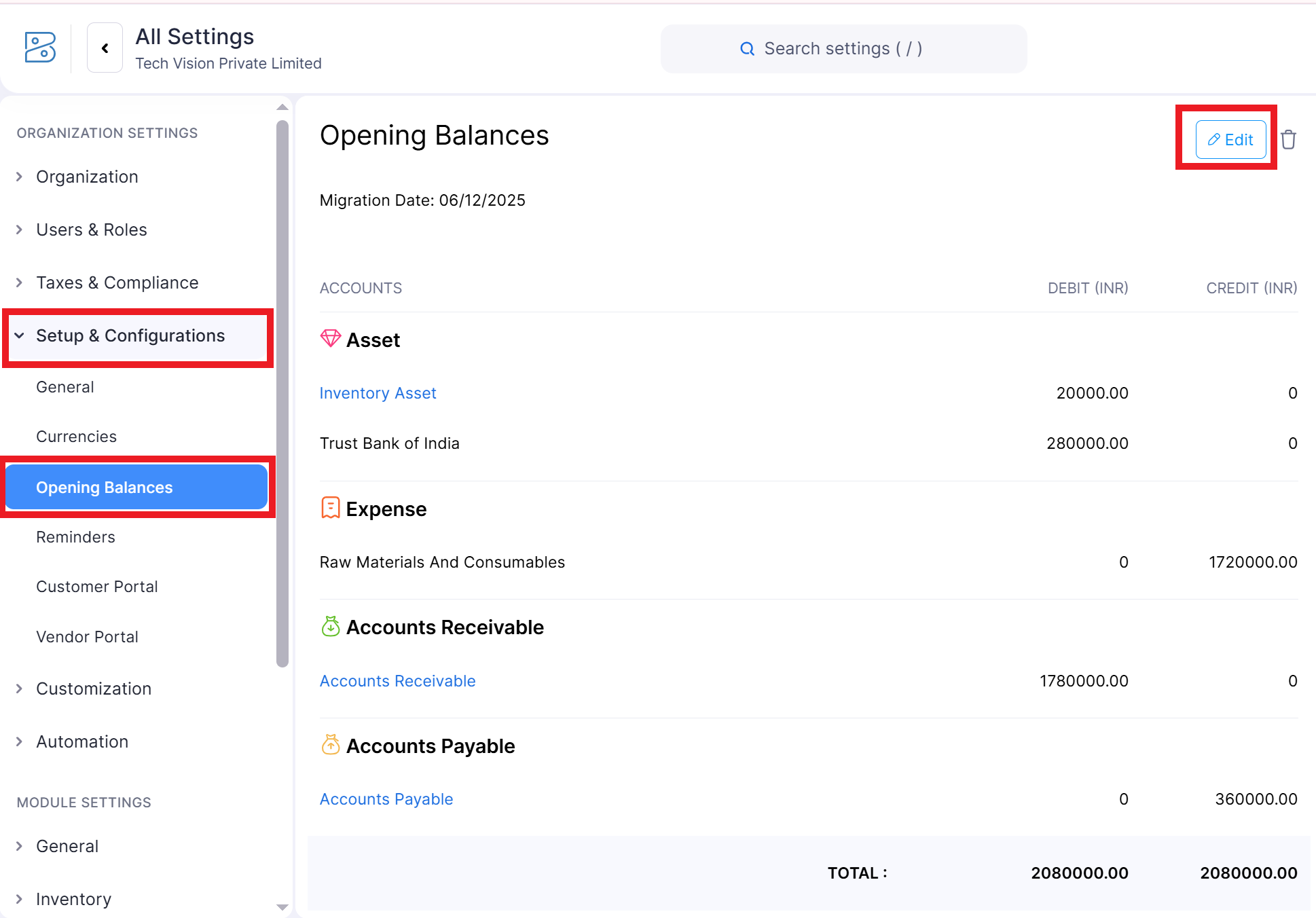
Go to Settings: Click the gear icon on the top right.
Select “Opening Balances” under “Setup & Configurations”
You will see Opening Balances already entered through items, Customers, Vendors & Bank
Click on Edit button to continue updating opening balances
Choose the Date: Select the Opening Balance Date (usually the date before you start using Zoho Books).
Enter Opening Balances for Each Section:
Customers: Enter opening receivable amounts
Vendors: Enter opening payable amounts
Bank & Cash Accounts: Enter bank and cash balances
Chart of Accounts: Enter balances for any other ledger (assets, liabilities, equity)
Inventory: Enter stock quantities and values
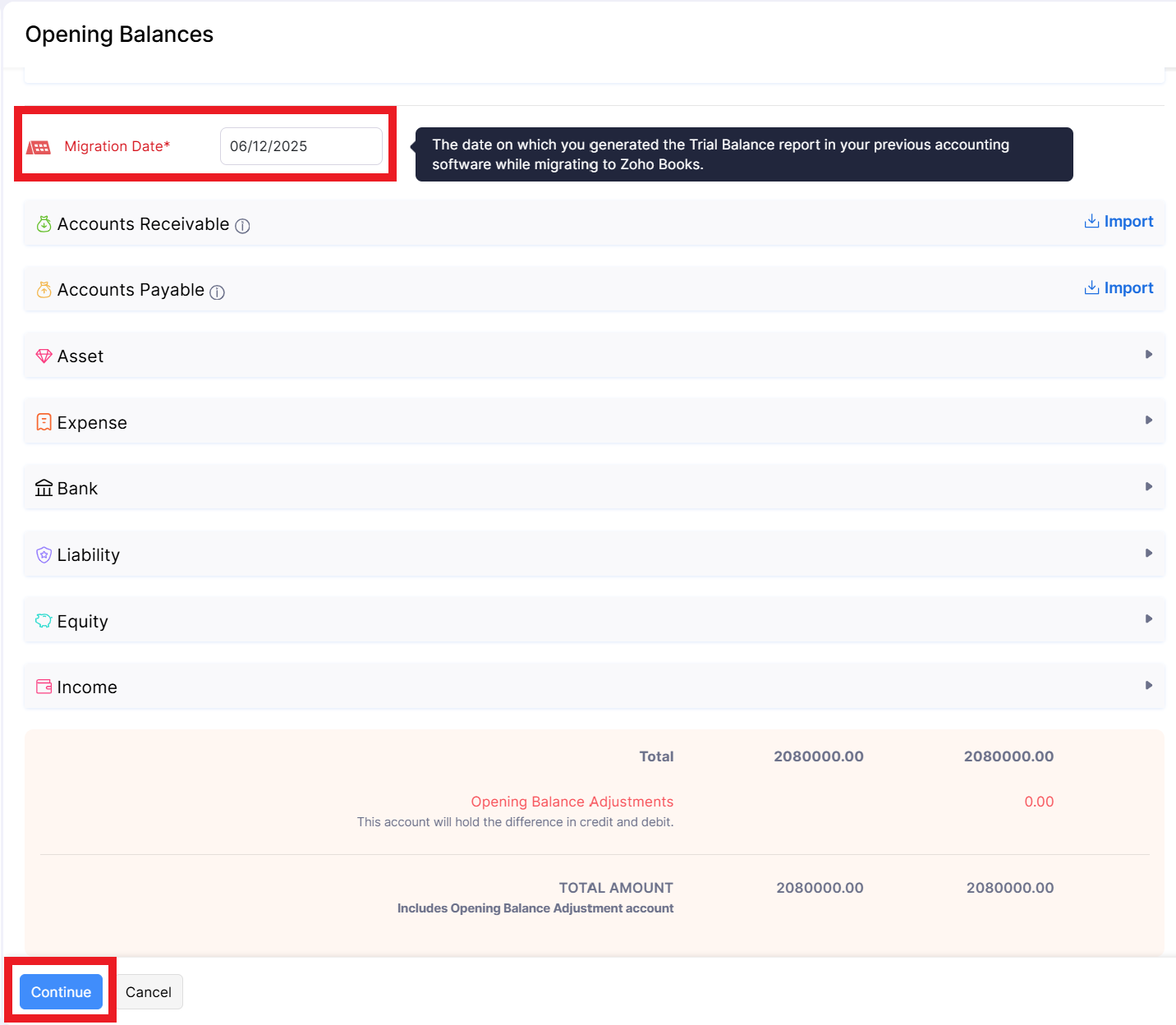
To save the Opening Balances Click on Continue and Confirm.
Method 2: Using Journal Entries
This method is more flexible and is recommended for entering complex opening balances, such as those involving accounts receivable, accounts payable, and inventory.
- Navigate to Manual Journal: Go to “Accountant” -> “Manual Journal”.
- Create a New Journal Entry: Click on the “+ New Journal” button.
- Enter Journal Entry Details: Date: Enter the date for your opening balances (e.g., December 31, 20XX). Journal Entry Number: Zoho Books will automatically generate a journal entry number. You can customize this if needed. Description: Enter a description for the journal entry (e.g., “Opening Balances”).
- Enter Debit and Credit Entries: For each account for which you need to enter an opening balance, add a line item to the journal entry. Account: Select the account from the dropdown list. Debit: Enter the debit amount (positive number) if the account has a debit balance. Credit: Enter the credit amount (positive number) if the account has a credit balance. Description (Optional): You can add a brief description for each line item.
- Ensure the Journal Entry is Balanced: The total debits must equal the total credits. If the journal entry is not balanced, you won’t be able to save it.
- Save the Journal Entry: Click the “Save” button to save the journal entry.
Example: Entering Opening Balances for Accounts Receivable and Sales Revenue
Suppose you have Rs.10,000 in outstanding invoices (Accounts Receivable) and Rs.10,000 in Sales Revenue based on the accrual principle from your old accounting system. Here’s how the journal entry would look:
| Account | Debit | Credit |
|---|---|---|
| Accounts Receivable | Rs.10,000.00 | |
| Sales Revenue | Rs.10,000.00 |
In this example, we debit Accounts Receivable (increasing the asset) and credit Sales Revenue (increasing the revenue, that translates into retained earnings in the long run) to record the opening balance.
Important Note: You may need to create an “Opening Balance Equity” account to balance your journal entry if your existing equity accounts don’t reflect the full impact of your assets and liabilities. This is a common practice when setting up initial balances.
Entering Opening Balances for Accounts Receivable and Accounts Payable
Entering opening balances for accounts receivable and accounts payable requires more detail because you need to track the individual invoices and bills that make up the total balances.
- Enter Individual Invoices (Accounts Receivable): Create individual invoices in Zoho Books for each outstanding invoice at the opening balance date. Set the invoice date to the original invoice date and the due date to the original due date. This ensures accurate aging reports.
- Enter Individual Bills (Accounts Payable): Create individual bills in Zoho Books for each outstanding bill at the opening balance date. Set the bill date to the original bill date and the due date to the original due date.
By entering the individual invoices and bills, Zoho Books will automatically track the outstanding balances for each customer and vendor, allowing you to manage your receivables and payables effectively.
Verifying Opening Balances
After entering your opening balances, it’s crucial to verify their accuracy. Here’s how:
- Review the Balance Sheet: Generate a balance sheet in Zoho Books as of your opening balance date (e.g., March 31, 20XX). Compare the balances on the balance sheet to the balances on your previous balance sheet. The balances should match (or be very close, depending on rounding differences).
- Review Accounts Receivable and Accounts Payable Aging Reports: Generate aging reports for accounts receivable and accounts payable. Compare the total balances on these reports to the opening balances you entered. They should match.
- Reconcile Bank Accounts: Reconcile your bank accounts as of your opening balance date to ensure that your cash balances are accurate.
If you find any discrepancies, investigate and correct them. It’s better to catch errors early than to have them propagate through your financial reports.
Common Mistakes to Avoid
- Entering Incorrect Dates: Make sure you enter the correct date for your opening balances.
- Incorrectly Classifying Debit and Credit Balances: Remember that assets and expenses typically have debit balances, while liabilities, equity, and income typically have credit balances.
- Not Balancing Journal Entries: The total debits must equal the total credits in your journal entries.
- Not Entering Detailed Accounts Receivable and Accounts Payable: Enter individual invoices and bills to track outstanding balances accurately.
- Not Verifying Opening Balances: Always verify your opening balances to ensure their accuracy.
Summary Table: Steps for Posting Opening Balances
| Step | Description | Method |
|---|---|---|
| 1. Gather Information | Collect balance sheet, accounts receivable aging report, accounts payable aging report, etc. | N/A |
| 2. Enter Opening Balances (Simple) | Enter opening balances directly into accounts in the Chart of Accounts. | Chart of Accounts |
| 3. Enter Opening Balances (Complex) | Create journal entries to record opening balances. | Manual Journal |
| 4. Enter Detailed Accounts Receivable/Payable | Create individual invoices and bills for outstanding amounts. | Invoices and Bills modules |
| 5. Verify Opening Balances | Compare balances on the balance sheet and aging reports to the opening balances you entered. | Reports |