Purchase Order (PO)
A Purchase Order (PO) is an official document issued by a buyer to a seller to confirm the purchase of goods or services. It clearly lists the items required, quantities, prices, delivery terms, and payment conditions. Once the seller accepts it, the PO becomes a legally binding agreement. It helps both parties avoid misunderstandings, track orders, and maintain proper records in the accounting and inventory systems.
Creating a Purchase Order (PO)
A purchase order is a formal request to a vendor to provide goods or services at a specified price. Creating a PO in Zoho Books allows you to track your orders and ensure that you receive what you expect.
To create a new purchase order:
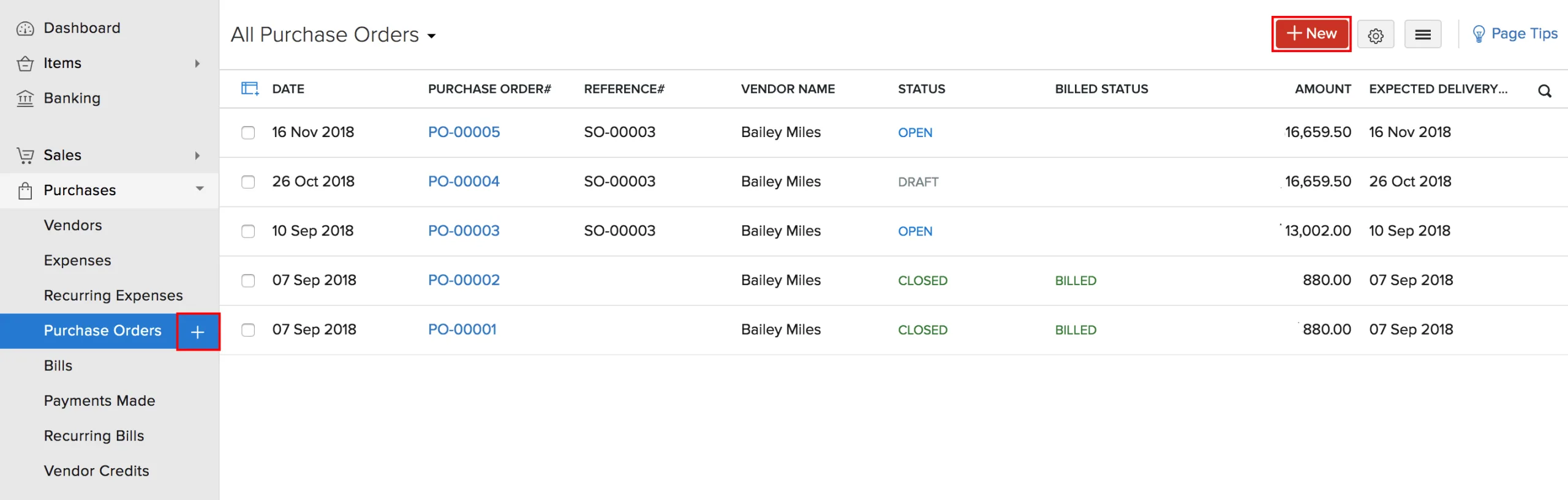
- Go to Purchases > Purchase Orders.
- Click the + New button in the top right corner of the page.
- Fill in the required details.
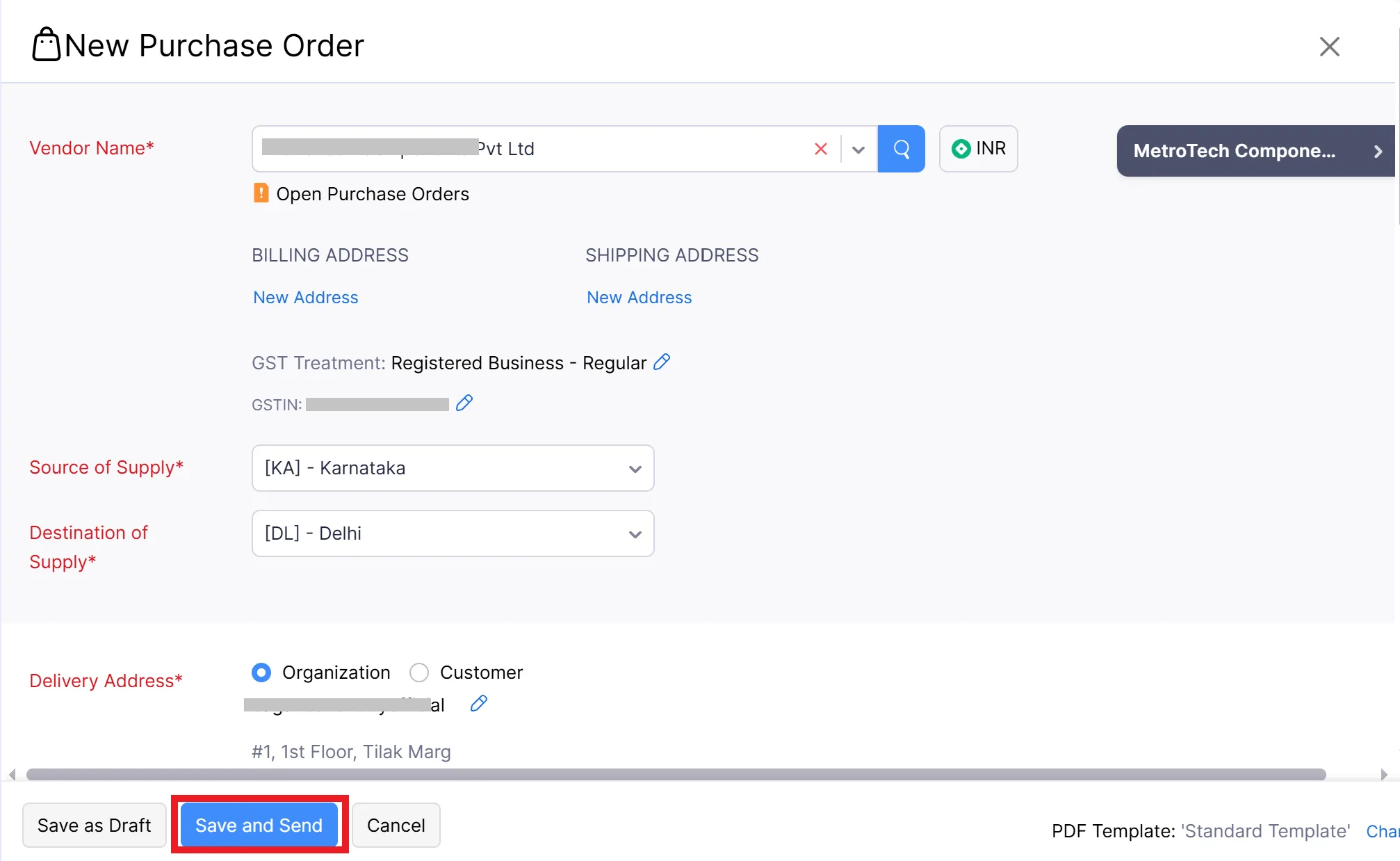
- Click Save as Draft or Save and Send.
Note:
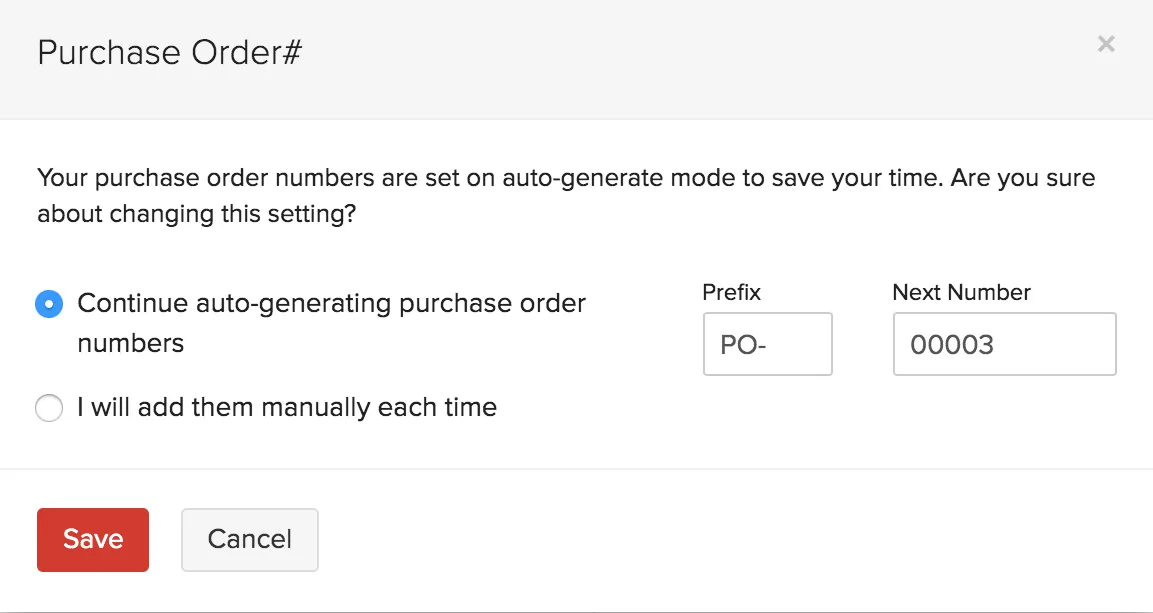
Add Items in Bulk
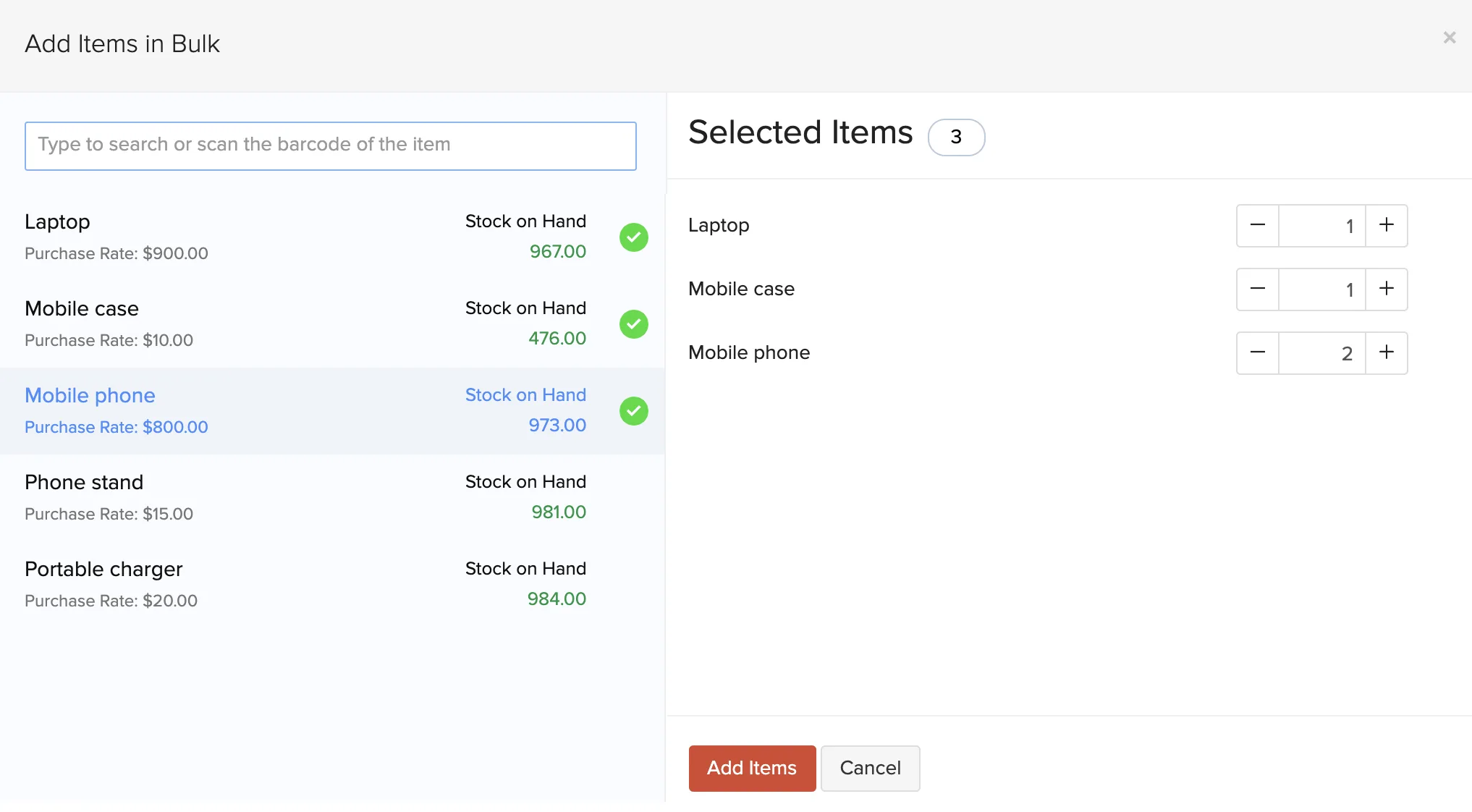
You can add multiple items and update their quantities in bulk. Here’s how:
- Click + Add items in bulk below the item details.
- Select the items and enter their quantities.
- Click Add Items.
- After entering the required details, click Save.
Create Purchase Orders from Vendors Module
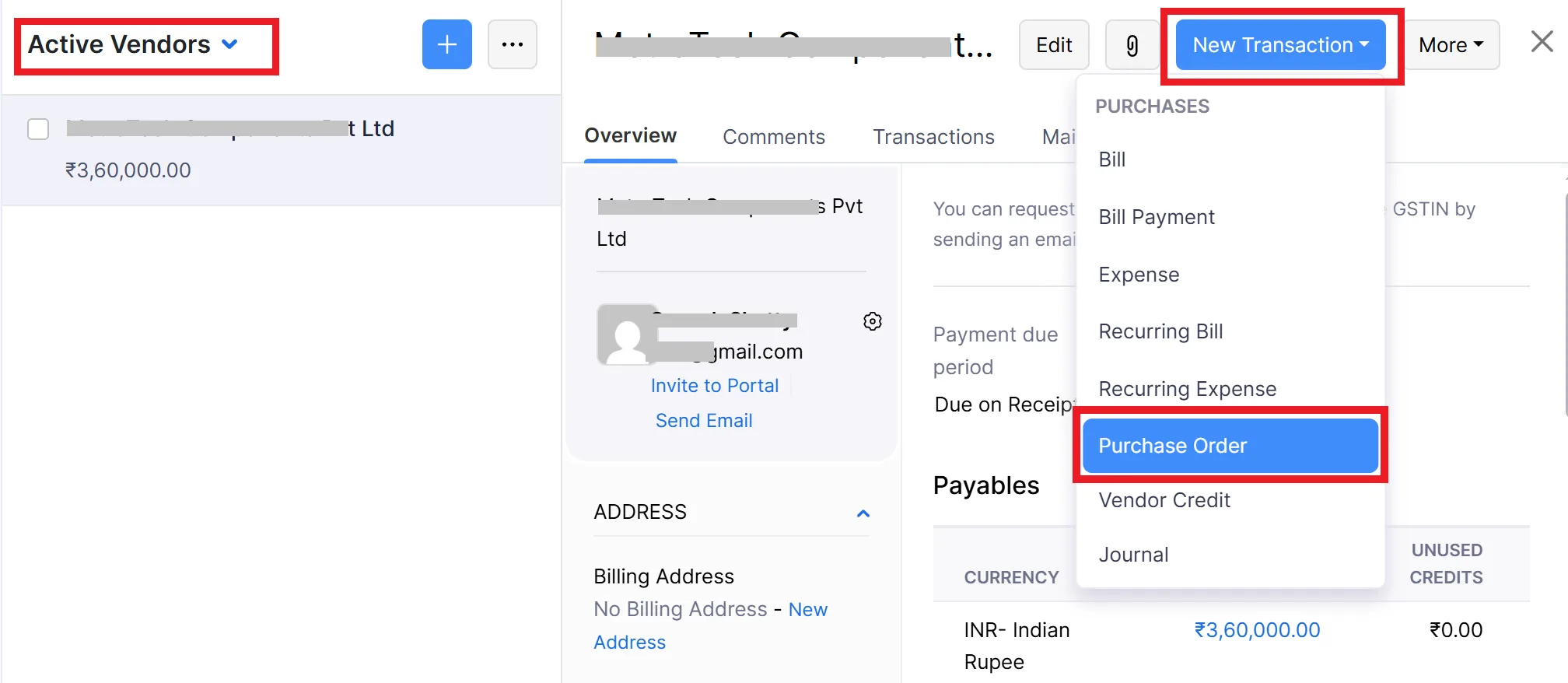
You can create a purchase order directly from the Vendors module. Here’s how:
- Go to Purchases > Vendors.
- Select the vendor for whom you want to create a purchase order.
- Click New Transaction in the top right corner of the page.
- Select Purchase Order.
- In the page that follows, enter the purchase order details and save it.
Tips for Creating Effective Purchase Orders:
- Be Specific: Clearly describe the goods or services you are purchasing, including any relevant specifications.
- Include Pricing: State the agreed-upon price per unit and the total amount due.
- Specify Delivery Date: Indicate when you expect to receive the goods or services.
- Review Carefully: Double-check all the details before sending the PO to the vendor.
View Purchase Orders
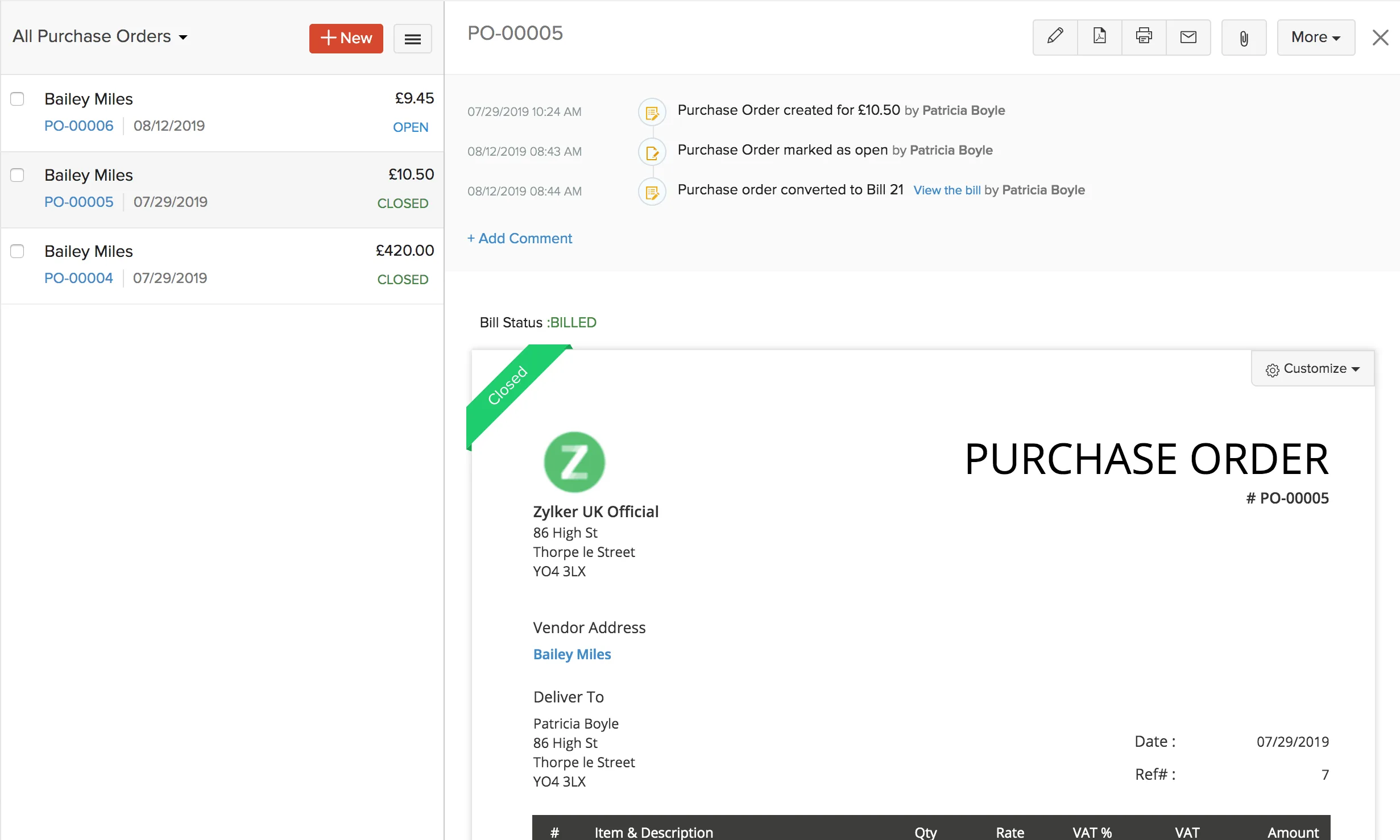
If you have already created purchase orders, you can view them in the Purchase Order module. Here’s how:Go to Purchases > Purchase Orders.Select the purchase order you wish to view.
Import Purchase Orders
If you already have a list of purchase orders, you can import them into Zoho Books in the CSV, TSV or XLS format. To know the format of the import file, i.e. the columns and data to be included in the import file, you can download the sample import file which we’ll be looking at in the steps below.Go to Purchases > Purchase Orders.Click the More icon in the top right corner of the page.Select Import Purchase Orders.
Click the Choose File button under Upload file. You can download the sample CSV file for your reference by clicking sample file.Note: The file size cannot be more than 1 MB.
Choose the Character Encoding for your file.Note:Character Encoding is used to pair numbers with characters. By default, the Unicode Transformation Format (UTF-8) encoding is used which supports a wide range of characters that go beyond 8 bits.
You also have an option to enable the Auto Generation Purchase Order number option for the file you’re about to upload.Click Next.
Ensure that all the fields are mapped correctly in the Map Fields page.Mark the box Save these selections for use during future imports if you want to use the similar import format next time.Click Next.In the Preview window, click Import.
Note:
Cancel Purchase Orders
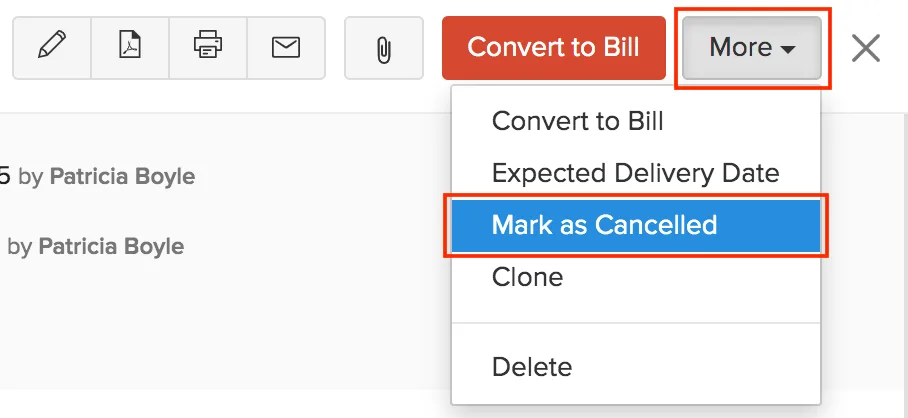
You can choose to mark a purchase order as Cancelled. Once cancelled, it cannot be reopened. Only Open Purchase Order can be cancelled. To cancel a Purchase Order:
- Go to Purchases > Purchase Orders.
- Select the purchase order you want to cancel.
- Click More in the top corner of the page.
- Select Mark as Cancelled from the dropdown.
- Click Yes to confirm.
- Click Proceed.
Customise Template
You can customize the format of your Purchase Order’s PDF. Here’s how:
- Go to Purchases > Purchase Orders.
- Select the purchase order for which you wish to customize the template.
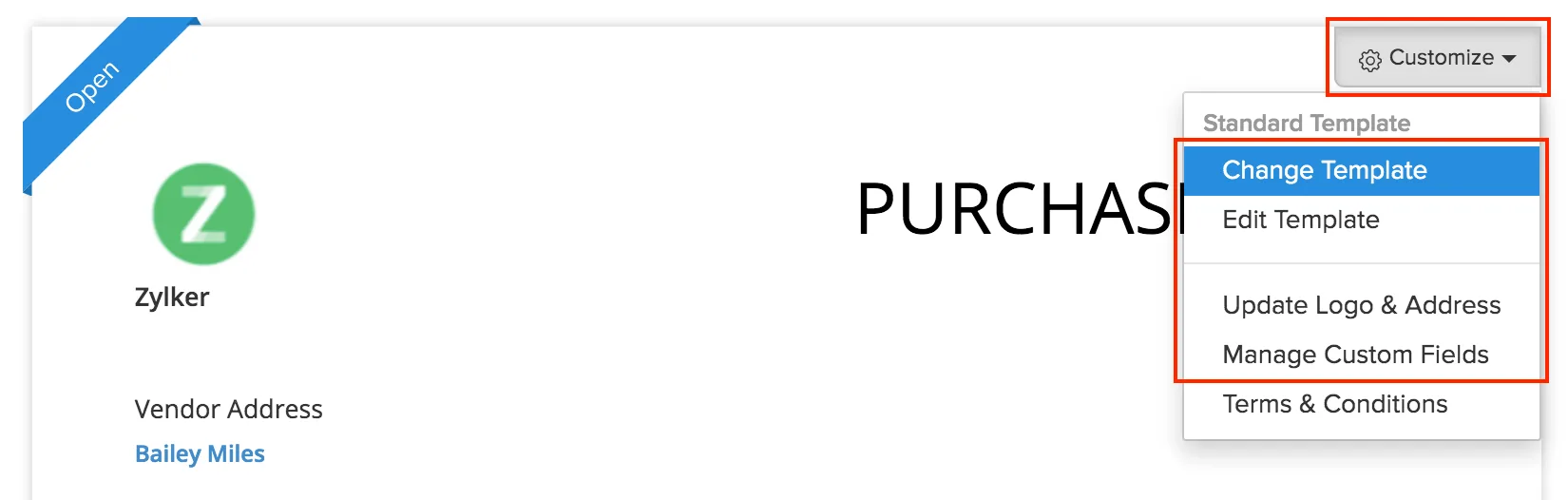
- Hover over the purchase order and click the Customize button in the top right corner.
- From here, you can perform various actions for the purchase order’s template.
When a Purchase Order is created, what is the accounting effect?
Can multiple Bills be created from a single Purchase Order?
Which of the following is a valid Purchase Order status in Zoho Books?