Handling Expenses
Effectively managing expenses is crucial for any business. Zoho Books provides several methods for recording and tracking expenses, ensuring accurate financial reporting and informed decision-making. This section will guide you through the process of handling expenses within Zoho Books, covering various scenarios and best practices.

Understanding Expenses in Zoho Books
Expenses represent the costs incurred by your business in its day-to-day operations. These can include rent, utilities, salaries, office supplies, travel expenses, and more. Accurately recording expenses allows you to:
- Track Spending: Understand where your money is going.
- Calculate Profitability: Determine your net income (revenue minus expenses).
- Make Informed Decisions: Identify areas where you can reduce costs and improve efficiency.
- Prepare Tax Returns: Claim eligible expenses to reduce your tax liability.
In Zoho Books, expenses can be recorded, marked billable, converted to an invoice and be reimbursed by users.
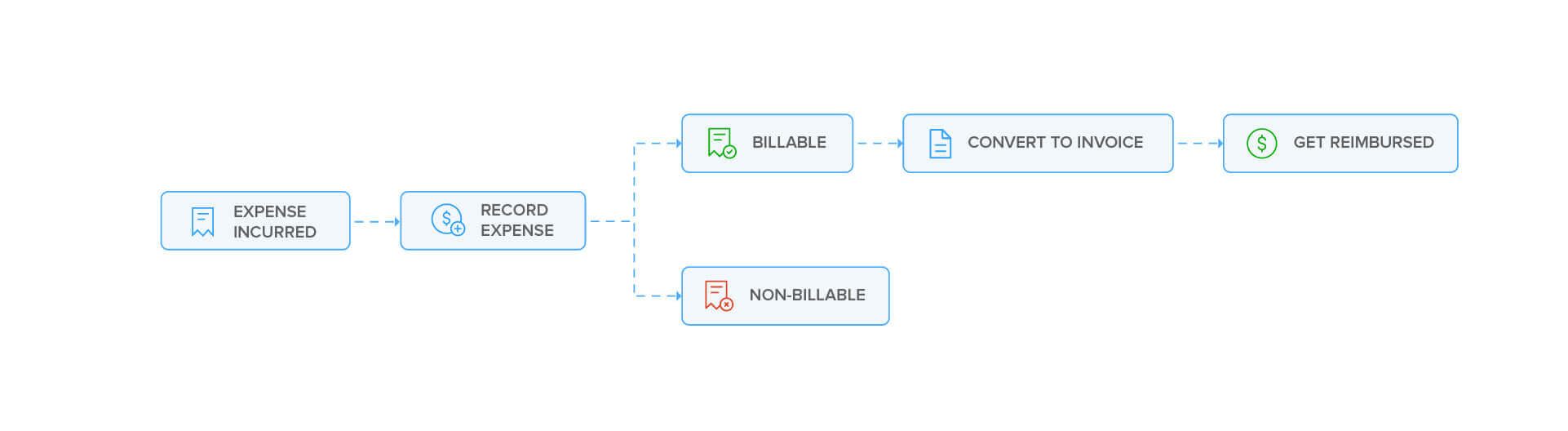
Create Expense
If you incur expenses in your organisation, you can add them in Zoho Books.To create a new expense:Go to Purchases > Expenses (or press shift + x).Click the + New button in the top right corner of the page (or press c + x).Enter the following details in the New Expense page.
DateSelect the date on which the expense is created.
EmployeeEmployees may or may not be users. You can add and associate an employee to an expense. To add an employee, click the Employee field, select Manage Employees and click + Add New Employee. You can even delete employees by clicking the Delete icon next to them.
Expense AccountSelect an account to track the expense you’re going to record.
ItemizeAdd multiple expense accounts under which you wish to track different expenses by clicking Itemize. These accounts will be debited once the expense is recorded. After saving the bill, click Display Journal at the bottom of the page to view the corresponding journal.
AmountEnter the expense amount and the tax applicable on it, if any.
Paid ThroughChoose the account which tracks the payment for the expense. This account will be credited when the expense is recorded.
VendorSelect a vendor to whom you wish to associate the expense.
GST TreatmentSelect the GST treatment of the vendor and enter their GSTIN and their Place of Supply (if applicable).
Reverse ChargeMark the box This transaction is applicable for reverse charge if reverse charge is applicable on this expense.
TaxSelect the tax applicable on the expense.
Invoice#Enter the corresponding invoice number.
Customer NameAssociate the expense to a customer. You can mark the expense billable to the customer and convert this expense into an invoice to collect payment from the customer.To make the expense billable:Mark the Billable option next to the Customer Name.Select a Project to associate with the customer, if this is an expense incurred for the project.If you had configured a default markup percentage for billable bills and expenses in Settings, the default percentage will be pre-filled. You can edit and change the markup percentage, if needed.Click Save.
When you’re creating an invoice for the associated customer, this expense will be shown as an unbilled item in the invoice to be included as a billable line item.

You can select the expenses to be billed to the customer.
Attach ReceiptAttach the receipt of your expense from your Desktop, Cloud or from your Documents in Zoho Books. You can also delete the receipt by clicking the Delete icon.

ProjectsChoose project(s) you wish to associate with the expense. If you associate a project for the customer, then you can bill it while creating an expense for the customer.
Reporting TagsAssociate reporting tags for the expense.
- After entering the details, click Save (or press alt/option + s) or Save & New (or press alt/option + s).
View Journal
After you have created an expense, you can view its corresponding journal entry in Zoho Books. Here’s how:
- Go to Purchases > Expenses (or press shift + x).
- Select the expense that you have created.
- Click More > View Journal.

The corresponding journal will be displayed.

Note: To view the journal in the expense details page itself, you can select the expense, scroll down and click Display Journal to view the journal entry.
Import Expenses
You can import a list of expenses you have in CSV, TSV or XLS format. Here’s how:
- Go to Purchases on the left sidebar and select Expenses (or press shift + x).
- Click the More icon in the top right corner of the page.
- Select Import Expenses.

- In the next page, click Choose File to choose the file you would like to upload; you can choose to attach from desktop, cloud, or documents. You can download the sample CSV or XLS file for your reference by clicking sample csv file or sample xls file.
- After uploading your file, choose a Character Encoding and File Delimiter for your file.
- Click Next.

- Ensure that all the fields are mapped correctly in the Map Fields page.
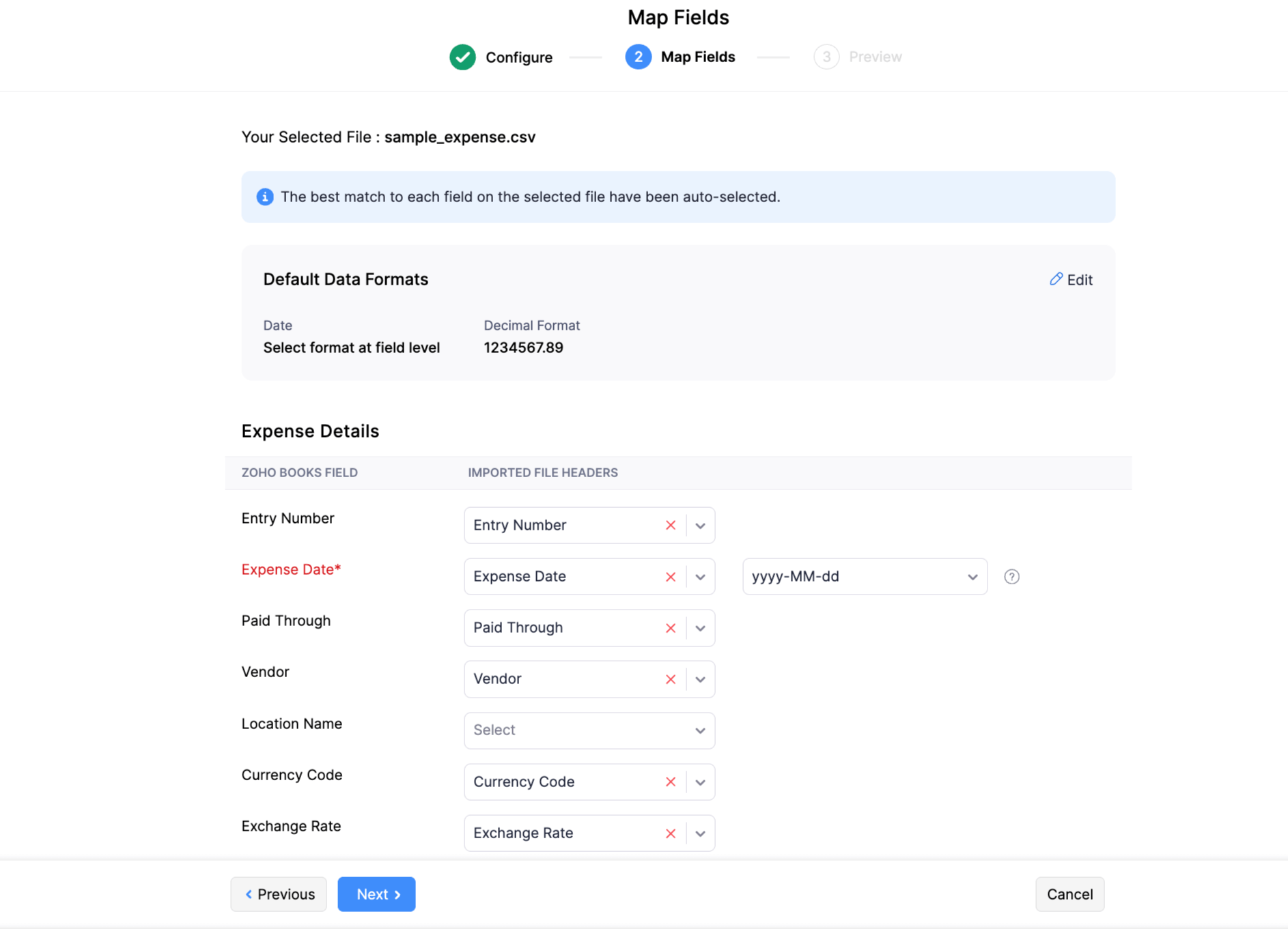
- Mark the box Save these selections for use during future imports if you want to use the similar import format for the next time.
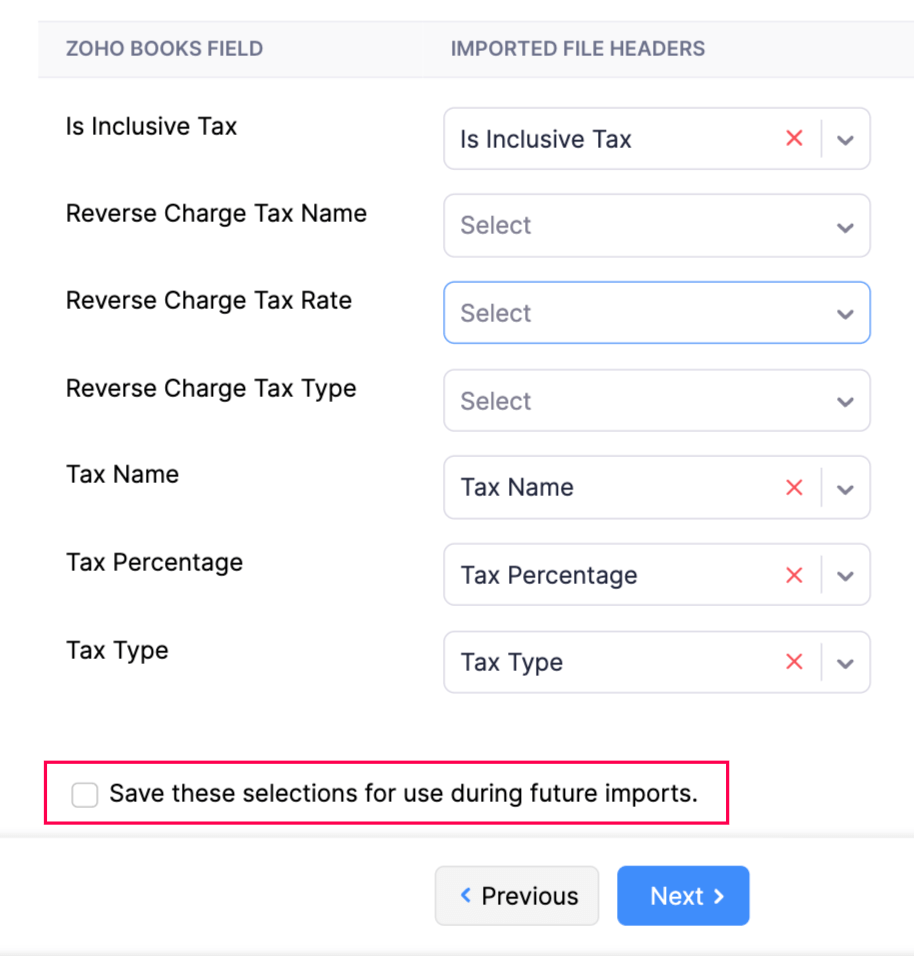
- Click Next.
- Preview and click Import.
Mileage Expenses
Many organisations calculate expenses based on the distance travelled in a vehicle. The expense is calculated based on the distance travelled and the mileage rate. In Zoho Books, you can record the distance you travelled and be billed by the mileage rate.
To record a mileage expense:
- Go to Purchases > Expenses (or press shift + x).
- Click the + New button in the top right corner of the page.
- Select the Record Mileage tab on top of the page.
When you’re doing it for the first time you need to set following preference in the popup;
- Tick mark on Associate Employees to Expenses
- Select default Unit
- Set millage rates
- Click on Save

- Now you can start entering the following details:
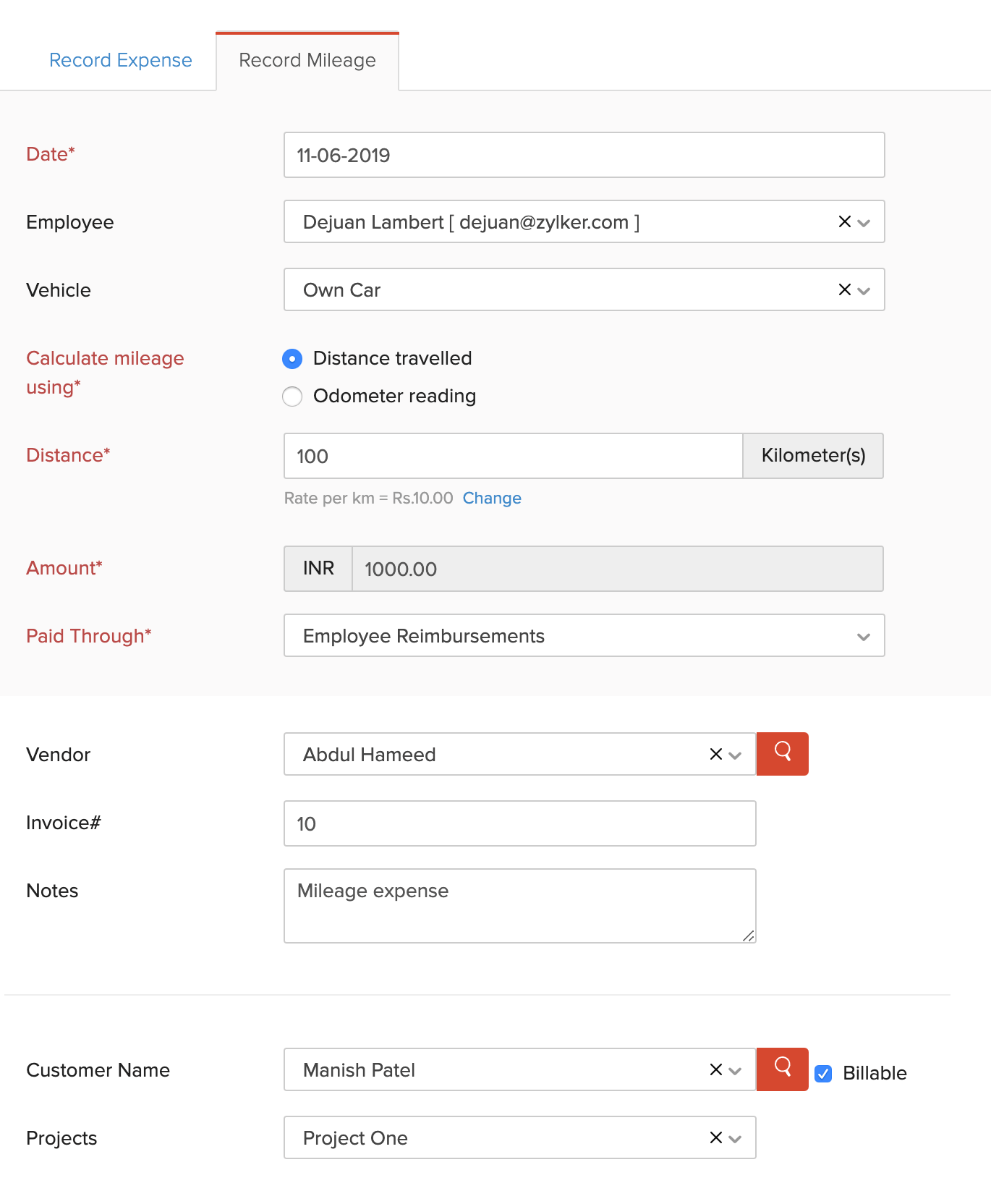
DateSelect the date on which the expense is created.
EmployeeEmployees may or may not be users. You can add and associate an employee to a bill. To add an employee, click the Employee field, select Manage Employees and click + Add New Employee. You can even delete employees by clicking the Delete icon next to them.
Calculate MileageMileage can be calculated based on:
- Distance travelled: If you enter the distance travelled, the expense is calculated based on the mileage rate.

- Odometer reading : If you enter the start and end readings of the odometer, the distance will be calculated based on the difference (end reading – start reading). The expense amount is then calculated based on the mileage rate.
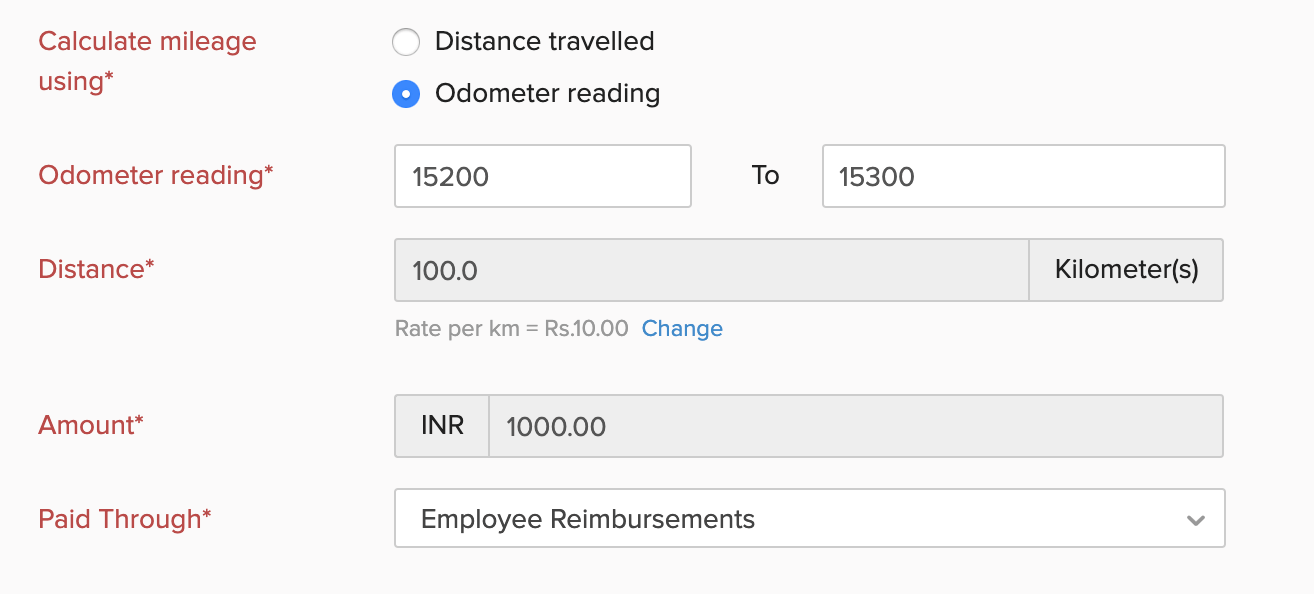
AmountThe expense amount is auto-generated based on the distance and the mileage rate. You can also apply tax on the expense, if applicable. The amount can be Tax Inclusive or Tax Exclusive.
Paid ThroughChoose an account through which tracks the payment for the expense. This account will be credited, and the Fuel/Mileage Expenses will be debited once the mileage expense is recorded.
VendorSelect a vendor to whom you wish to associate the expense.
NotesAdd any notes in the expense for personal use.
Vehicles Setting
You can configure different vehicles in Zoho Books. Vehicles can be associated with different mileage rates.
- Go to Settings on the top right corner of the page.
- Select Expenses under Purchases
- Select the Vehicle tab on the top of the page.

New Vehicle
You can add a new vehicle in Zoho Books. Here’s how:
- Click the + New Vehicle button in the top right corner of the page.
- Enter the vehicle name and details.
- Click Save.

After a vehicle is saved, you can either Edit or Delete in by hovering over it and clicking the appropriate icon.
Every vehicle that you create can be associated with a mileage expense in Zoho Books.

Create a Recurring Expense
Recurring expenses are regularly occurring costs such as rent, internet charges, or subscriptions that happen at fixed intervals. In Zoho Books, recurring expenses allow automatic recording of these costs on scheduled dates, ensuring accurate accounting without manual entry each time.
Here is the step by step process;
- From the left-hand menu, click on Expenses and then choose Recurring Expenses.
- Click + New Recurring Expense to create a new recurring profile.
- Enter a Profile Name so the expense can be easily identified later (for example: Office Rent – Monthly).
- Select the repeat frequency such as monthly, weekly, quarterly, or yearly based on how often the expense occurs.
- Choose the start date from which Zoho Books should begin recording the expense; keep the end date blank if the expense is ongoing.
- Select the vendor or add a new vendor if it does not already exist.
- Choose the expense account under which the cost should be booked, such as Rent, Internet Charges, or Professional Fees.
- Select Paid Through to indicate the bank account, cash account, or credit card used for payment.
- Enter the expense amount and select the applicable GST rate; enable RCM if the expense is liable under reverse charge.
- Add HSN/SAC, notes, or attach supporting documents like agreements or invoices, if required.
- Click Save to activate the recurring expense, after which Zoho Books will automatically create the expense on each scheduled date and reflect it in reports and GST returns.

Mark Existing Expenses as Recurring:
By marking an existing expense as recurring, you can avoid repetitive data entry and ensure timely and consistent accounting for fixed costs.
Here is the steps to do the same;
- Go to Expenses
- Select a existing expense that you want to convert into a recurring expense.
- Click on the Make Recurring option available on the expense screen.
- Enter the recurring profile details such as profile name, frequency, start date, and (if required) end date.
- Review and update vendor, expense account, amount, tax, and payment details if needed.
- Save the recurring profile; Zoho Books will now automatically create future expenses based on this existing expense.

Convert an Expense into an Invoice
If you had associated a customer to an expense and had marked it as billable, you can convert the expense into an invoice. Here’s how:
- Go to Purchases > Expenses.
- Select the expense that you’ve marked as billable which you want to convert into an invoice.
- Click the Convert to Invoice button in the top bar. You will be redirected to the invoice creation page.

If you had given a markup percentage for the billable expense, the marked up amount will be displayed along with the rate of the line item in the invoice.

- Click Save as Draft or Save and Send.
Analyzing Expenses
Zoho Books offers various reports to help you analyze your expenses:
- Profit and Loss Statement: Shows your revenue, expenses, and net income for a specific period.
- Expense Report: Provides a detailed breakdown of your expenses by category, vendor, and date.
- Spending by Vendor: Shows how much you’ve spent with each vendor.
- Budget vs. Actual: Compares your actual expenses to your budgeted expenses.
Use these reports to identify trends, track spending patterns, and make informed decisions about your business finances.
Best Practices for Handling Expenses
- Record Expenses Promptly: Don’t wait until the end of the month to record your expenses. Record them as soon as possible to ensure accuracy.
- Use Consistent Categories: Use the same expense categories consistently to facilitate accurate reporting.
- Attach Receipts: Always attach receipts to your expense entries to support your claims.
- Reconcile Regularly: Reconcile your bank accounts and credit card statements regularly to ensure that all expenses are recorded.
- Review Expenses: Regularly review your expense reports to identify areas where you can reduce costs.
Summary Table: Methods for Handling Expenses
| Method | Description | Best Use Case |
|---|---|---|
| Recording Expenses Directly | Entering expenses paid immediately with cash or card. | Small purchases, one-time expenses. |
| Recording Expenses Through Bills | Entering expenses for which you receive a bill to be paid later. | Larger purchases, ongoing services, credit terms. |
| Expense Reports | Tracking expenses incurred by employees. | Employee reimbursements, travel expenses. |
| Recurring Expenses | Automating the recording of regular expenses. | Rent, subscriptions, utilities. |