Creating and Integrating Accounts
Connecting your bank accounts to Zoho Books streamlines your accounting processes by automatically importing your bank transactions. This eliminates manual data entry, saves time, and reduces the risk of errors. This section will guide you through the process of creating and integrating bank accounts with Zoho Books.
Understanding the Benefits of Bank Integration
Integrating your bank accounts with Zoho Books offers several key advantages:
- Automatic Transaction Import: Bank transactions are automatically imported into Zoho Books, eliminating the need for manual data entry.
- Real-time Visibility: Get a real-time view of your cash flow by tracking your bank balances and transactions.
- Improved Accuracy: Reduces the risk of human error associated with manual data entry.
- Simplified Reconciliation: Bank reconciliation becomes much easier with automatic transaction import.
- Time Savings: Frees up valuable time that would otherwise be spent on manual data entry.
Creating Bank Accounts in Zoho Books
In the Banking module, you can add your Bank, Credit Card and your PayPal accounts to Zoho Books. Once you add an account, you can import its feeds (automatically or manually) into Zoho Books. After doing this, you will be able to match the transactions in Zoho Books with your bank transactions.
To fetch manual and automatic feeds, you should first connect your bank or credit card account to Zoho Books.
Add Account
To connect your Bank or Credit Card account to Zoho Books:
- Go to the Banking module in the left sidebar.
- Click Add Bank or Credit Card button in the top right corner of the page.

Add Accounts That Support Automatic Bank Feeds
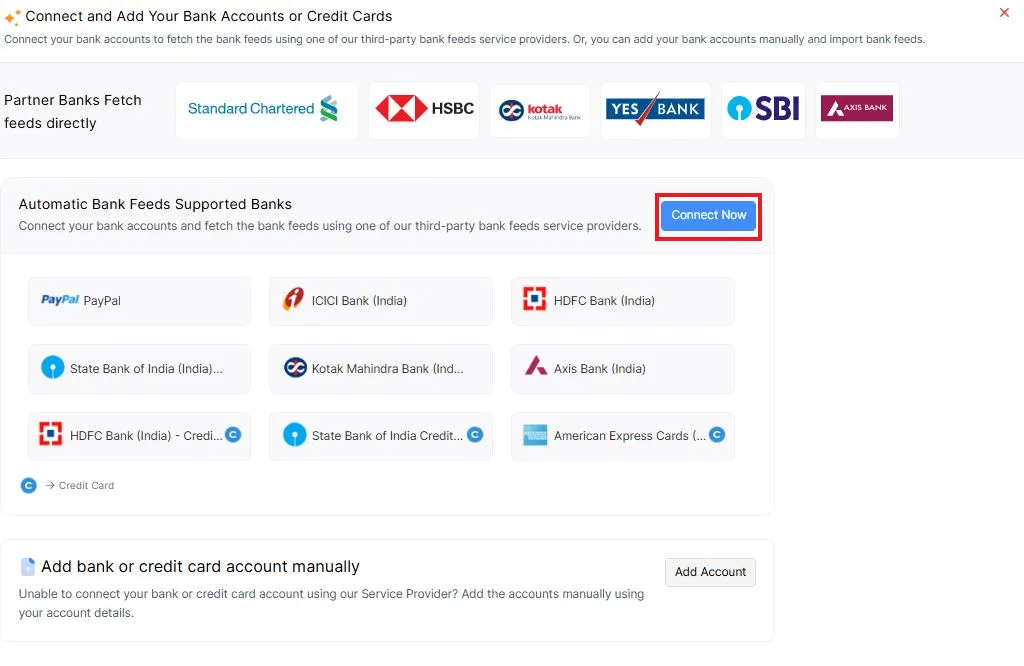
Zoho Books can be connected with major banks and credit cards. Just enter the name of a bank or credit Card that you would like to connect with Zoho Books and select from the drop down.
- Select an account information service provider.
- Enter the name of your bank or select one from the list of popular banks.
Step 1:
Step 2:
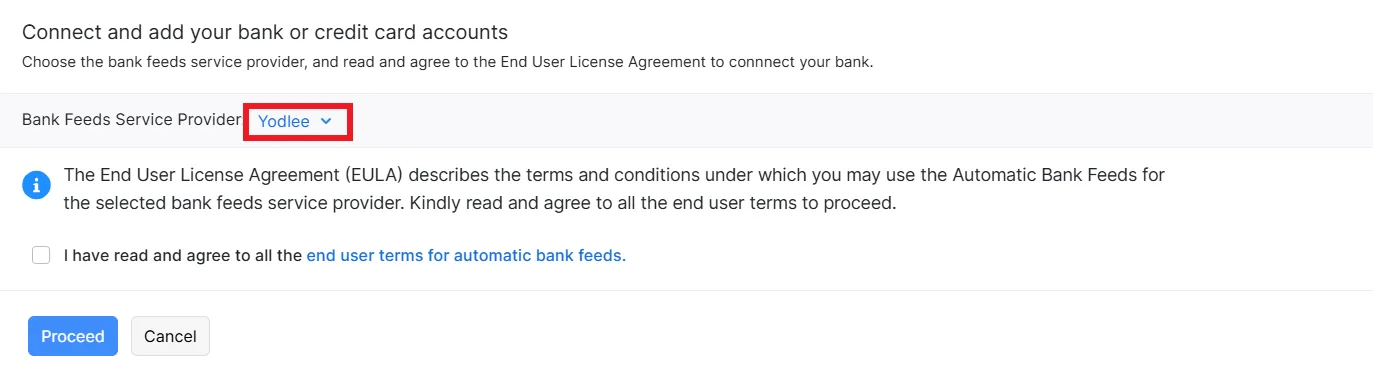
Enter the login credentials.
- Select the account that you would like to connect with Zoho Books.
- Select the date from which you want to fetch the transaction history. Transactions from the last 90 days can be fetched into Zoho Books.
- Select the Currency.
- Click Continue.
This will automatically fetch bank feeds into your account. Your transactions from the selected date will be automatically imported and for transactions before the selected date period or historic transactions, you can always import statements into your account by selecting the Import Statement option.
Add Accounts Manually
Sometimes, the bank or credit card you are searching for might not be available. In this case, you can manually add those accounts and import statements.
- Go to the Banking module.
- Click the Add Bank or Credit Card button.
- Click the Enter your account manually button to add an account manually.
Add Credit Card Accounts Manually
If you wish to add a Credit Card account manually, select the Credit Card option from the Select Account Type tab.
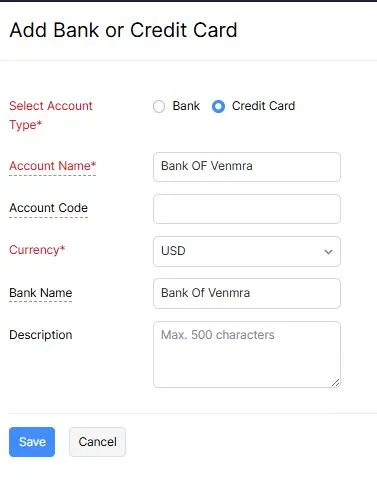
Add Bank Accounts Manually
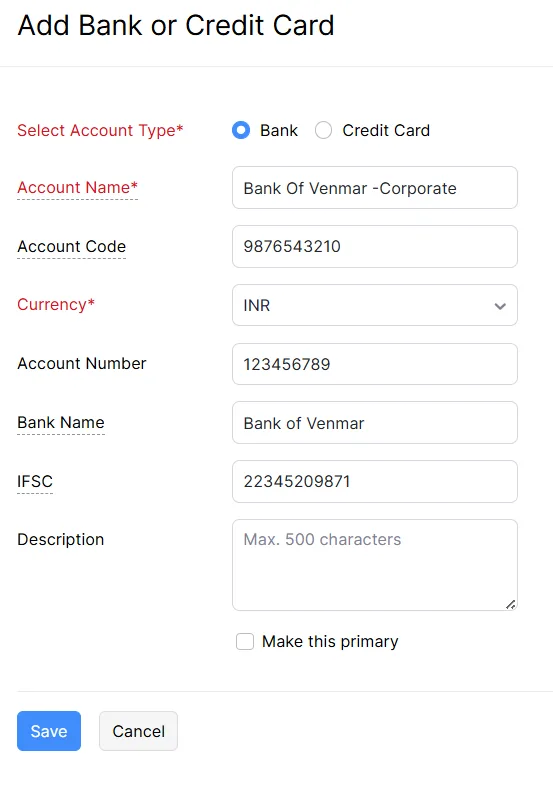
If you wish to add a bank account manually, select the Bank option as the account type.
Troubleshooting Bank Integration Issues
You might encounter some issues when integrating your bank accounts with Zoho Books. Here are some common troubleshooting steps:
- Incorrect Credentials: Make sure you are entering the correct username and password for your online banking account.
- Unsupported Bank: Not all banks are supported by Zoho Books. Check the list of supported banks to see if your bank is included.
- Connection Errors: Sometimes there may be temporary connection errors between Zoho Books and your bank. Try again later.
- Authentication Issues: Some banks require two-factor authentication or other security measures. Make sure you have these set up correctly.
- Contact Zoho Books Support: If you are still having trouble, contact Zoho Books support for assistance
Add Transactions
If you are unable to fetch feeds from your bank due to various reasons, you can record manual entries and import transactions for your offline or past bank transactions of your bank or credit card accounts.
Manually Add Transactions
To record manual entries for your offline transactions for your bank or credit card accounts,
- Go to the Banking module and select the account in which you would like to record a transaction. Select the desired transaction for which you would like to manually record in your account from the Add Transaction drop down.
- If you had to pay your vendors, transfer money, pay for your purchases, record expenses and other similar transactions, you can choose an account from the Money Out tab.
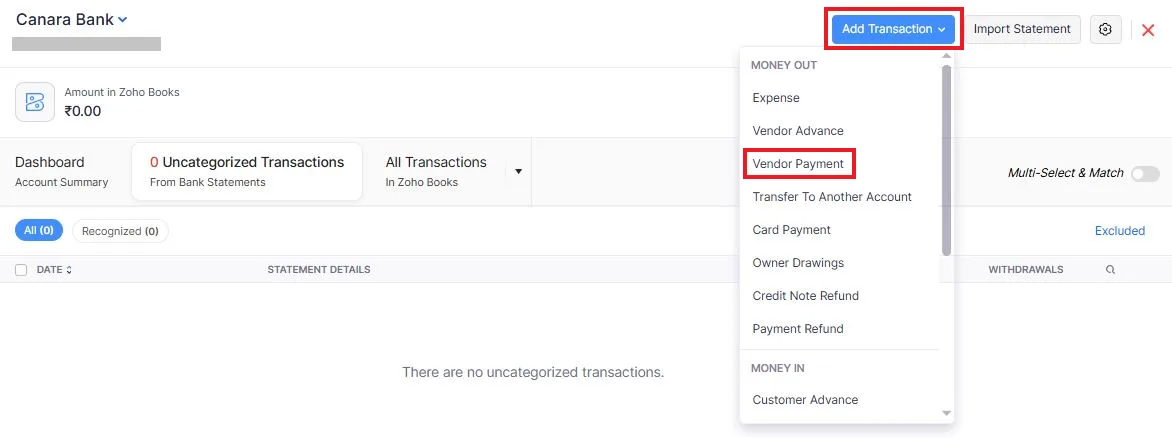
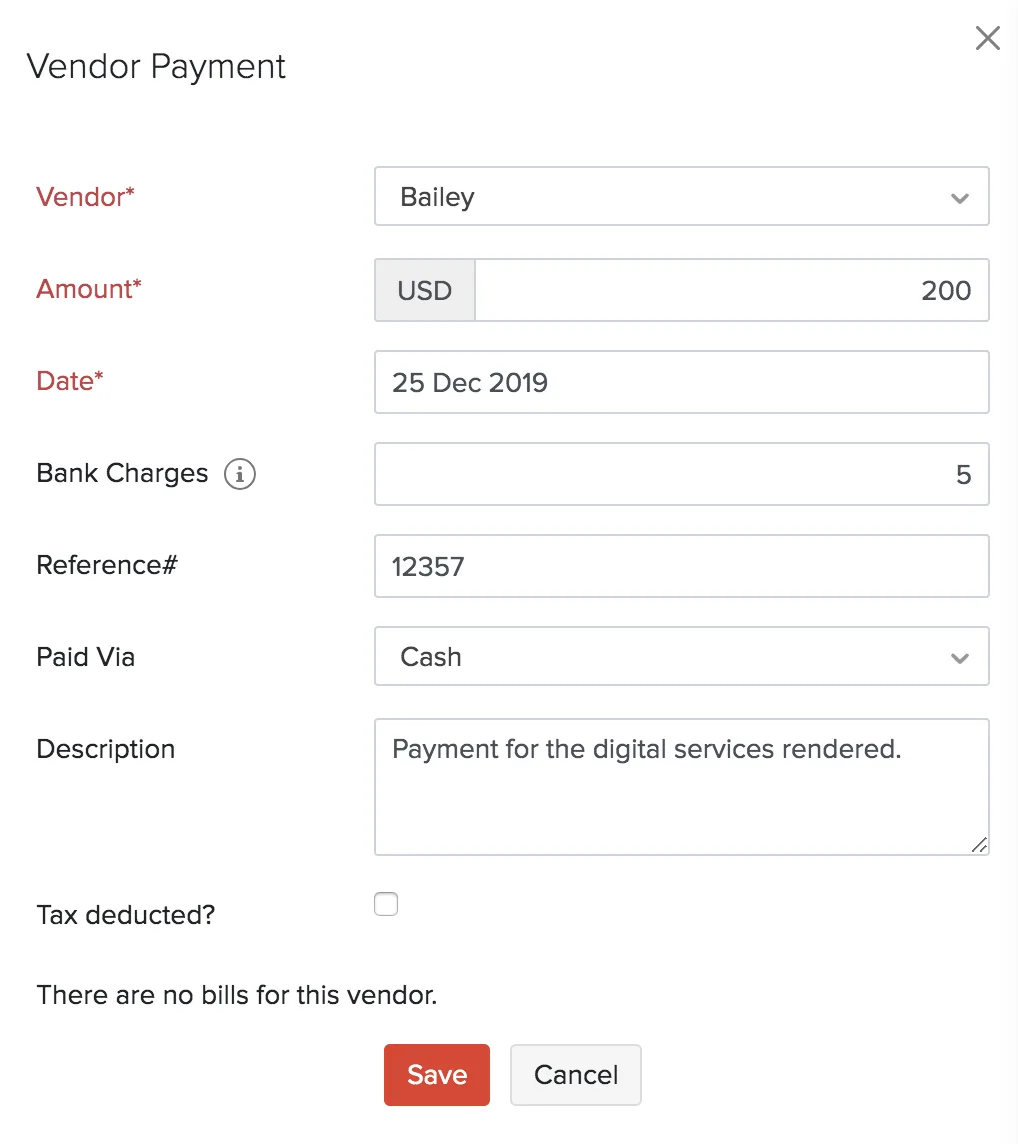
Just like the way expenses are recorded, the money that your customers pay such as the sales, interests, refunds on expenses, deposits and other incomes can be recorded manually from the options given under the Money In tab from the Transactions drop down.
- Once the transactions are recorded, it will be labelled as Manually Added.
Importing Bank Statements
You can import bank statements for your manually created bank and credit card account. The bank statements you import can be of the CSV, TSV, OFX, QIF, CAMT.053 or PDF formats.
If the chosen file is of the CSV, TSV, OFX, QIF, CAMT.053 formats, here’s how you can add them to your bank:
- Go to the Banking module.
- Select a bank or a credit account.
- Click the Import Statement button on the top right corner to import.
- Upload a file from your desktop or choose a file from Documents.
By default, the character encoding is chosen as UTF-8 (Unicode).
- Select the bank account to add the statement.
- Select the Amount Column Type from the drop-down:
- Select the Character Encoding and File Delimiter and click Next.
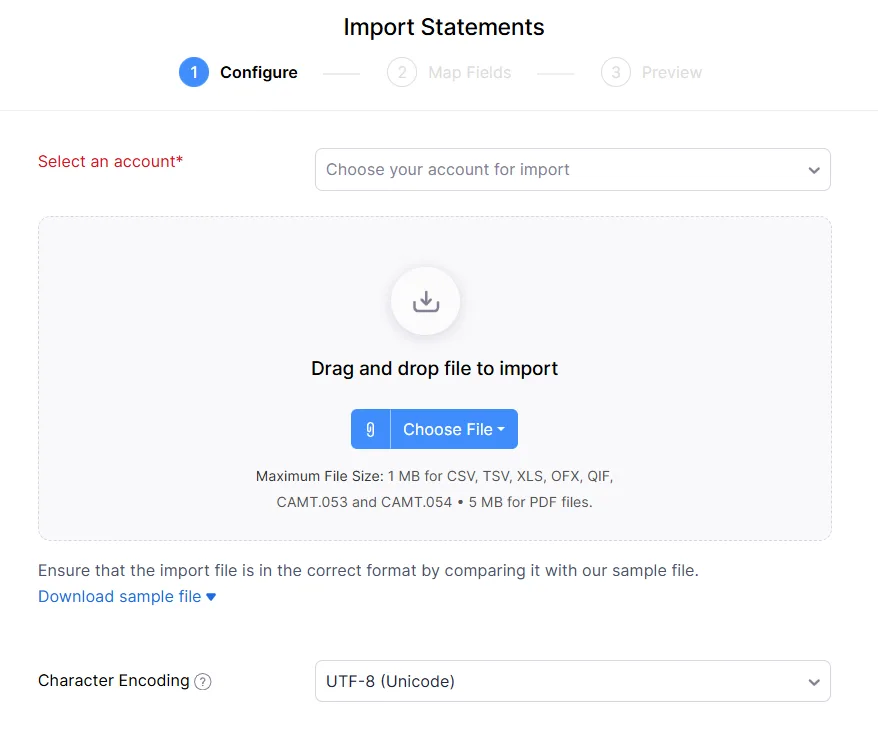
- Click Next.
The next step is to map the Imported file headers with the fields in Zoho Books. The best match to each field for the selected file will be auto-selected.
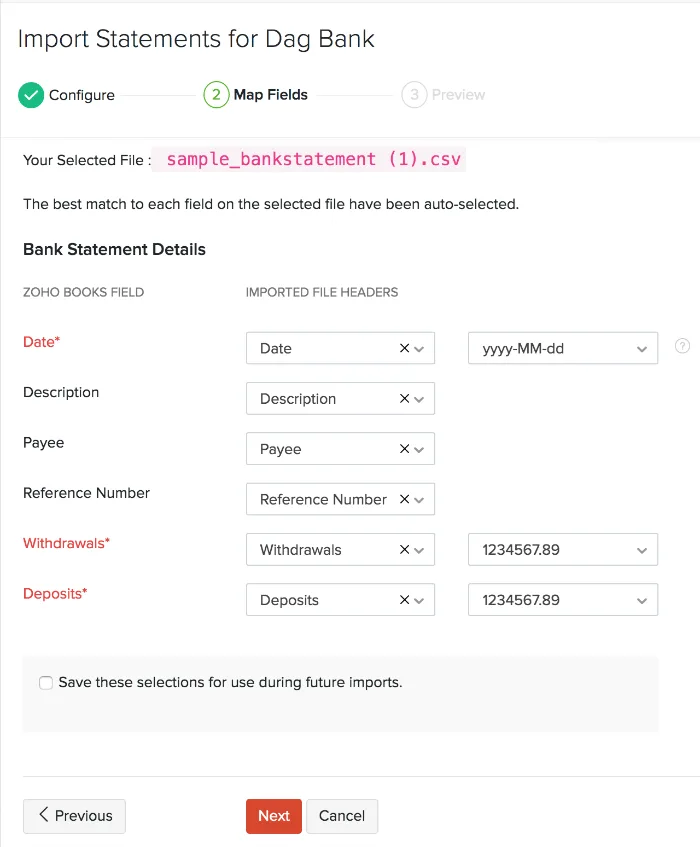
- Click Next.
You’ll be able to preview your import details where you can check for your errors and unmapped fields. If you want to make any changes, you can click Previous to edit your import preferences.
- Click Import.
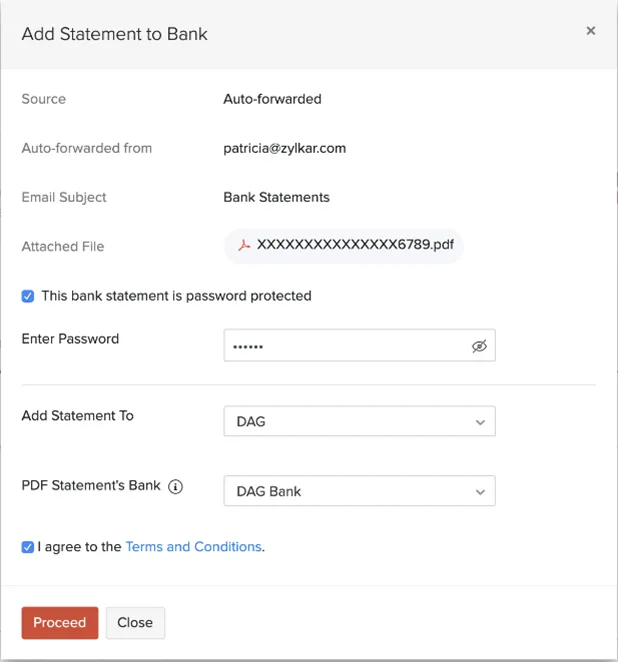
If the chosen file is of the PDF:
- The PDF file will be pre-populated automatically. You can view of the file next to the attached file.
- Mark the checkbox near This file is password protected to enter a password to access the PDF.
- Select the bank account to which you want to add the statement.
- Select the bank you would to associate the PDF with.
- Read and agree to the terms and conditions.
- Click Proceed.
Auto-Forward Bank Statements
If you have enabled auto-forward bank statements, you will be able to forward the emails with attachments from your bank to Zoho Books automatically. To add the forwarded statements to the relevant bank:
- Go to Banking.
- Click Bank Statement in the top right corner.
- The forwarded statements will be displayed under Bank Statements from Inbox.
- Click Add to Bank.
Summary Table: Connecting Banking Technology
| Step | Description | Benefit |
|---|---|---|
| Create Bank Accounts in Zoho Books | Create corresponding accounts for your actual bank accounts. | Provides a structure for tracking your bank transactions. |
| Integrate Bank Accounts (Bank Feeds) | Connect your Zoho Books accounts to your online banking accounts. | Automatically imports bank transactions, saving time and reducing errors. |
| Manage Bank Feeds | Monitor and manage your bank feeds to ensure they are working correctly. | Provides ongoing access to financial data. |
| Manual Import | Manually import bank transactions from a file. | Alternative method for unsupported banks or when bank feeds are not desired. |