GSTR-2A Reconciliation
What is GSTR-2A?
GSTR-2A is an auto-drafted GST statement that shows your inward supplies (purchases) based on returns filed by your suppliers in GSTR-1. It helps you verify purchase invoices and claim eligible Input Tax Credit (ITC) correctly.
GSTR-2A helps you answer one simple question:
Has my supplier reported the same purchase invoice that I have recorded in my books?
Zoho Books provides a systematic reconciliation process to verify this using data pulled directly from the GST Portal (GSTN).
Why GSTR-2A Reconciliation is Important
Reconciliation ensures that:
- ITC claimed in books matches supplier-reported data
- Missing or incorrect invoices are identified early
- GST notices due to mismatch are avoided
Prerequisites (Must Be Done Before Reconciliation)
1. Enable API Access in GST Portal – Already practiced this step in section 2, if not do it now
2. Mark Transactions as ITC Eligible – Only transactions marked as Eligible for ITC will be considered for credit.
Example:
- Purchase invoice from a registered supplier → Eligible
- Personal expense or blocked credit → Not Eligible
How to Reconcile GSTR-2A in Zoho Books
Pull Transactions from GSTR-2A
The first step is to pull the transactions from the GSTR-2A in GSTN portal to start reconciliation. To do so,
Navigate to the GST Filing module in the left sidebar
Select the Month of Filing from the option GST Summary For.

Go to the GSTR-2 section and click Transactions under the All Transactions section. This section consists of four important tabs: Overview, Reconciliation, Pull from GSTN and File your Returns. Click the Overview tab to view all transactions in your Zoho Books. You can also have a detailed view of all the transactions listed there by clicking on them.
Navigate to the Reconciliation tab and click Pull from GSTN.
- Click Generate OTP and enter the OTP sent by GSTN to your registered phone/email ID. You will now be able to view the transactions uploaded by your vendor in the GSTN Portal.
>
Reconcile Transactions with Zoho Books
Once you have pulled your data from the GSTR-2A, Zoho Books will automatically categorise the transactions, making it easier for you to reconcile the transactions.
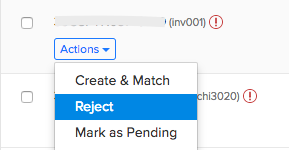
Under every section in the Reconciliation tab, there are multiple transactions. Each transaction contains the dropdown Action. Choose an option from the dropdown to process the reconciliation. Based on your actions chosen, the transactions will be reconciled.
| Section | Description | Action |
|---|---|---|
| Missing in GSTN | Transactions that are present in Zoho Books but are not available in the GSTN are displayed under this tab | 1. Add to GSTN to move the transactions to the Matched section |
| Missing in Zoho Books | Transactions that are not present in Zoho Books but are populated during the GSTR-2A transaction pull from GSTN. | 1.Create and Match to create a new transaction in Zoho Books and move it to the Matched section. 2.Reject if the transaction is irrelevant to you. |
| Partially Matched | Transactions in Zoho Books that partially match with those populated from the GSTN. (For example, a mismatch in the amount populated) | 1. Use My Value to use the value recorded by you. 2. Modify and Match to modify the data in your Zoho Books account. |
| Matched | Transactions that are pulled from the GSTN that match with the transactions in Zoho Books and the transactions that you’ve matched. | 1. Accept to move transactions to Reconciled tab. 2. Mark as pending to use it for the next cycle of returns filing. |
| Reconciled | Matched transactions that are ready to be pushed to GSTN. | 1. Revert Reconciliation to undo the reconciliation. |
- Once you have completed, go to the Complete Your Return tab and click Mark as Completed.
Mark Return as Open
Once you’ve marked a GSTR-2 return for a specific period as completed, you will not be able to edit the transactions in that return since they would have been reconciled. However, if you want to make changes to the return, you can mark the return as open in Zoho Books and make the necessary corrections. Here’s how you can do this:
- Click GST Filing in the left sidebar.
- If the Branches feature is enabled, you’ll be redirected to the List of GSTINs page. Click View Summary next to the required GSTIN.
- If the Branches feature is not enabled, you will be redirected to the GSTIN’s page.
- In the Monthly/ Quarterly Returns section:Click the date filter and select the latest return that you have marked as complete.Click Mark as Open next to GSTR-2.In the pop-up that appears, click Mark as Open.
- Follow the above step for all the returns from the latest return to the return that you want to mark as open.

- The return will then be open and you can make the necessary corrections. Ensure that you mark the return as completed again after making the changes.

What is GSTR-2B?
GSTR-2B is a static, auto-drafted Input Tax Credit (ITC) statement generated by the GST portal on the 14th of every month. “Static” means: Once generated for a month, it does not change automatically Any later corrections require regeneration
Purpose of GSTR-2B
GSTR-2B tells you how much ITC you are eligible to claim in GSTR-3B for that month. Thumb Rule ITC should be claimed based on GSTR-2B, not GSTR-2A
Source of Data in GSTR-2B
GSTR-2B collects data from: GSTR-1 – Supplier sales GSTR-5 – Non-resident taxable persons GSTR-6 – ISD returns ICEGATE – Import of goods Not included: TDS credits TCS credits
Difference Between GSTR-2A and GSTR-2B
| Particulars | GSTR-2A | GSTR-2B |
|---|---|---|
| Nature | Dynamic | Static |
| Updates | Continuous | Fixed once generated |
| Purpose | Tracking & follow-up | Final ITC claim |
| ITC Basis | Reference | Actual claim |
| Generation date | Anytime | 14th of every month |