Functions in e-Way Bills
Let’s take a look at some of the functions that can be performed on e-Way Bills in Zoho Books.
Create a New e-Way Bill
To create a new e-Way Bill:
- Go to Sales on the left sidebar and select e-Way Bills.
- Click + New.

- Enter all the necessary details.
- Click Save to save the e-Way Bill as a draft, or click Save and Generate to generate the e-Way Bill immediately.
Why Link E-way Bill Numbers in Zoho Books?
Linking the E-way Bill number to your invoices and other sales/purchase transactions within Zoho Books provides several benefits:
- Easy Traceability: Easily track the movement of goods associated with a particular invoice or transaction.
- Simplified Reporting: Generate reports that include both the invoice details and the associated E-way Bill number, simplifying compliance and auditing.
- Reduced Errors: Minimizes the risk of errors associated with manually tracking E-way Bill numbers.
- Centralized Information: Provides a centralized location for all information related to a particular transaction, including the E-way Bill details.
Add e-Way Bill Details to Transactions
If you have already generated an e-Way Bill in the EWB portal, you can associate it with your transactions. Here’s how:
- Go to the respective module for which you want to update the e-Way Bill details (for example, invoices).
- Select the transaction to which you want to associate the e-Way Bill details.
- Click the More icon.
- Select Add e-Way Bill Details.
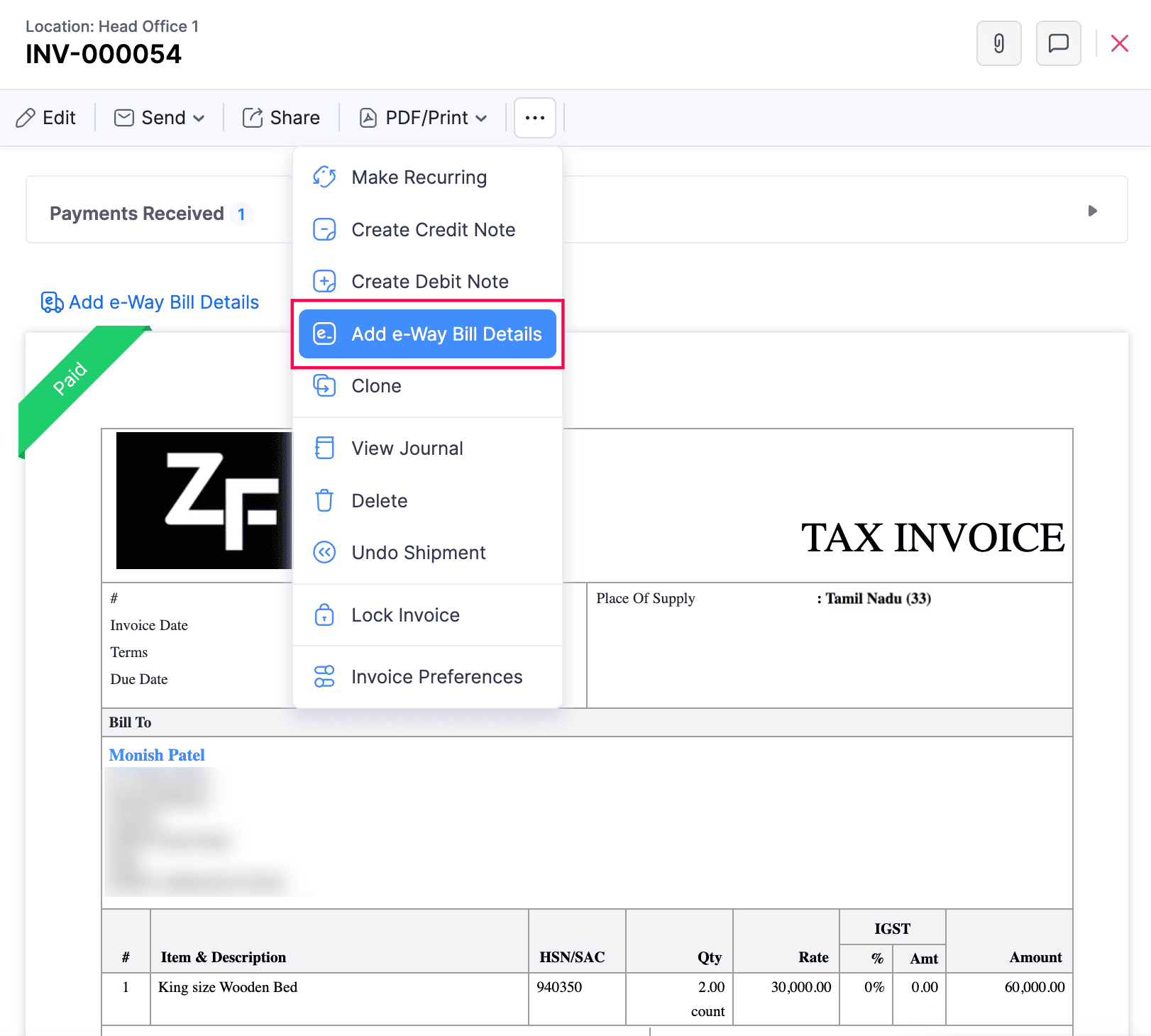
- In the Add e-Way Bill Details pop-up, select Associate e-Way Bill Number.

- Enter the e-Way Bill Number. Make sure there are no spaces between the numbers.
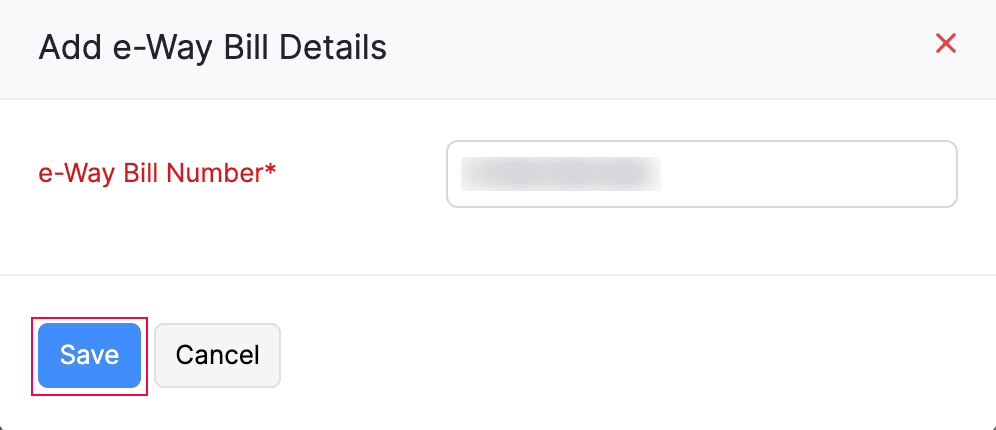
- Click Save.
The e-Way Bill number will be associated with the transaction. You must also fetch the details of the respective e-Way Bill from the portal to update all relevant information.
Fetch e-Way Bill Details from the EWB Portal
If you’ve generated an e-Way Bill directly in the EWB portal and manually associated the e-Way Bill number with a transaction in Zoho Books, you need to fetch the details from the EWB portal to accurately reflect the latest updates for that transaction. This ensures the e-Way Bill details in Zoho Books is up to date. To fetch data from the EWB portal into your organization:
- Go to Sales on the left sidebar and select e-Way Bills.
- In the e-Way Bills page, click the dropdown next to e-Way Bill Status and select Generated.
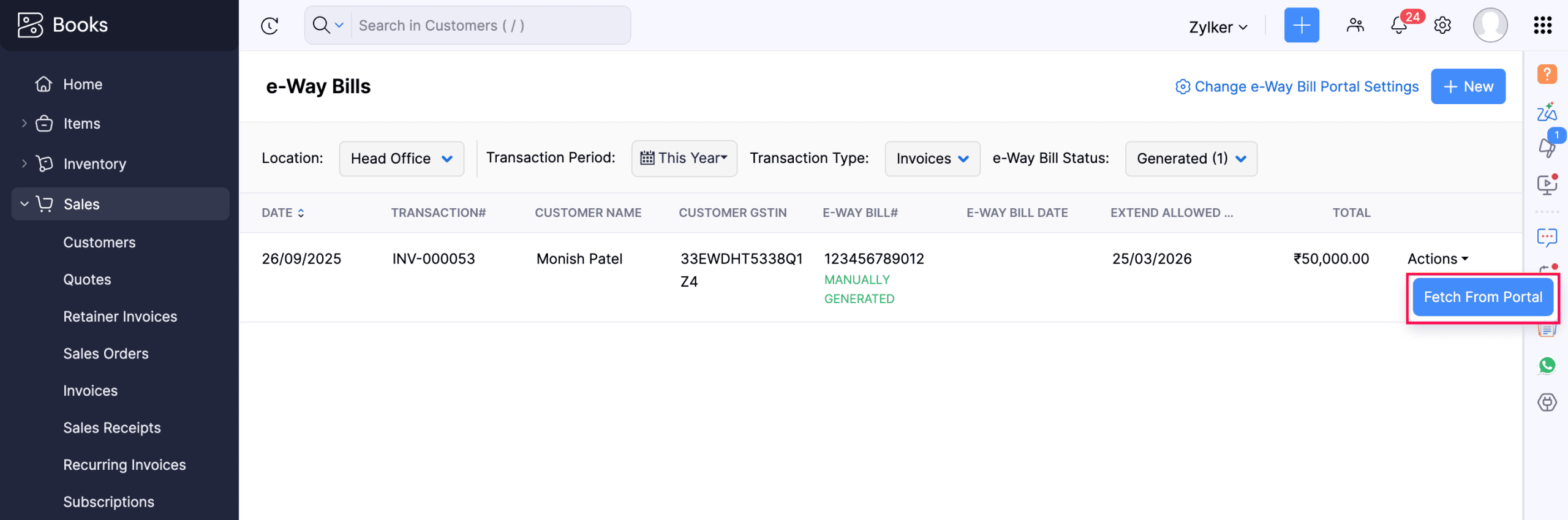
- Click the Actions dropdown next to the transaction for which you want to fetch e-Way Bill details, and select Fetch From Portal.
The e-Way Bill details will be updated for the transaction.
Cancel an e-Way Bill
Sometimes, your shipment may get cancelled, the destination might change, or there could be typing errors while creating an e-Way Bill. In such cases, you can cancel the existing e-Way Bill within 24 hours of its creation and generate a new one. However, if the e-Way Bill has already been verified by the authorities, it cannot be cancelled. To cancel an e-Way Bill:
- Go to Sales on the left sidebar and select e-Way Bills.
- Click the Actions dropdown next to the e-Way Bill you want to cancel, and select Cancel.
- In the Reason For Cancellation pop-up:Select the Reason for cancellation and enter the cancellation Remarks, if any.Click Confirm.
The e-Way Bill will be cancelled.
Regenerate a Cancelled e-Way Bill
You can regenerate a cancelled e-Way Bill. Here’s how:
- Go to Sales on the left sidebar and select e-Way Bills.
- Select the e-Way Bill that needs to be regenerated, and click Regenerate.
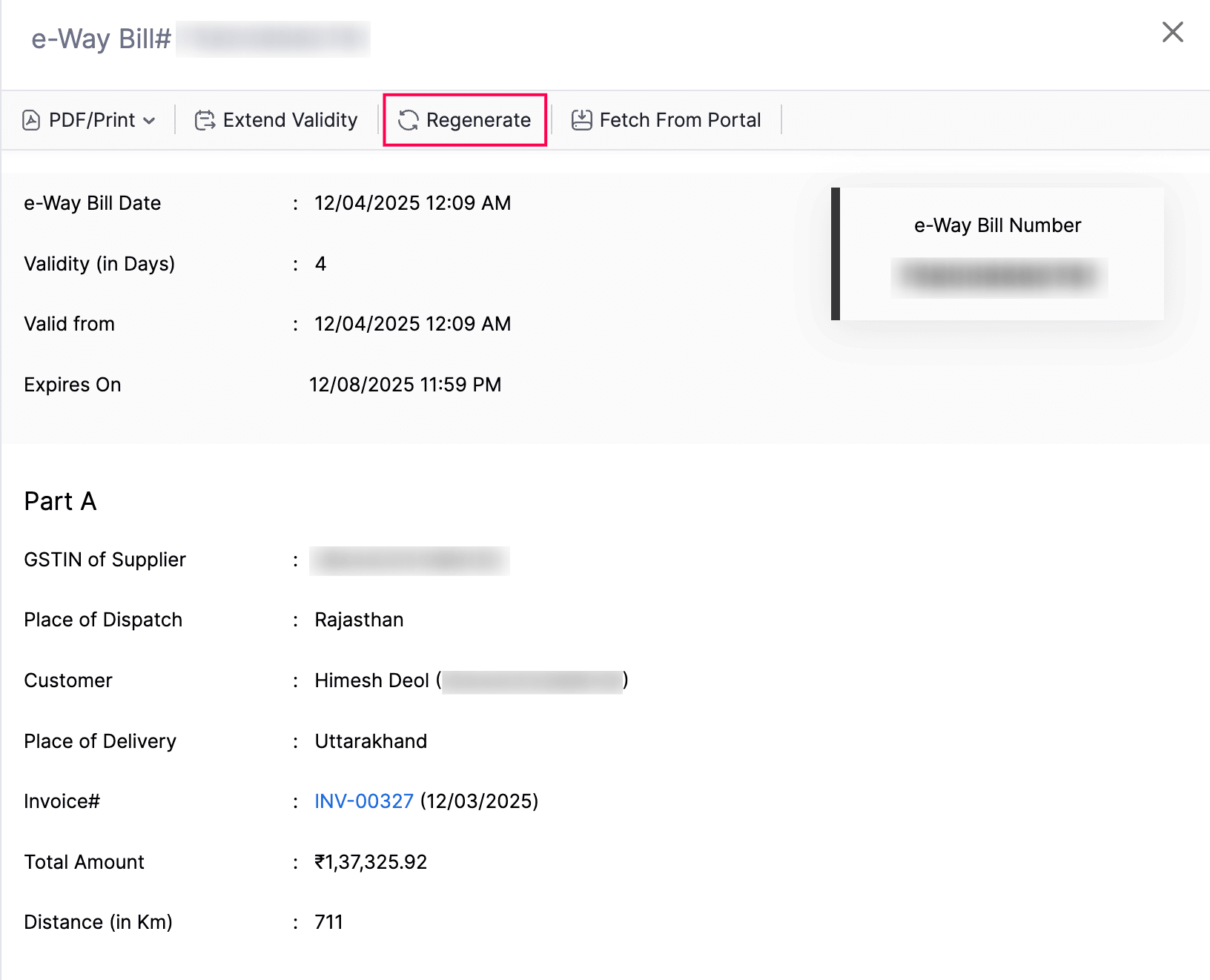
- On the Edit e-Way Bill page, update the required details.
- Click Save or Save and Generate to generate an e-Way Bill from Zoho Books.
Extend the Validity Period of e-Way Bills
The validity period of an e-Way Bill which is in the Generated or Expired status can be extended up to eight hours before or after it expires. For example, if there are unforeseen delays during transportation, such as vehicle breakdowns or traffic issues, you can extend the e-Way Bill’s validity. Here’s how:
- Go to Sales on the left sidebar and select e-Way Bills.
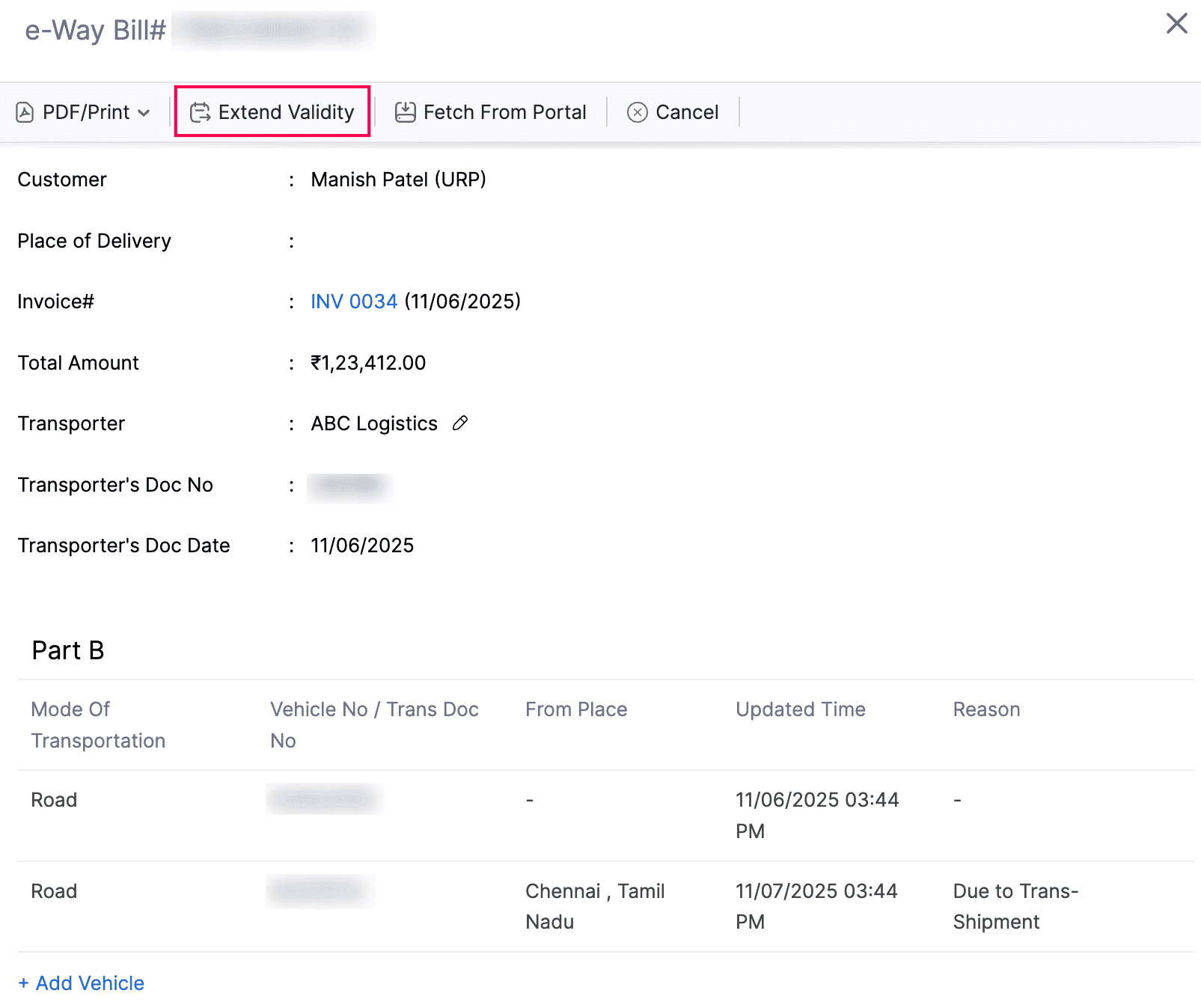
- Select the e-Way Bill for which you want to extend the validity period.
- Click Extend Validity.
- In the Extend Validity pop-up:Select the Consignment Type as either In Transit or In Movement. You can select In Transit if your goods are in transit on the road or in a warehouse, and then select the Transit Type. If your goods are being transported, select In Movement, and then select the Mode of Transportation and Vehicle No.Enter the consignment’s Current Place, Current Pincode, and select the Current State.Enter the Approximate Distance (in KM) from your current consignment location to the destination. You can enter 0 if you want the e-Way Bill system to calculate the distance automatically.Select the Extend Reason.Click Save.
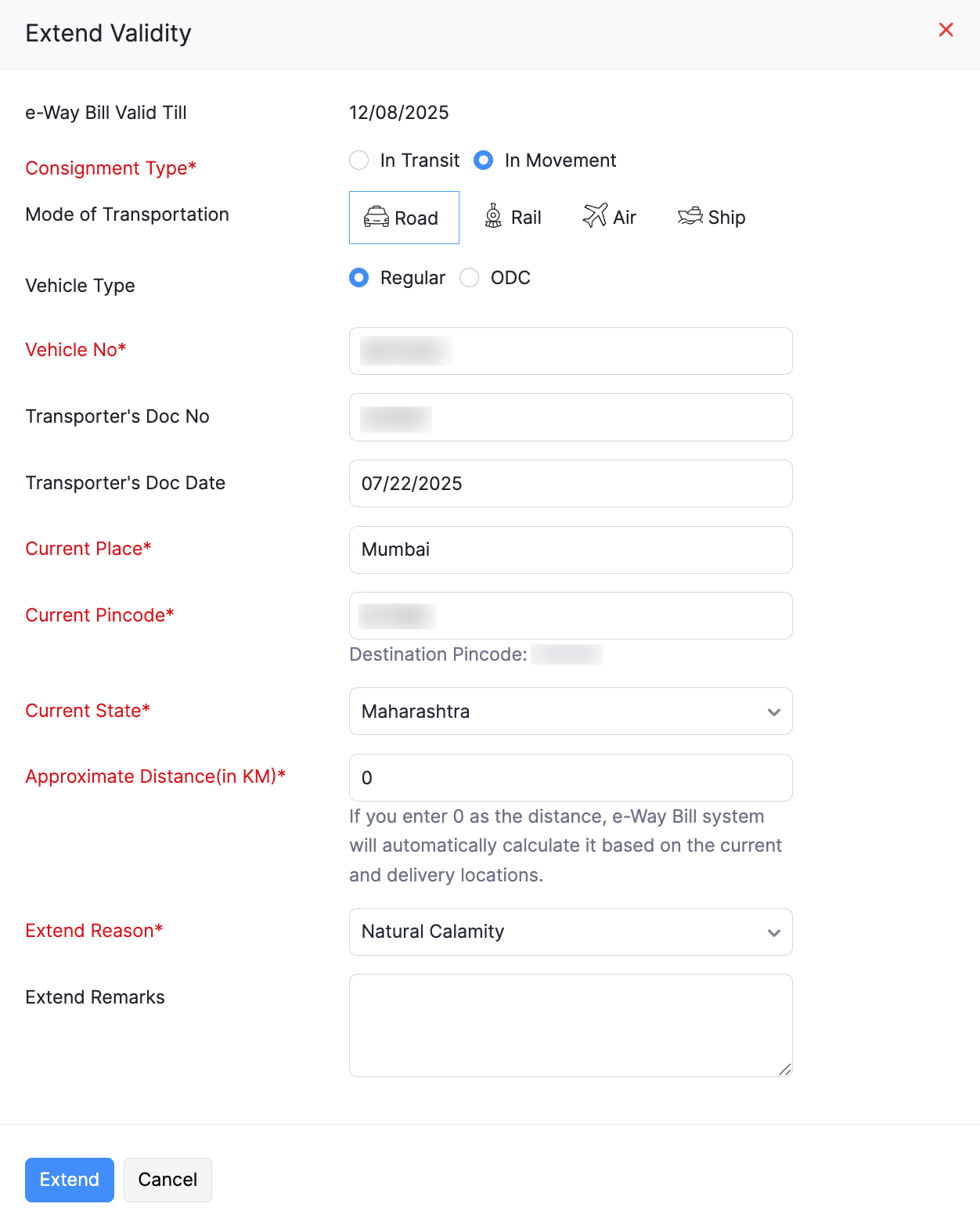
The validity period of the e-Way Bill will now be extended.
Best Practices for Managing E-way Bills in Zoho Books
- Enter E-way Bill Numbers Accurately: Double-check the E-way Bill numbers to ensure they are entered correctly.
- Make the Field Mandatory: Make the E-way Bill number field mandatory to ensure that all relevant transactions have an associated E-way Bill.
- Train Your Staff: Train your staff on the importance of E-way Bills and the correct procedures for generating and linking them to transactions.
- Monitor Compliance: Regularly monitor your E-way Bill compliance to identify any issues or areas for improvement.
- Stay Updated: Stay updated on the latest E-way Bill regulations and requirements.
Multiple Choice Question
Summary Table: Linking E-way Bill Numbers in Zoho Books
| Step | Description |
|---|---|
| 1. Add Custom Field | Add a custom field to your invoices and other transactions for the E-way Bill number. |
| 2. Link E-way Bill Number | Enter the E-way Bill number in the custom field for each relevant transaction. |
| 3. Generate Reports | Customize your reports to include the E-way Bill number field. |
| 4. (Optional) Automate Generation | Explore integrating Zoho Books with E-way Bill APIs for automated generation. |