Inviting Users and Collaboration Techniques
Zoho Books allows multiple users to access and collaborate on your organization’s financial data. This is crucial for businesses with multiple employees involved in accounting, sales, or management. This section will guide you through inviting users, assigning roles, and leveraging collaboration features within Zoho Books.
Understanding User Roles and Permissions
Before inviting users, it’s essential to understand the concept of user roles and permissions. Zoho Books offers pre-defined roles with specific access levels, allowing you to control what each user can see and do within the system. Assigning the right roles ensures data security and prevents unauthorized access or modifications.
Commonly used user roles in Zoho Books include:
Admin
An Admin in a Zoho Books organization has complete access to all modules, transactions, and settings. They can create and assign roles for other users in their organization.
Super Admin
In Zoho Books, the Super Admin is a privilege that is automatically assigned to the admin who creates an organization. In addition to the standard admin permissions, the Super Admin has authority over other admins within the organization. There can be only one Super Admin in an organization, and they’re same across all the Zoho Finance applications, including Zoho Invoice, Zoho Books, Zoho Billing, Zoho Expense, Zoho Inventory, Zoho Payroll, Zoho Commerce, Zoho Checkout, Zakya, Zoho Practice, and Vikra of that organization.
Staff
The Staff role is assigned by the admin to other users who can access all modules except reports, settings, and accountant.
Timesheet Staff
The admin can assign the Timesheet Staff role to a user, who can access and log time entries within the Timesheet module.
Staff (Assigned Customers Only)
In Zoho Books, Staff (Assigned Customers Only) is a role that is given to users who are assigned to specific customers. They can access all modules, transactions, and data related to their assigned customers.
Carefully consider the responsibilities of each user and assign the appropriate role based on their duties.
Add User
When you create a Zoho Books account, you become the default admin of your organization. Once you are an admin, you can add multiple users with different roles to your organization. Here’s how you can do it:Go to Settings in the top right corner of the page.Select Users under Users & Roles.Click Invite User on the top right corner of the page.Enter the email address, name and the role of the user you’re going to invite to your organization.Click Save.After doing so, an email will be sent to the new user, from where they have to verify the link and set up a login password to access your Zoho Books organization.Note: Only users with Admin access can add new users.
Edit User
After you have added a new user, you can edit their data if required. Here’s how:Go to Settings in the top right corner of the page.Select Users under Users & Roles.Click Edit.Make the required changes and click Save.Note: Only users with Admin access can edit user information.
Mark User as Inactive
Sometimes, you might want to restrict a user from accessing your organization. In such a case, you can mark a user as inactive. You can make the user active again if you wish.
To mark a user as inactive:
- Go to Settings in the top right corner of the page.
- Select Users under Users & Roles.
- Select the user you want to mark as inactive.
- Click Mark as Inactive.

Delete User
You can delete a user whom you no longer want to give access to your Zoho Books organization.
To delete a user:
- Go to Settings in the top right corner of the page.
- Select Users under Users & Roles.
- Select the user whom you want to delete.
- Click Delete.

Important Considerations:
- Email Address Accuracy: Double-check the email address to avoid sending the invitation to the wrong person.
- Role Selection: Carefully consider the user’s responsibilities before assigning a role. Incorrect role assignments can lead to security risks or limited functionality for the user.
- Re-sending Invitations: If a user doesn’t receive or accept the invitation, you can typically resend it from the user management area.
Invite Accountant
Zoho Books provides a dedicated Invite Accountant feature to help you securely give access to an Accountant or external Chartered Accountant. This option assigns a predefined accountant role with limited but complete accounting access—ensuring your financial data remains safe while allowing your accountant to manage GST, journals, reports, reconciliations, and year-end adjustments.
Here’s how you can invite your accountant:
- Go to Settings in the top right corner of the page.
- Select Users under Users & Roles.
- Click Invite Accountant on the top right corner of the page.
- Enter the Name, Email address and Select the role as Accountant.

- Click Send Invite.
- Accountant will get an email with Invitation to Accept by providing additional details to Sign-up
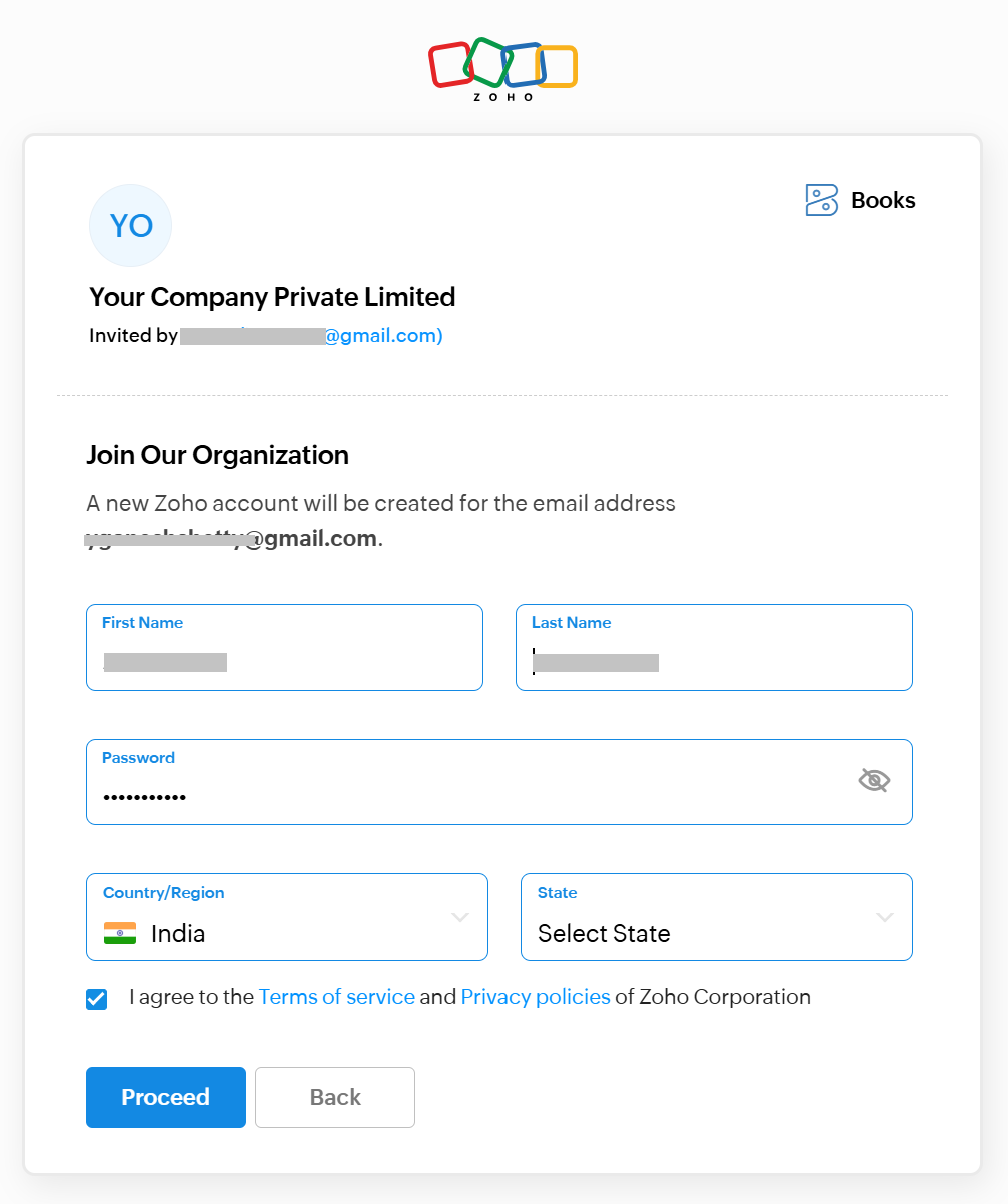
- Accountant needs to Verify the details by OTP received on email ID

Upon clicking on Verify and Accept Accountant shall be redirected to the Zoho Books with Accountant Access.
Collaboration Techniques within Zoho Books
Zoho Books offers several features that facilitate collaboration between users:
- Comments and Discussions: You can add comments to specific transactions (e.g., invoices, bills) to discuss them with other users. This allows for real-time collaboration and clarification without leaving the system.
- Task Assignments: Assign tasks to specific users related to accounting activities, such as following up on overdue invoices or reconciling bank statements. This helps track progress and ensures that tasks are completed efficiently.
- Shared Documents: Some Zoho Books integrations and functionalities allow for the sharing of documents related to financial transactions directly within the system.
- Real-time Updates: Zoho Books provides real-time updates on changes made by different users, allowing everyone to stay informed about the latest financial activities.
- Audit Trail: Track all user activity within the system, providing a detailed audit trail of who made which changes and when. This helps ensure accountability and transparency.
Example Scenario: Collaboration on Invoice Approval
Imagine an invoice needs approval from a manager before it can be sent to a client. The salesperson creates the invoice and adds a comment tagging the manager: “@Manager Please review and approve this invoice.” The manager receives a notification, reviews the invoice, and adds a comment: “@Salesperson Approved. You can now send it to the client.” This clear communication is all documented directly on the invoice for future reference.
Troubleshooting User Invitation Issues
Here are some common issues you might encounter when inviting users and how to resolve them:
- Invitation Not Received: Ask the user to check their spam or junk mail folder. Also, verify that you entered the correct email address. If necessary, resend the invitation.
- Invitation Link Expired: Invitation links typically have an expiration date. If the link has expired, you’ll need to resend the invitation.
- User Already Exists: If the user already has a Zoho account associated with a different organization, they may need to log out of that account before accepting the invitation to your organization.
- Permission Issues: If a user is unable to perform a specific task, double-check their assigned role and permissions to ensure they have the necessary access.
The Importance of Proper User Management
Effective user management is critical for maintaining the integrity and security of your financial data in Zoho Books. By carefully controlling user access and permissions, you can minimize the risk of errors, fraud, and data breaches. Regularly review user roles and permissions to ensure they are still appropriate as your business evolves, and employees’ responsibilities change.
Multiple Choice Question:
Summary Table: User Roles and Permissions
| User Role | Key Permissions | Suitable For |
|---|---|---|
| Admin | Full access, user management, subscription management, customization. | Business owners, senior managers. |
| Accountant | Accounting functions, invoice creation, bill management, reporting. | Accountants, bookkeepers. |
| Salesperson | Sales-related activities, estimate creation, invoice tracking. | Sales team members. |
| Employee | Limited access, time tracking, expense reporting. | Employees requiring limited access. |
| Custom | Defined by admin | Teams requiring tailored access. |