Step 6: Create Pay Head:
Pay heads are the salary components that make up an employee’s pay structure. They can be benefits or deductions, and their value can be fixed or change each payroll period.
For example, basic pay is fixed, while variable pay and bonuses are variable.
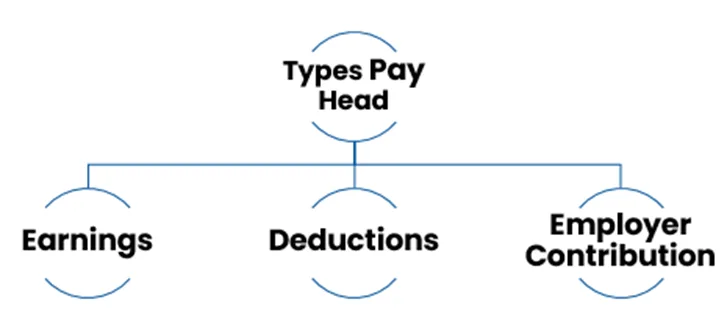
A. Earning Pay Heads:
i. Earnings Pay Head with Fixed Income Type:
1. Gateway of Tally > Create > Ledger > Pay Head > and press Enter. Alternatively, press Alt+G (Go To) > Create Master > type or select Pay Head > and press Enter.
2. Enter the pay head name in the Name field.
3. Select Earnings for Employees as the Pay head type.
4. Select Income type for the pay head as:
- Fixed: This forms a part of the employee’s Total Gross Salary. For example, Basic Pay.
- Variable: This forms a part of the employee’s Total Earnings only. For example, Overtime Wages.
5. Select Indirect Expenses from the List of Groups in the Under field.
6. By default, Affect Net Salary is set to Yes. You can change this to No if you do not want this component to be included in the pay slip.
7. By default, the pay head component name entered in the Name field appears in the pay slip. You can change this by entering a different name in the Name to appear in Payslip field.
8. Set Use for calculation of gratuity to Yes, to consider this pay head for Gratuity calculation.
9. Set the option Set / Alter Income Tax Details to Yes to view the Income Tax Details screen.
10. Select the required tax component (for example, Basic Pay) in the Income Tax Component field.
11. Select On Projection as the Tax Calculation Basis, if tax computation is spread across the remaining period.
12. Set the option Deduct TDS across Period(s) to Yes when Tax Calculation Basis is On Projection. It can be set to Yes or No for On Actuals, as required.
13. Select On Attendance as the Calculation type.
14. Select the required method of recording attendance.
15. To deduct salary for the number of days an employee is absent (Leave without Pay):
- Select Not Applicable for Attendance/leave with pay field.
- Select Absent in the field Leave without pay field.
- Select Present in the Attendance/leave with pay field the Present Attendance Type and follow the remaining steps.
- Select the required Calculation period from the List of Calculation Periods.
16. Based on the Calculation period, you can select and enter the details for Per Day Calculation Basis as User Defined or Calendar period or User Defined Calendar Type.
17. Select the Rounding Method, if applicable.
18. Accept the screen. As always, you can press Ctrl+A to save.
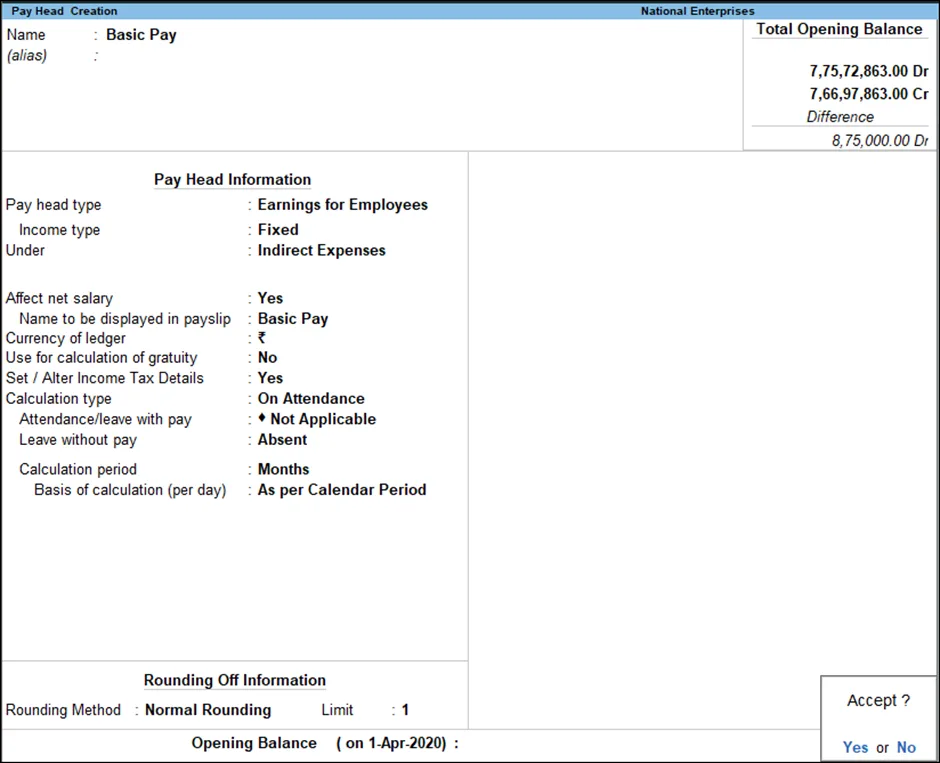
The Pay Head Creation screen appears, as shown:
ii. Earnings Pay Head with Calculation Type As Computed Value:
1. Go to Gateway of Tally > Create > Pay Heads.
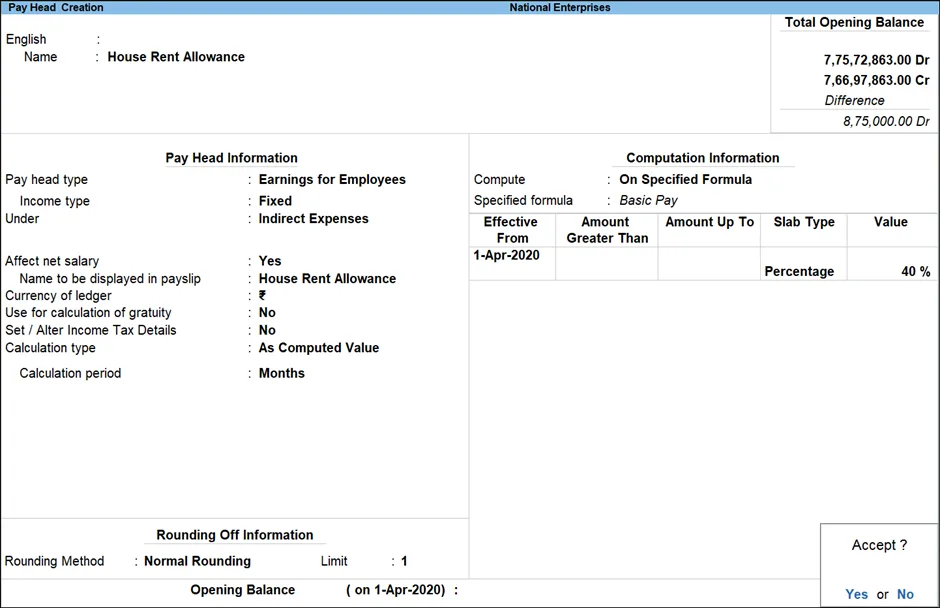
2. Enter House Rent Allowance in the Name field.
3. Select Earnings for Employees as the Pay head type.
4. Select Income type for the pay head.
5. Select Indirect Expenses from the List of Groups in the Under field.
6. Set Affect Net Salary to Yes.
7. Click Compute.
8. In the Compute screen, select On Specified Formula from the Compute On list.
9. Enter the following formula in the
Formula
field:
(Basic Pay * 40%) / 100
This formula will calculate the HRA as 50% of the employee’s basic pay.
10. Click Accept to save the formula.
11. Click Accept to save the pay head.
Once you have created the pay head, you can assign it to employees in their salary details. To do this, go to Gateway of Tally > Payroll Info. > Salary Details > Create. Select the employee and then enter the House Rent Allowance pay head in the Earnings section.
Click Accept to save the salary details. The employee will now receive the HRA in their salary.
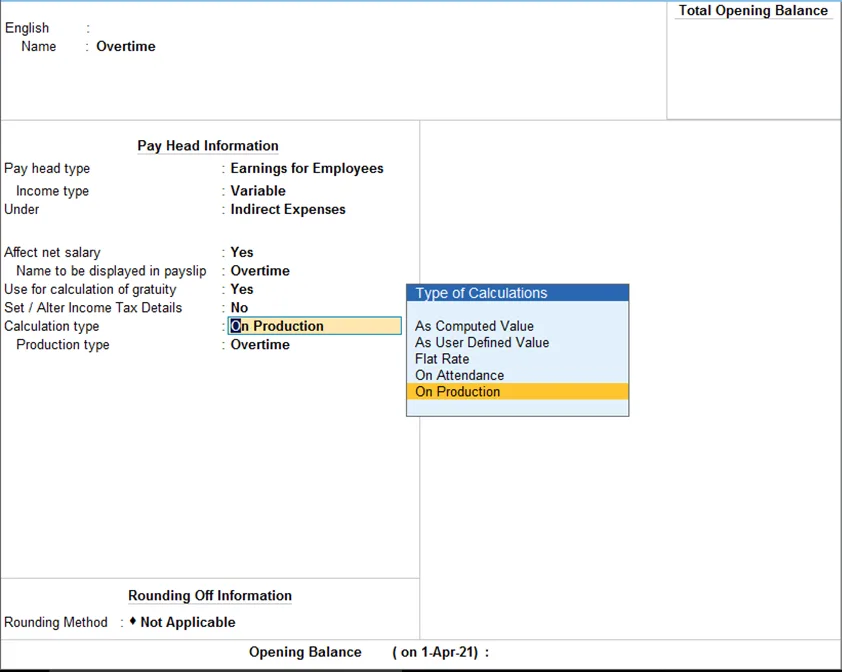
iii. Earnings Pay Head with Calculation Type as On Production:
Eg: Overtime
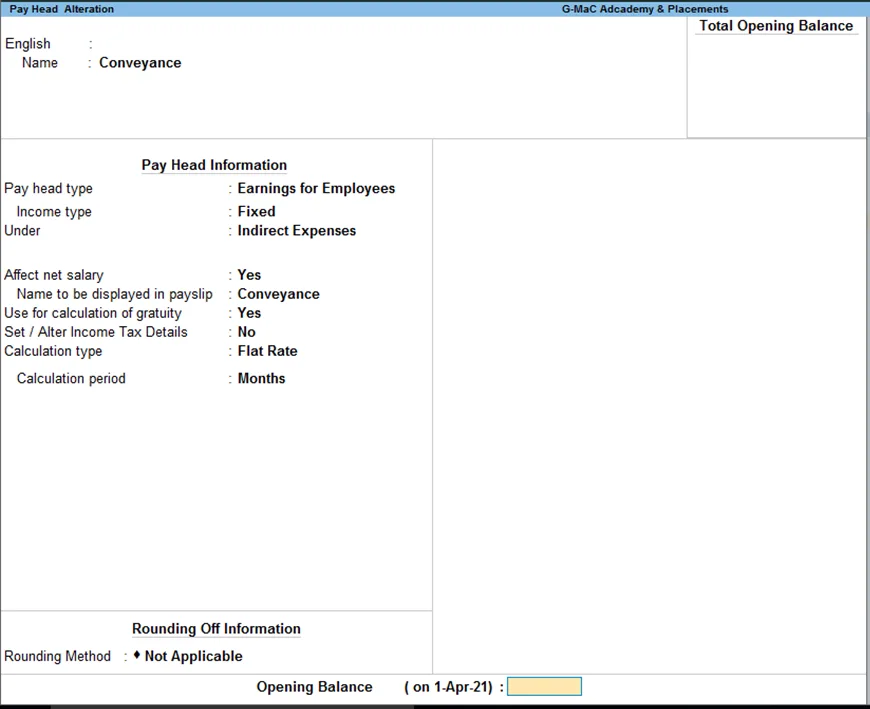
iv. Flat Rate Earnings Pay Head:
Eg: Conveyance
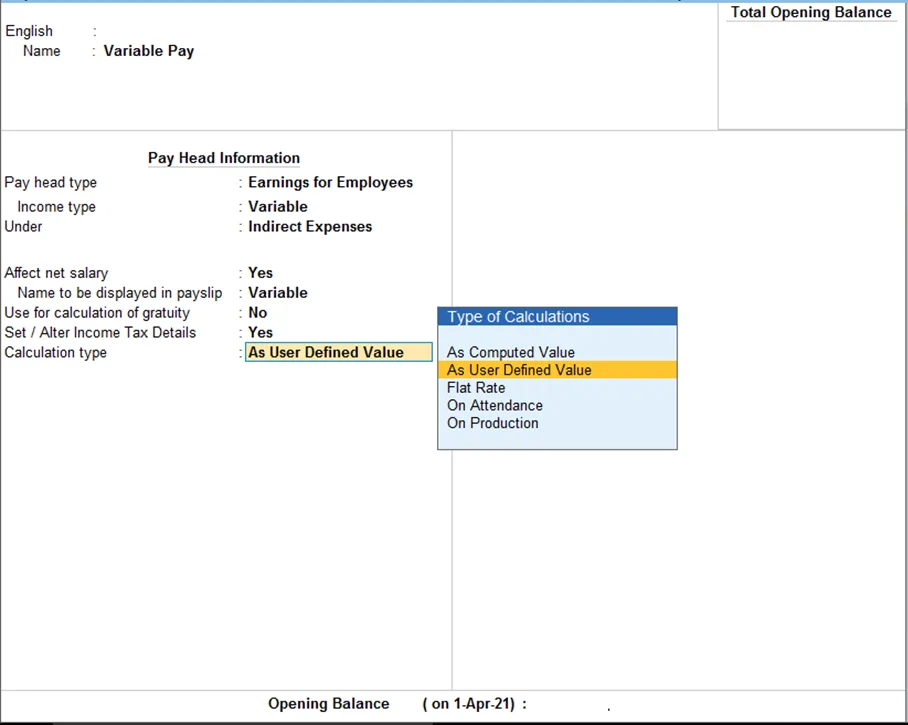
v. User Defined Earnings Pay Head:
Eg: Variable Pay
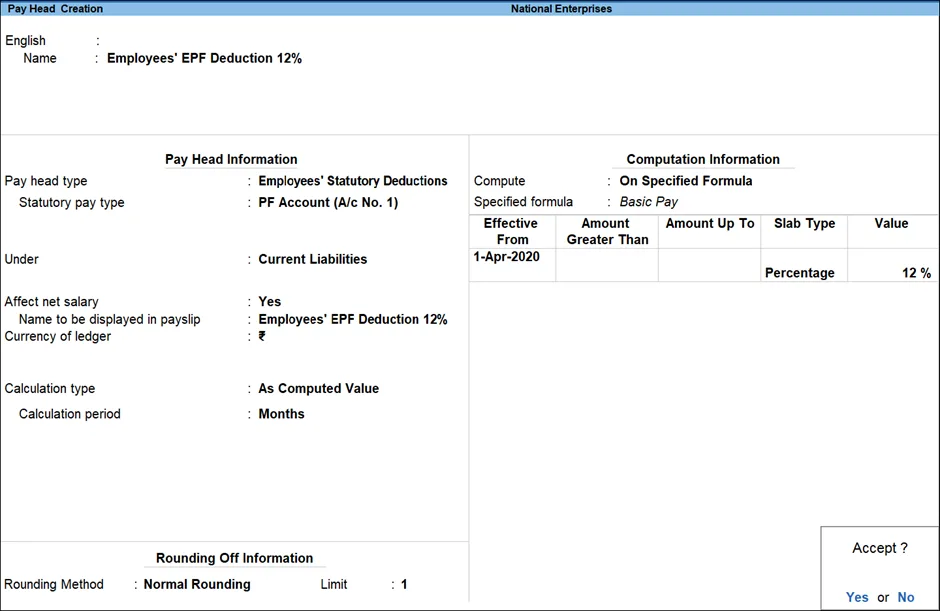
B. Deduction Pay Heads:
i. PF Deduction Pay Head for Employees:
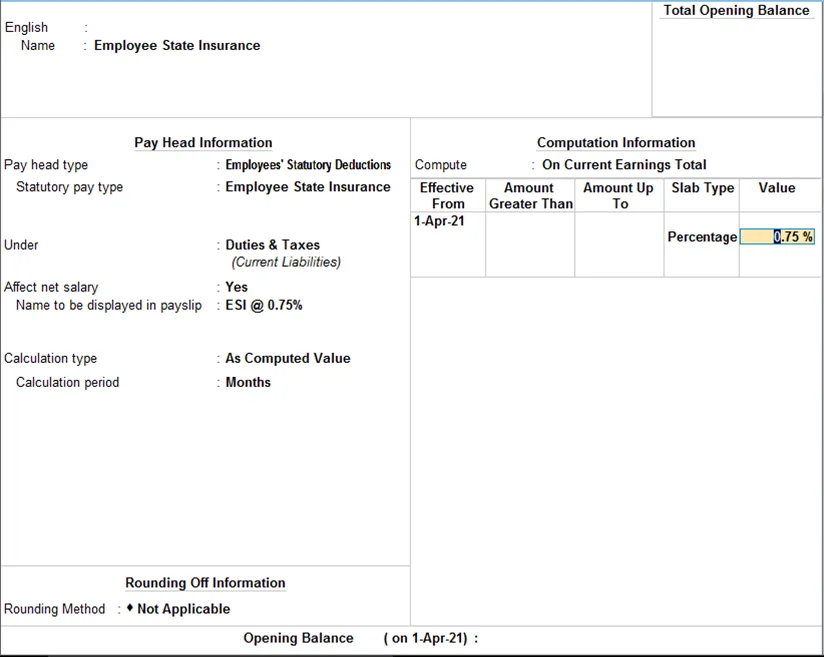
ii. ESI Deduction Pay Head for Employees:
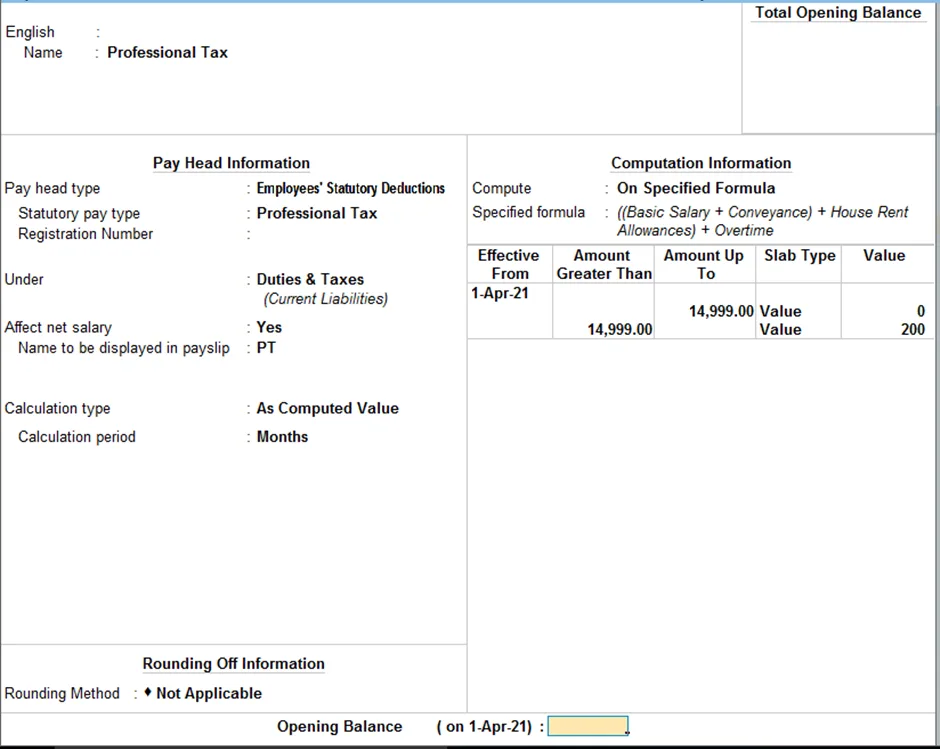
iii. Professional Tax Deduction Pay Head:
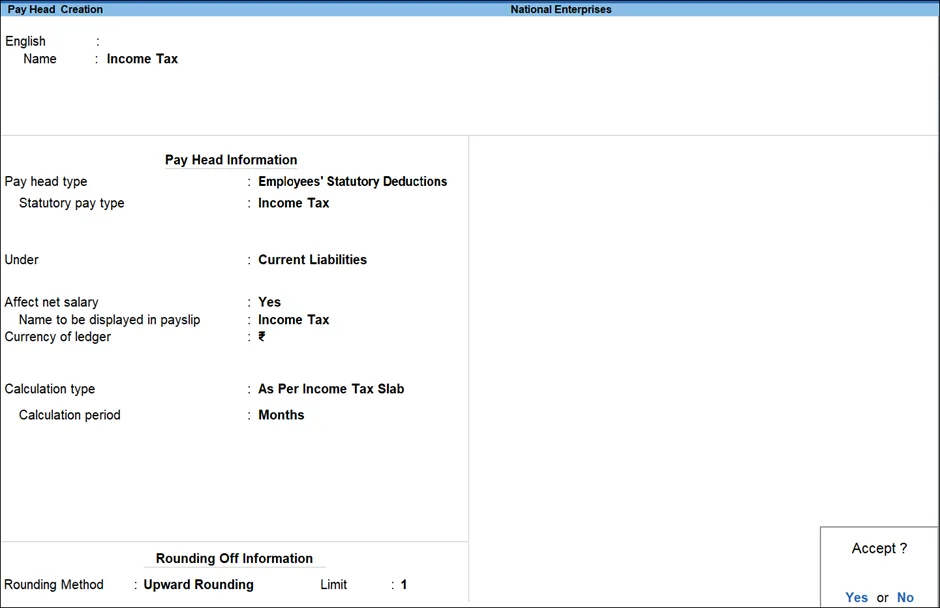
iv. Income Tax Deduction Pay Head:
C. Employer Statutory Contribution Pay Heads
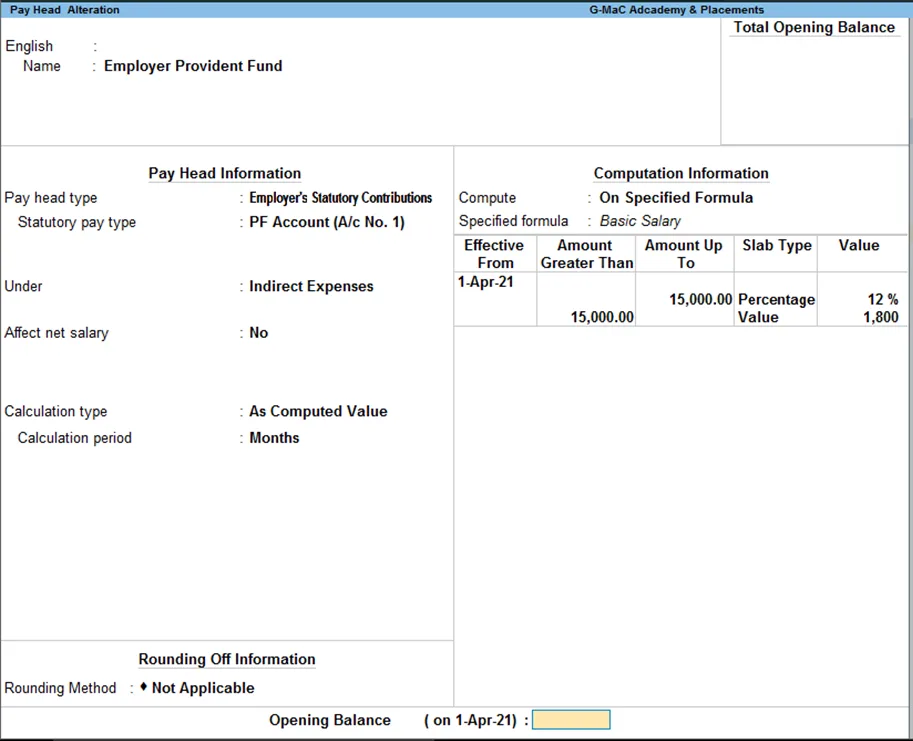
i. EPF contribution pay head for employers:
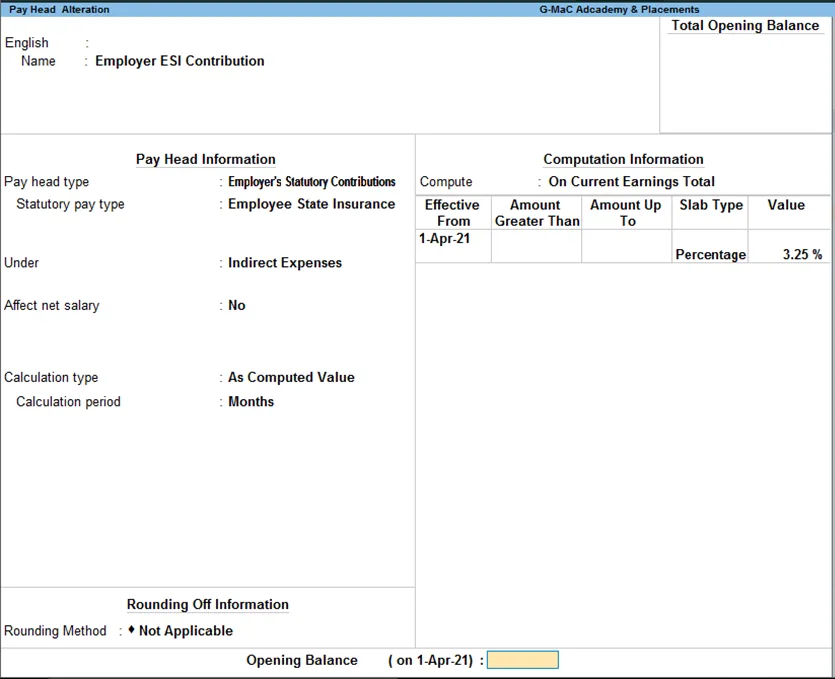
ii. ESI contribution pay head for employers: