Step 7: Define Salary Structure for Employees and Employee Groups:
Salary structure gives us the components included in an employees pay. However, the tax is calculated based on the taxable nature of each pay head included in the salary structure of the employee. Further, the tax regime applicable to the employee will decide the tax slab, deductions and exemptions to be considered to calculate income tax and net salary.
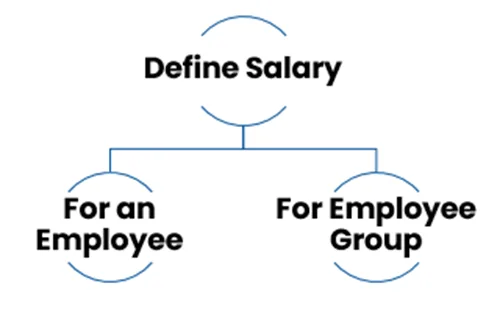
A. Salary Details for an Employee:
1. Go to
Gateway of Tally
>
Payroll Info.
>
Salary Details
>
Define
.
Alternatively, press Alt+G (Go To) > Alter Master > type or select Define Salary.
2. In the Name field, select the employee or employee group whose salary structure you want to define.
3. In the Effective From field, enter the date from which the salary structure will be applicable.
4. In the Pay Head column, enter the pay heads that you want to include in the salary structure.
5. For each pay head, select the Start Type and enter the value.
6. Modify values for the necessary pay heads as per employees’ eligibility.
7. Once you have entered all the pay heads and values, click Accept to save the salary structure. As always, you can press Ctrl+A to save.
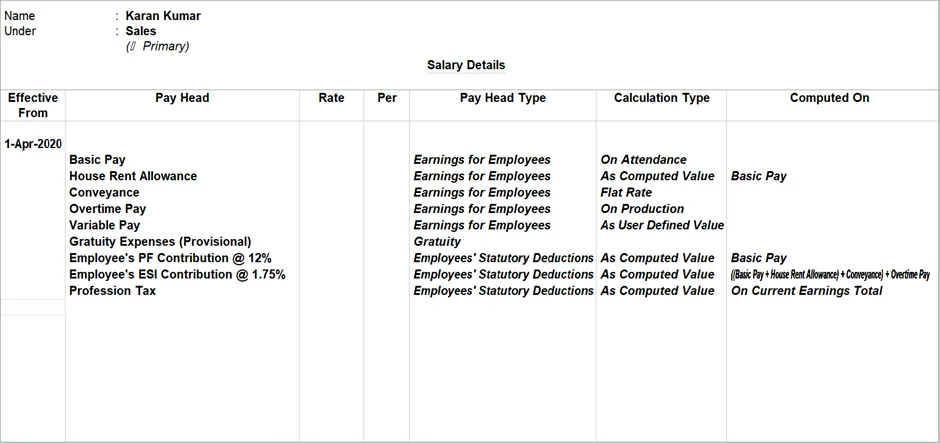
You can also define salary structures for multiple employees or employee groups at the same time. To do this, go to Gateway of Tally > Payroll Info. > Salary Details > Define and select the Multiple option. Then, select the employees or employee groups for which you want to define the salary structure.
Once you have defined the salary structures for your employees and employee groups, you can use them to generate payslips and other payroll reports.
B. Salary Details for Employees Group:
1. Go to
Gateway of Tally
>
Payroll Info.
>
Salary Details
>
Define
.
Alternatively, press Alt+G (Go To) > Alter Master > type or select Define Salary.
2. In the Name field from the List of Groups/Employees, select the employee group (e.g. Accounts) for which you want to define the salary details.
3. In the Effective From field, enter the date from which the salary details will be applicable.
4. In the Pay Head column, enter the pay heads that you want to include in the salary details.
5. For each pay head, select the Start Type and enter the value.
6. If you select Start Afresh, you can select the pay heads from the List of Pay Heads, and enter the values for the necessary pay heads, if required.
- Select the pay heads from the List of Pay Heads.
- Enter the values in the Rate column, if applicable.
- The Pay Head Type, Calculation Type, and Calculated On columns display the details provided at the pay head creation level.
7. Once you have entered all the pay heads and values, click Accept to save the salary details. As always, you can press Ctrl+A to save
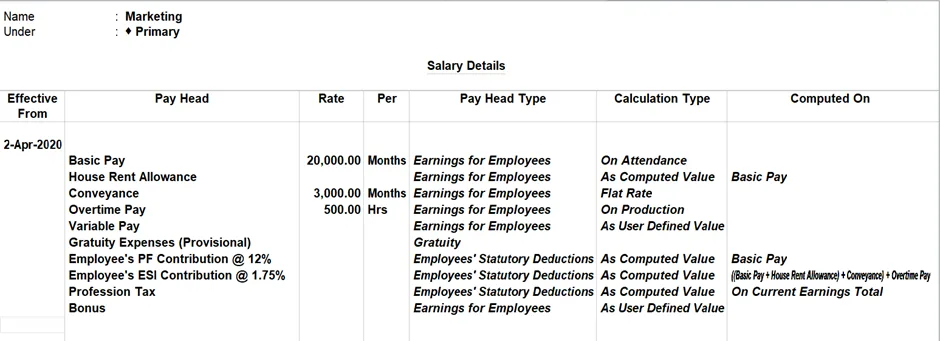
Once you have defined the salary details for the employee group, all employees in that group will be assigned those salary details. You can also modify the salary details for individual employees within the group, if required.