Bills in Zoho Books
A bill records the expenses incurred by your business. In Zoho Books, a bill is created when you purchase goods or services on credit and are obliged to pay for them at a later date. You can create and manage your bills effectively in Zoho Books.

Create a Bill
To create a new bill in Zoho Books:
- Go to Purchases on the left sidebar and select Bills (or press shift + b).
- Click the + New button in the top right corner of the page (or press c + b).
- Fill in the required details.
| Fields | Description |
|---|---|
| Vendor Name | Select the vendor whose bill you’re recording. |
| Source of Supply | This place will be auto-selected based on the customer’s GSTIN. |
| Destination Of Supply | Select the place where the supply is made. |
| Bill# | Enter the unique bill number. |
| Order Number | Enter an order number for your bill. |
| Bill Date | Enter the date on which you create the bill. |
| Due Date | Enter the due date for bill payment. |
| Payment Terms | Select the time frame within which you need to pay your vendor. For example, Net 15 would mean you’ll have to pay the vendor within 15 days from the date when the bill is created. When you select a payment term, the due date will be adjusted accordingly. |

- Choose if the item rates are inclusive or exclusive of tax rates.
- Select the Discount Type. This could either be at the line item level or transaction level.
- Select the items for which you were billed in the item table and provide the customer details if you’re billing this to your customer.
- Add more items by clicking +Add another line.
- Track other charges and landed costs by clicking + Add Landed Cost.
- Add items in bulk by clicking the dropdown next to +Add another line and selecting +Add items in bulk.
- Include Discounts and add Adjustments in the total section.
- Select the TDS rate, if applicable for the purchase. This will be applied on the Sub Total of the bill. Learn how to add TDS Rates.🔗
- Select the TCS Rates (as per 206C – 1H), if applicable for the purchase. You can also click the Edit icon to override the calculated rate and enter the tax amount manually.
- Review the order and include any notes or attachments, if necessary.
- Save the transaction or submit it for approval.
Customer Details
Select the customer you want to associate to the line items in your bill. By default, the item will be Non-Billable to customer. If you make it Billable, then you can invoice the items and collect payments from them.
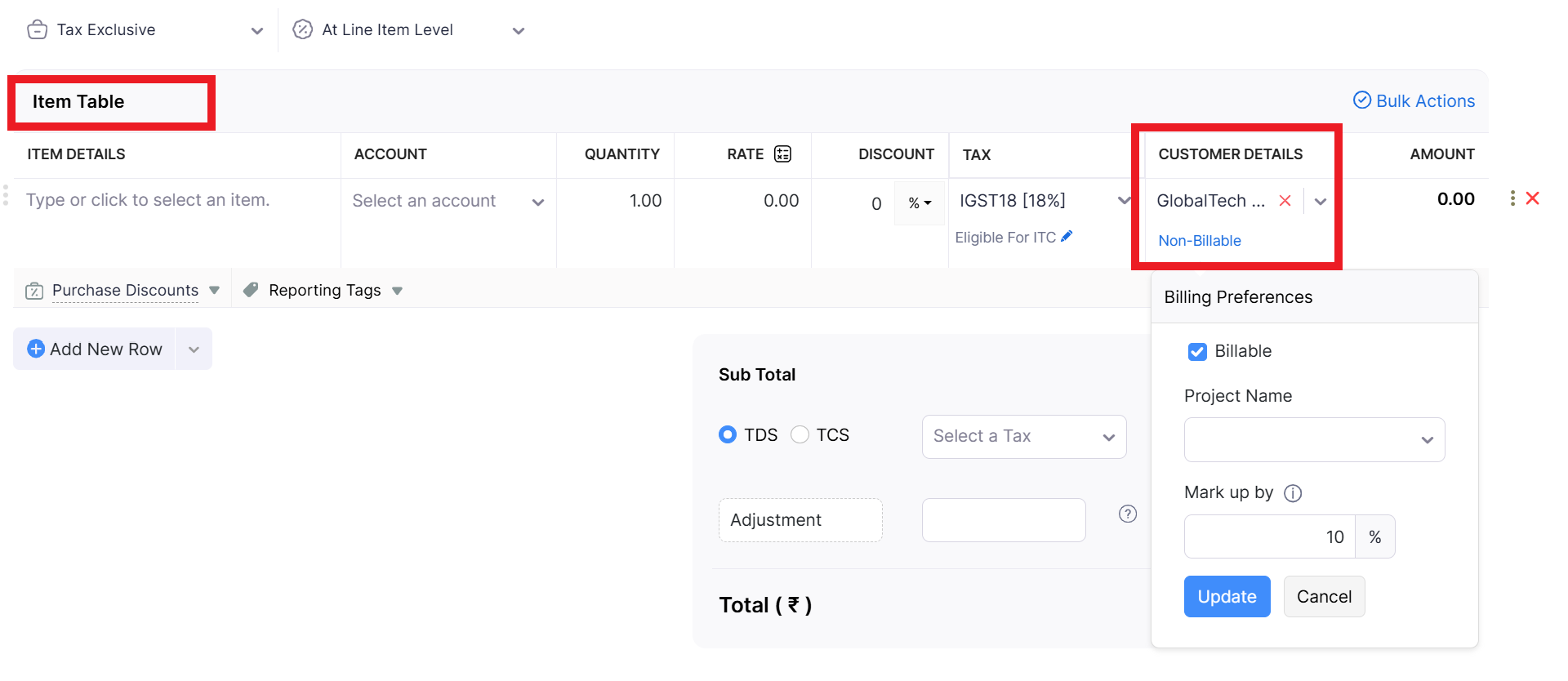
To make the item billable:
- Click the Edit icon, mark the Billable option.
- Select a Project to associate with the customer.
- If you had configured a default markup percentage for billable bills and expenses in Settings, the default percentage will be pre-filled. You can edit and change the mark-up percentage, if needed.
- Click Update.
Make Bill Recurring
You can make any bill that you’ve recorded in Zoho Books as recurring. Here’s how:Go to Purchases on the left sidebar and select Recurring Bills.Click on +NewSelect the Vendor from the dropdownSet the frequency of billsClick on Save
Convert Purchase Order to Bill
You can convert a Purchase Order to a Bill.
To convert a Purchase Order to a Bill:
- Go to Purchases > Purchase Order.
- Select the purchase order that you wish to convert to a bill.
- Click the Convert to Bill button in the top right corner of the page.

- In the New Bill page, enter the required details and save it.
Import Bills
If you already have a list of all the bill of your vendors, you can import them into Zoho Books in the CSV, TSV or XLS format.
To know the format of the import, i.e. the columns and data to be included in the import file, you can download the sample import file which we’ll be looking at in the steps below.
- Go to Purchases on the left sidebar and select Bills.
- Click the More icon in the top right corner of the page.
- Select Import Bills.

- Click the Choose File button under Upload file. You can download the sample file for your reference by clicking sample file.
- You can Link bills to its corresponding Purchase Orders by marking this box.
- Choose the Character Encoding for your file
- Click Next.

- Ensure that all the fields are mapped correctly in the Map Fields page.
- Mark the box Save these selections for use during future imports if you want to use the similar import format next time.
- Click Next.
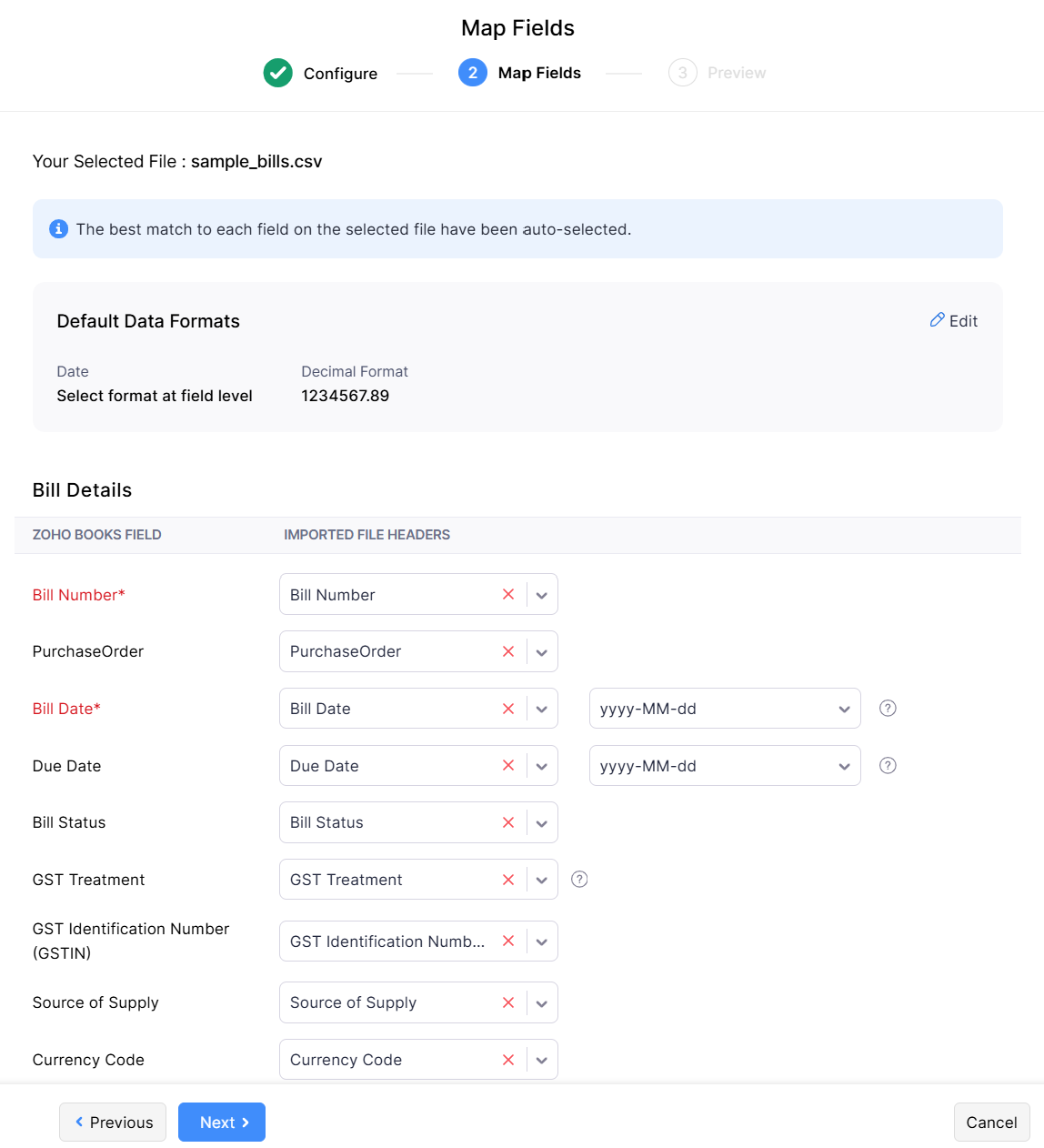
In the Preview window, click Import.
Record Payment
You can choose record the payments you’ve made towards your bills either individually or in bulk.
Record Individual Payment
You can manually record payment for a bill. Here’s how:
- Go to Purchases on the left sidebar and select Bills.
- Select the bill for which you wish to record payment.
- Click the Record Payment button in the top right corner of the page.

- Fill in the required details.

| Fields | Description |
|---|---|
| Payments Made | Enter the amount to pay the vendor. By default, the total amount is auto-populated. You can also choose to pay a part of the payment. |
| Tax Deducted | Mark this box if there is any tax deducted while making payment to the vendor. Enter the Amount Withheld and the Tax Account which tracks this tax. |
| Payment Date | Enter the date you make the bill payment. |
| Payment Mode | Choose from the different payment modes or configure one of your own. |
| Paid Through | Choose the account which tracks this payment. |
- Add Notes and Attach Files to the payment.
- If you wish to send an email notification about the payment to your vendor, mark the box Send a Payment Made email notification and select the vendor’s email address.
- Click Save.
Record Bulk Payments
Filter and record payments you’ve made towards various bills at once using bulk payments. You can record payments made to the same vendor or multiple vendors. Here’s how you can:
- Go to Purchases on the left sidebar and select Bills.
- Filter your bills by their status. You can choose either Open, Overdue, Unpaid or Partially Paid filter by clicking the All Bills filter.
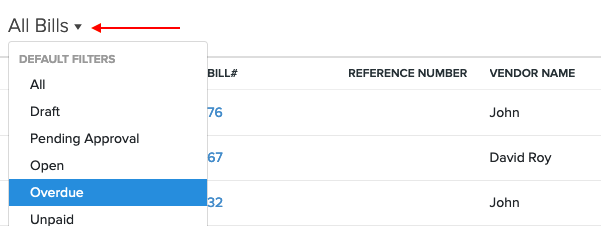
- Select the bills for which you would like to record the payment.
- Click the More dropdown and select Record Bulk Payment.
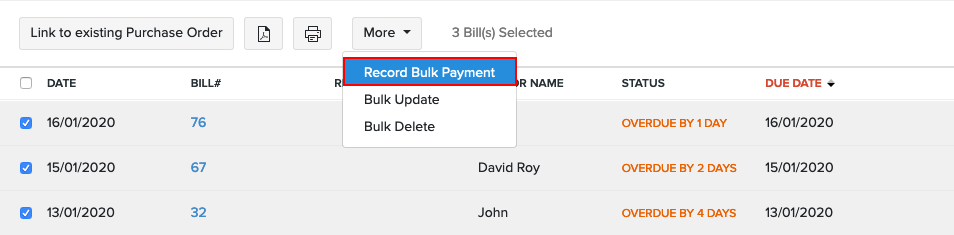
- Select the Paid Through account and Payment Mode.
- Enter the dates on which you made the payment to various vendors.
- Enter the Reference Number, if any. The Transaction ID can be used as a reference number if you’ve made the payment online.
- Verify and select the bills for which you’ve made the payment by marking the checkbox.
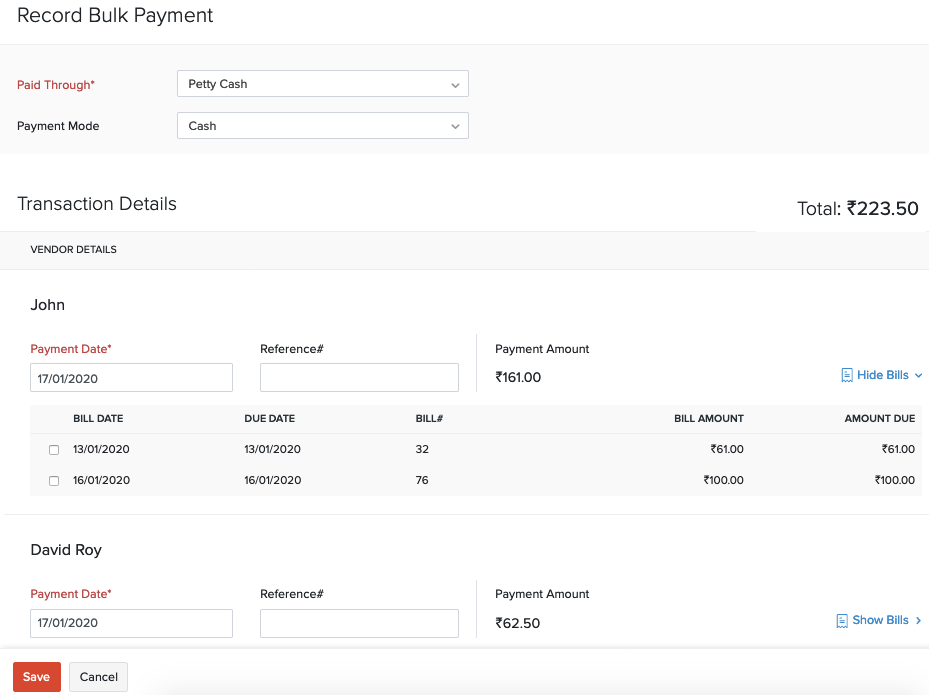
- Click Save.
View Recorded Payments
You can view all the payments that you have recorded for a bill. Here’s how:
- Go to Purchases on the left sidebar and select Bills.
- Select the bill for which you have recorded a payment.
- Click the Payments Made tab on top of the page.

Record a Vendor Advance
If you’ve given an advance payment to your vendor on which GST is applicable, you can record it in Zoho Books. Under the GST law, tax is generally payable on advances received for the supply of goods or services based on the time of supply provisions.
For services, GST is payable at the time of receipt of advance from the customer, even if the invoice is issued or the service is provided at a later date. However, for goods (Notification No. 66/2017): GST is not applicable on advances received, and tax becomes payable only at the time of issue of invoice or delivery of goods, whichever is earlier. Accordingly, when an advance is paid to a vendor, GST applicability depends on the nature of supply—GST may be triggered immediately in case of services, whereas for goods, it will be applicable only when the actual supply takes place and the tax invoice is raised.
To record a vendor advance:
- Log in to your Zoho Books organization.
- Go to Purchases on the left sidebar, and select Payments Made.
- Click + New in the top right corner.

- Select the Vendor Advance tab at the top, and complete the following fields:

- Vendor Name: Choose the vendor for the advance payment.
- Destination of Supply: Select the supply location to determine GST applicability.
- Branch: If you’ve enabled Branches, choose the branch from the dropdown.
- Location: If you’ve enabled Locations, choose the location from the dropdown.
- Payment#: If you’ve enabled auto-generation of payment numbers, this field will be filled in automatically. To enter it manually:Click the Settings icon to the right of the field.In the Configure Payment Number Preferences popup, select Add payment number manually for this payment.Enter a prefix and the payment number, and click Save.
- Description of Supply: Provide details of the goods or services. This appears on the payment voucher.
- Payment Made: Enter the advance amount you’ve paid.
- Reverse Charge: Check this box if the advance payment is subject to reverse charge. Once enabled, a Tax field will appear. Choose the applicable tax from the dropdown based on the reverse charge amount.
- TDS: Select the reason and percentage of tax deducted at source (if applicable). To edit the amount, click the Edit icon next to it.
- Payment Date: Choose the date for the payment.
- Payment Mode: Select the payment mode. Click + Configure Payment Mode from the dropdown to add a new payment mode.
- Paid Through: Choose the account used for the payment.
- Deposit To: Choose the account where the advance payment should be recorded.
- Reference#: Enter a reference number if needed.
- Notes: Add any notes if required (not visible to the vendor).
- Attachments: Click Upload File to add supporting documents.
- Click Save.
The vendor advance will now be recorded.
Apply Vendor Advance to a Bill
After creating a vendor advance, you can apply it to your vendor’s bills. To do this:
- Go to Purchases on the left sidebar, and select Payments Made.
- Choose the vendor advance you want to apply to a bill.
- In the Payment Details page, click Apply to Bills at the top.
- Next, in the Apply Credits from Vendor Advance popup, you’ll see all Open bills for the vendor. Under the CREDITS TO APPLY column, enter the amount you want to apply for each bill.
- Click Save.
The vendor advance will now be applied to the selected bill amount.
Record a Refund for a Vendor Advance
If the vendor refunds part or all of the vendor advance, you can record it in Zoho Books. Here’s how:
- Go to Purchases on the left sidebar, and select Payments Made.
- Choose the advance payment you want to create a refund for.
- On the Payment Details page, click the More icon at the top and select Refund from the dropdown.
- In the Refund page, complete the following fields:Amount: Auto-filled with the full balance amount. Update the amount if you’re recording a partial refund.Refunded On: The current date appears by default. Change it if required.Payment Mode: Select an existing payment mode. Click + Configure Payment Mode to add a new one.Exchange Rate: If in a different currency, the rate is applied automatically. Click the Edit icon to adjust it manually.Description of Supply: Mention the details of the goods or services involved. This appears on the payment voucher.To Account: Choose the account to record the refund.Description: Add any additional notes if required.
- Click Save.
The refund will now be recorded.
Handling Purchase Returns
A purchase return occurs when a business returns goods to its supplier due to reasons like damaged items, wrong quantity, quality issues, or excess supply. On returning the goods, the supplier issues a credit note, which reduces the purchase cost and the payable amount to that vendor.
Process to record Purchase Return (Credit Note) in Zoho Books When goods are returned, record it by creating a Vendor Credit (Credit Note) in Zoho Books.
Here’s how to record a credit note:
- Go to Purchases on the left sidebar and select Bills.
- Click Create Credit Note from the + New dropdown.

- Select the vendor for whom you want to create a credit note and enter the required details.
- Click Save as Open.

Vendor Credits
Vendor Credits are credits that you receive from your vendor as an equivalent of the amount that they owe you. With vendor credits, you can track this amount until it is paid by the vendor, refunded, or applied to other bills of the vendor.
Basically, the vendor issues you credits via a credit note, and you can record this as a vendor credit in Zoho Books.
When to record a vendor credit in Zoho Books
Let’s say that you make an advance payment to your vendor, and the final bill amount turns out to be lesser than the amount you had paid. The vendor can keep the remaining amount, and can issue you equivalent credits in your name for the same. So, you can create a vendor credit for the same, and apply it on future bills from the same vendor. When you apply it to the vendor’s next bill, the bill amount is reduced accordingly.
Consider another scenario where your vendor has sent you ten boxes of phones you had ordered, but two of those boxes contain damaged phones. You inform him of this, and he issues a credit note towards the value of those two boxes. So, you can create a vendor credit for the value of those two boxes, and apply it on the vendor’s future bills.
Create Vendor Credit
You can create a vendor credit in Zoho Books. Here’s how:
- Go to Purchases > Vendor Credits.
- Click the + New button in the top right corner of the page.
- Fill in the required details.

| Field | Description |
|---|---|
| Vendor Name | Select the vendor for whom you are creating the vendor credit. |
| Credit Note# | Enter the corresponding credit note number for the vendor credit. |
| Order Number | Enter an optional order number. |
| Vendor Credit Date | Select the date on which you created the vendor credit. |
- Enter the Item Details.
- You can add Discounts and Adjustments for your vendor credit. If you add a discount, choose the Discount Account which tracks it.