Step 1 – Configuration of Payroll in TallyPrime
Enabling Payroll in TallyPrime
- Go to Gateway of Tally > F11: Features > F1: Accounting Features.
- Tab down to the Cost/Profit Centres Management section.
- Set the option Maintain payroll to Yes.
- Set the option Maintain more than one payroll or cost category to Yes, if required.
- Press Enter to accept and save, and return to the Gateway of Tally screen.
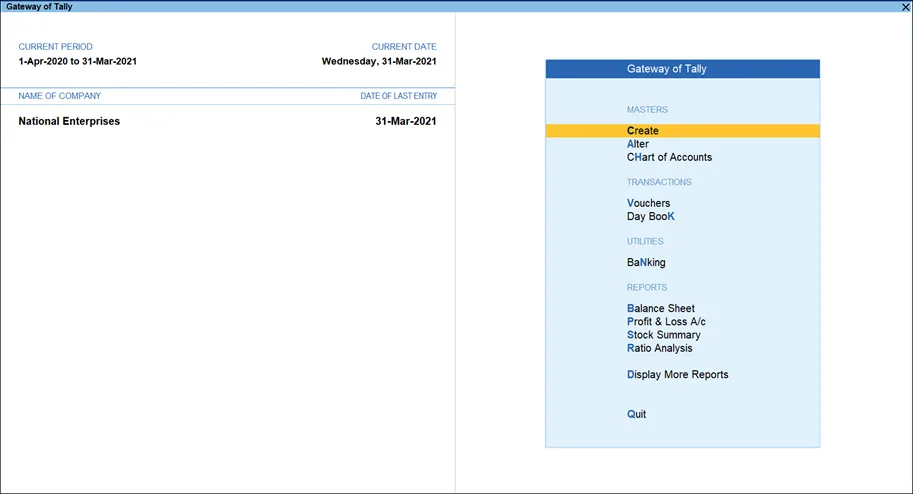
The Gateway of Tally screen appears as shown below
Steps to Enable Statutory Features for Payroll in TallyPrime
To use the Provident Fund, Employee State Insurance (ESI), National Pension Scheme (NPS), Income Tax, and Professional Tax features for Indian payroll, you must enable Statutory Features for Payroll.
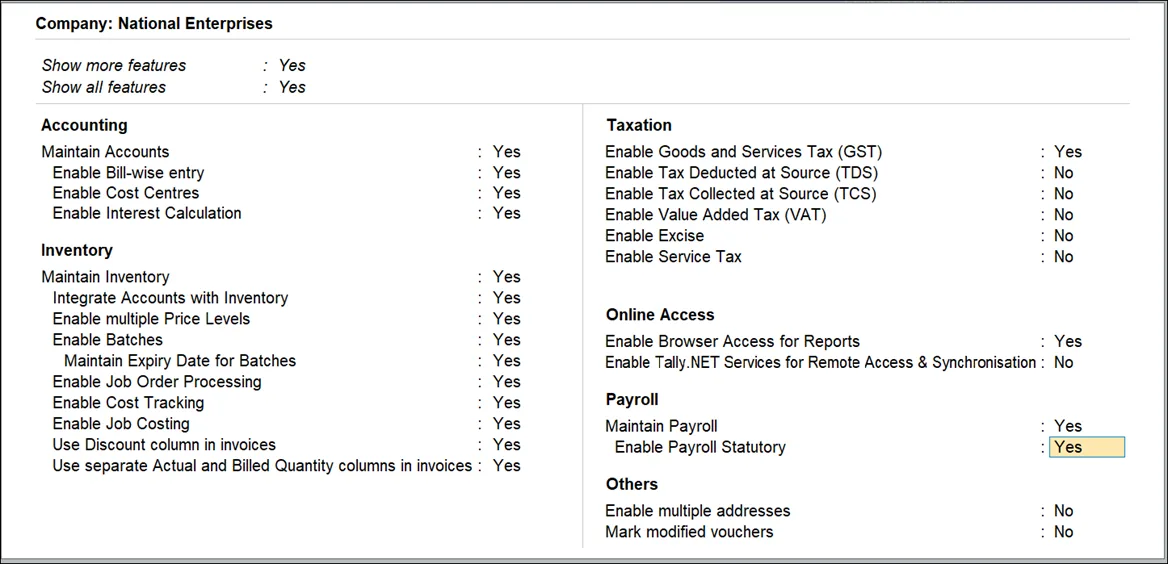
- Go to Gateway of Tally > F11: Features > F1: Accounting Features.
- Tab down to the Statutory Features section.
- Set the option Enable Payroll Statutory to Yes.
- Press Enter to accept and save, and return to the Gateway of Tally screen.
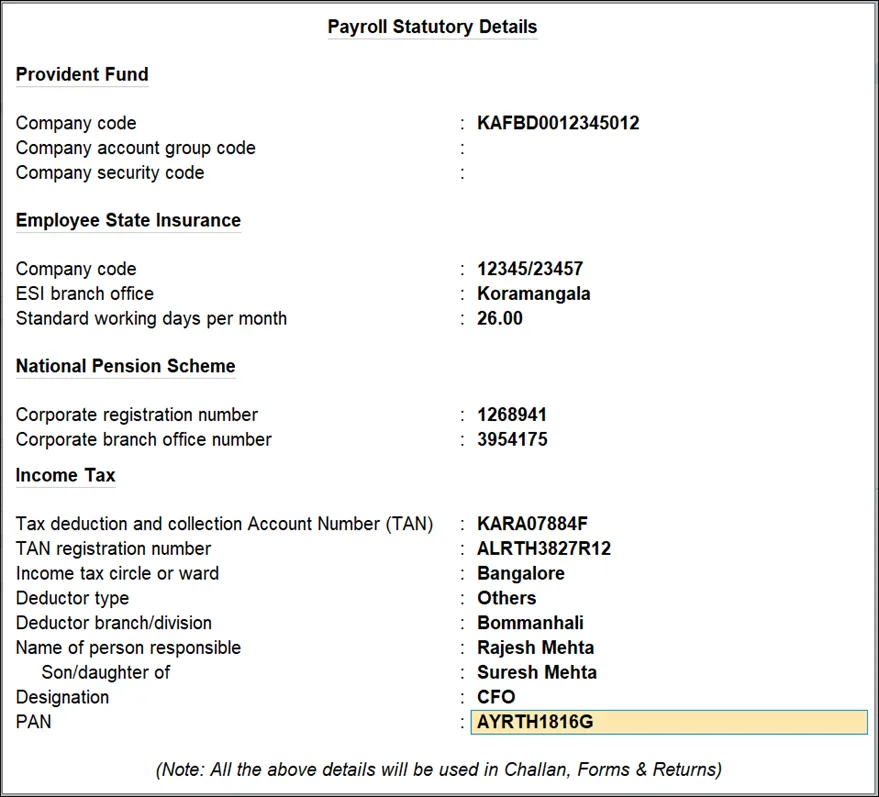
Payroll Statutory details:
Here are some additional tips for enabling Payroll in TallyPrime:
- If you do not see the Maintain payroll option in the Cost/Profit Centre’s Management section, set the Show more features option to Yes.
- If you are using TallyPrime for Indian payroll, enable the Statutory Features for Payroll. This will allow you to use the Provident Fund, Employee State Insurance (ESI), National Pension Scheme (NPS), Income Tax, and Professional Tax features in TallyPrime.
- If you are using TallyPrime for a company located in Ladakh, you can enable the payroll statutory features for Ladakh.
To enable payroll in TallyPrime, you must go to:
Which of the following is NOT a mandatory step in configuring payroll in TallyPrime?
To use the Provident Fund, Employee State Insurance (ESI), National Pension Scheme (NPS), Income Tax, and Professional Tax features in TallyPrime, you must:
If you are using TallyPrime for a company located in Ladakh, you can enable the payroll statutory features for Ladakh by:
Which of the following is NOT a benefit of configuring payroll in TallyPrime?