Step 5: Create Attendance or Production Types
Attendance/Production Types are the basic units used to calculate employees’ pay and track productivity. They depend on the Pay Heads that make up employees’ pay structure, so you may need to define multiple types.
You can also group attendance types with common units in TallyPrime. For example, the group Present Days could include Present and Leave with Pay.
Attendance Type:
You can define attendance or production types with or without pay.
Attendance/Leave with Pay:
Use this to record attendance and leave with pay, such as Present and Sick Leave.
Leave without Pay:
Use this to record absences and leave without pay, such as Absent and Leave Without Pay.
Record positive attendance type:
- Gateway of Tally > Create > type or select Attendance/Production Types > and press Enter. Alternatively, press Alt+G (Go To) > Create Master > Attendance/Production Types > and press Enter.
- Enter the name of the attendance type, such as Present.
- Select Primary from the Under list.
- Select Attendance/Leave with Pay from the Attendance Type list.
- Accept the screen. As always, you can press Ctrl+A to save.
Once you have created the Attendance/Production Type, you can record attendance for employees in the Attendance Voucher.
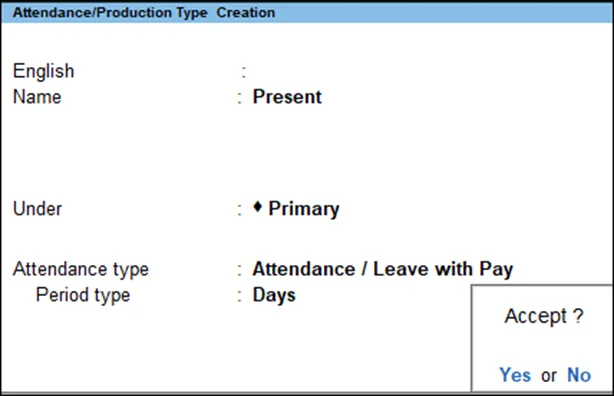
You can also use the Auto Fill feature to quickly record attendance for multiple employees.
- Press Ctrl+F to open the Auto Fill window.
- Select the Attendance/Production Type from the list.
- Enter the number of days worked.
- Click OK.
TallyPrime will automatically fill in the attendance details for the selected employees.
Once you have recorded attendance for all employees, you can process the payroll to generate their salaries.
Production Types:
Production Types in Tally Prime are used to track and record the production details of employees. This can be used to calculate wages and salaries, track productivity, and generate reports.
1. Gateway of Tally > Create > type or select Attendance/Production Types > and press Enter. Alternatively, press Alt+G (Go To) > Create Master > Attendance/Production Types > and press Enter.
2. Enter the Name of the Production Type.
3. Select Primary from the list, for the field Under.
4. Select Production as the Attendance Type.
5. Select the appropriate type of unit from the list, in the Unit field.
6. Accept the screen. As always, you can press Ctrl+A to save.
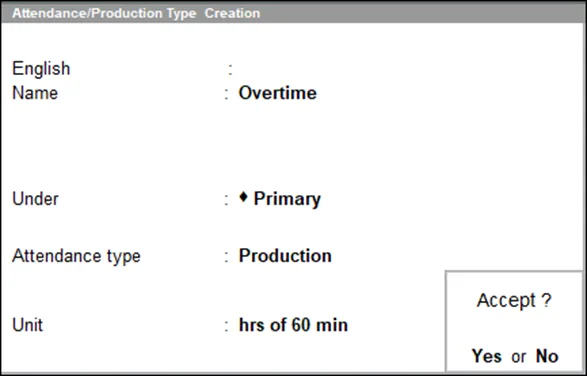
Some common examples of Production Types include:
- Piece production
- Overtime hours
- Assembly time
- Inspection time
- Machine downtime
- Rework time
In the Attendance Voucher, enter the employee’s name, the date, and the Production Type. Then, enter the quantity of work completed or the number of hours worked.
Tally Prime will use this information to calculate the employee’s wages or salary. You can also use Production Types to generate reports on employee productivity and production costs.
Here are some of the benefits of using Production Types in Tally Prime:
- Improved accuracy: Production Types help to improve the accuracy of payroll calculations and production reports.
- Increased efficiency: Production Types can help to automate payroll processing and reporting, which can save time and reduce errors.
- Better decision-making: Production Types can provide valuable insights into employee productivity and production costs, which can help businesses to make better decisions about resource allocation and pricing.
User Defined Calendar Types:
Use User Defined Calendar Types to calculate per-day salary based on variable monthly days, such as 25 days in January, 24 days in February, and 26 days in March.
1. Gateway of Tally > Create > type or select Attendance/Production Types > and press Enter. Alternatively, press Alt+G (Go To) > Create Master > Attendance/Production Types > and press Enter.
2. Specify the required Name for Attendance Type.
3. Select Primary in the Under field.
4. Select User Defined Calendar Type in the Attendance Type field.
5. Accept the screen. As always, you can press Ctrl+A to save
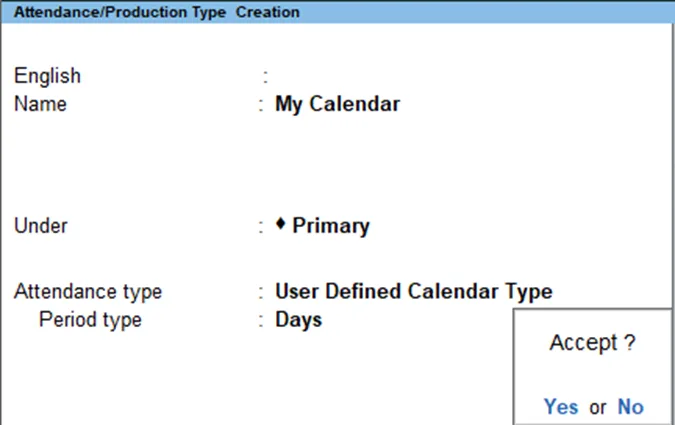
User Defined Calendar Types help businesses track attendance and production more closely. If you have questions, see your TallyPrime documentation or contact a consultant.