Step 10: Generate Pay Slip
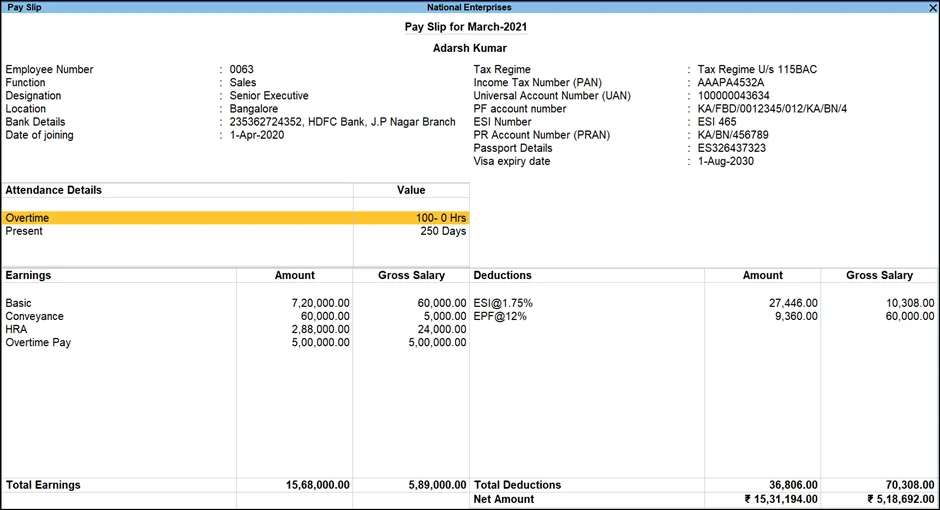
A pay slip in TallyPrime is a document for employees that shows their earnings, deductions, and net pay for a specific period. It also includes the employee’s tax regime, which determines their income tax bracket.
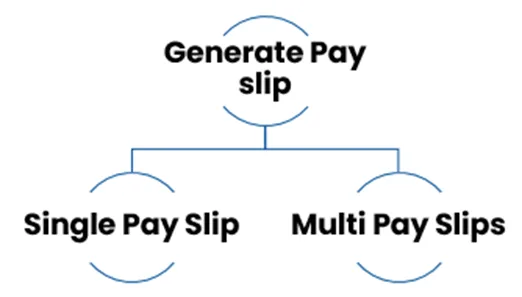
A. Single Pay Slip
You can use the Single Pay Slip option in TallyPrime to view the Pay Slip for individual employees, configure the content and appearance based on the requirement and then Print or E-mail the Pay Slip.
1. Go to
Gateway of Tally
>
Display
>
Payroll Reports
>
Statements of Payroll
>
Pay Slip
>
Single Pay Slip
.
Alternatively, press Alt+G (Go To) > type or select Single Pay Slip > and press Enter.
2. Select the Employee whose Pay Slip you want to view.
3. The Pay Slip will be displayed. You can now view, print, or email the pay slip.
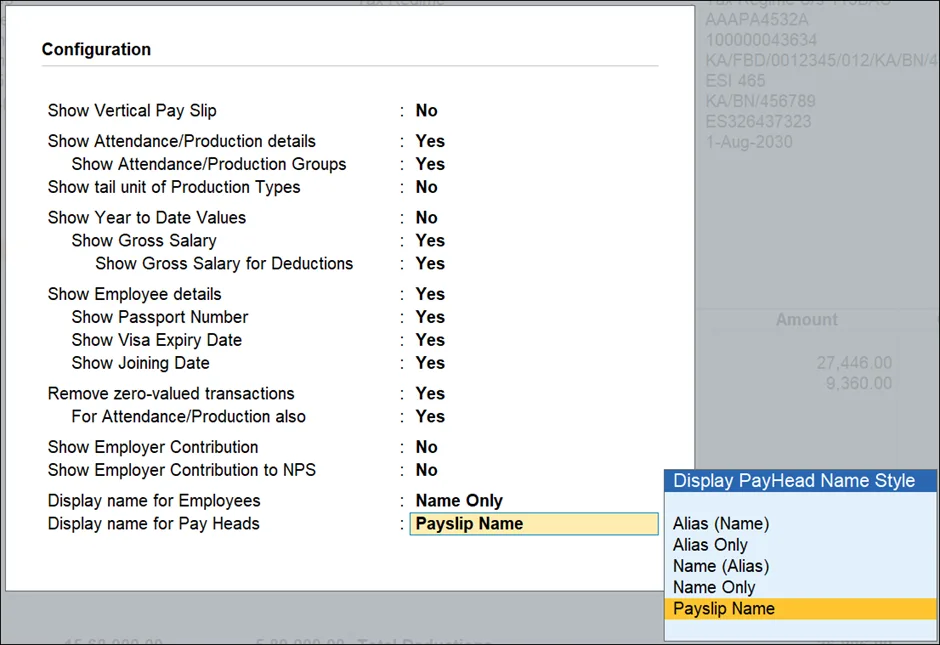
- Configuring the Single Pay Slip
- You can configure the content and appearance of the pay slip by going to Gateway of Tally > Display > Statutory Reports > Payroll Reports > Single Pay Slip.
- Make the desired changes and press Enter to save the changes.
- Printing the Single Pay Slip
- To print the pay slip, press Ctrl+P (Print) from the Pay Slip display screen.
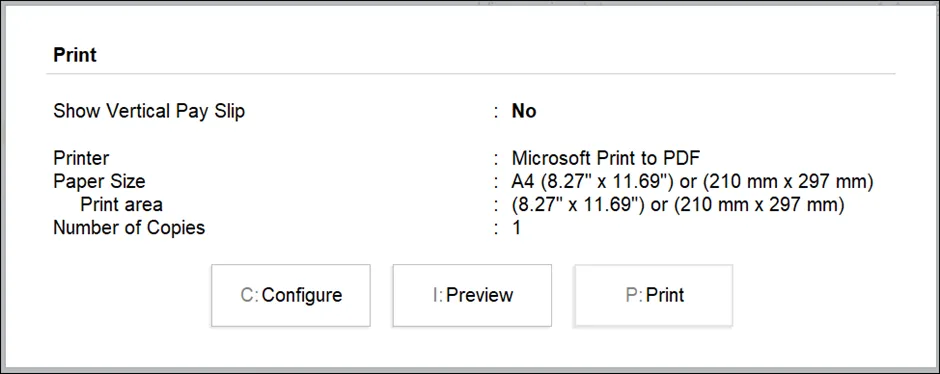
- The Printing Pay Slip screen will appear.
- Set the options as required and press Enter to print the pay slip.
- The Printing Pay Slip screen appears as follows:
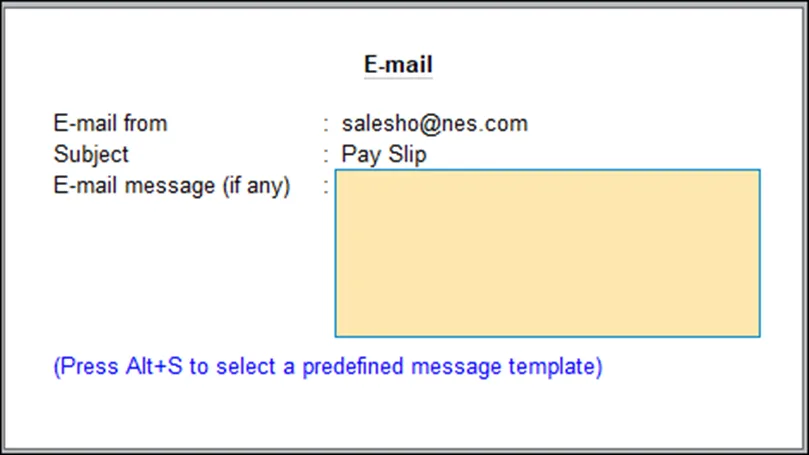
- Emailing the Single Pay Slip
- To email the pay slip, press Alt+E (Email) from the Pay Slip display screen.
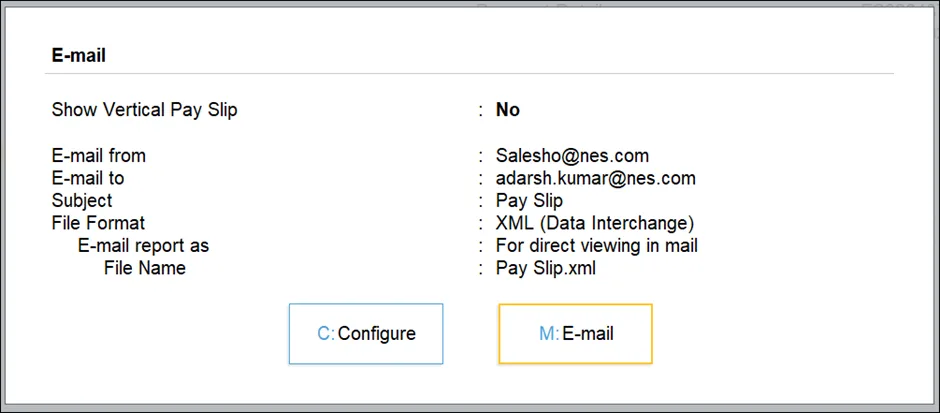
- The Email Pay Slip screen will appear.
- Enter the email address of the recipient.
- Select the format of the pay slip (PDF, HTML, or Excel).
- Click Send.
B. Multi Pay Slip
1. Go to Gateway of Tally > Display > Payroll Reports > Statements of Payroll > Pay Slip > Multi Pay Slip.
2. Select the required Employee Category and Employee Group.
3. Press Enter.
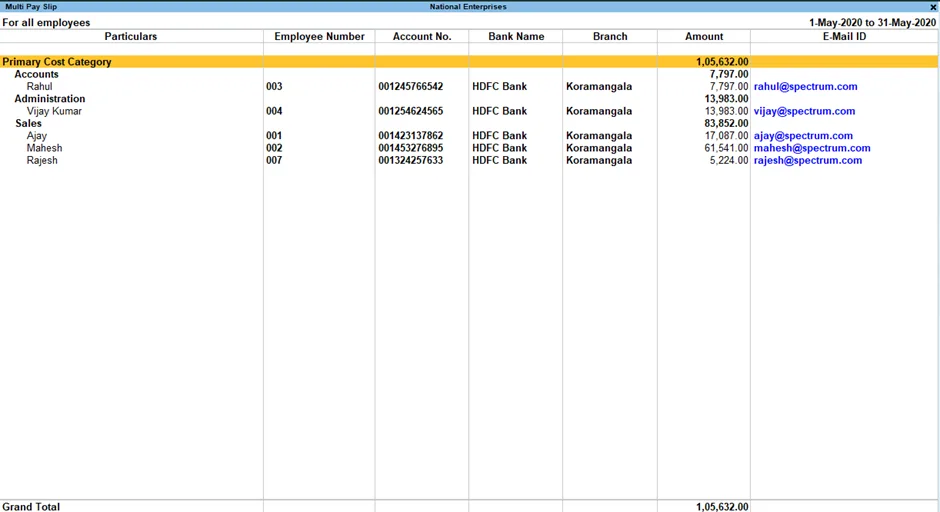
4. The Multi Pay Slip screen will display the Particulars, Employee Number, Account No., Bank Name & Branch, Amount, and E-Mail ID for the Employees.
5. Press Enter on the Employee Names to view the Single Pay Slip for the selected Employee.
- Configuring the Multi Pay Slip
- You can configure the content and appearance of the pay slip by going to Gateway of Tally > Display > Statutory Reports > Payroll Reports > Multi Pay Slip.
- Make the desired changes and press Enter to save the changes.
- Printing the Multi Pay Slip
- To print the pay slips, press Ctrl+P (Print) from the Multi Pay Slip display screen.
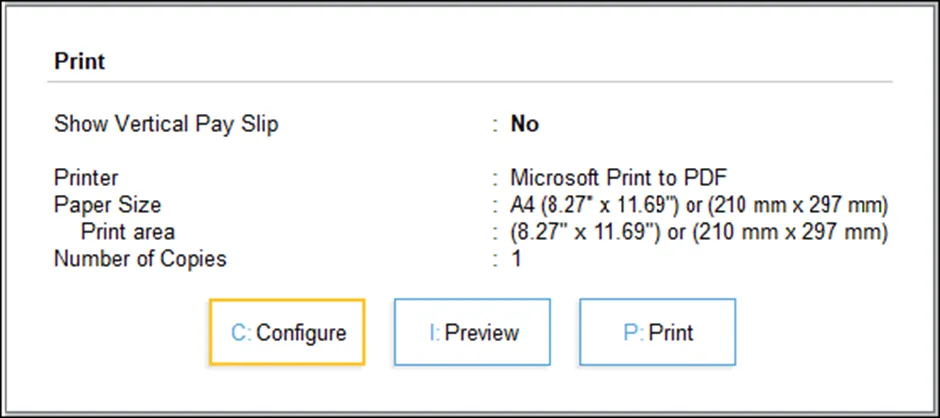
- The Printing Pay Slip screen will appear.
- Select the Employees whose Pay Slips you want to print.
- Set the options as required and press Enter to print the pay slips.
- Emailing the Multi Pay Slip
- To email the pay slips, press Alt+E (Email) from the Multi Pay Slip display screen.
- The Email Pay Slip screen will appear.
- Select the format of the pay slips (PDF, HTML, or Excel).
- Click Send.